Windows ships with several ways to keep your software current, but none of them work together. The Microsoft Store has its own updater, most desktop apps update themselves, and command-line package managers run quietly in the background. UniGetUI removes that fragmentation by giving you one dashboard to manage app updates across every major package source.
UniGetUI (previously released under the name wingetUI) is a free, open-source application manager that wraps several command-line package managers behind a clean graphical interface. Rather than switching between separate tools, you can search, install, update, and uninstall programs from winget, Chocolatey, Scoop, and the Microsoft Store in a single window.
What UniGetUI is and who it’s for
If you’ve ever installed a handful of programs from different websites and then spent minutes hunting down each one’s updater, UniGetUI is built for you. It targets power users and anyone tired of manually checking for updates across a scattered app collection.
The tool pulls from the same repositories that the underlying package managers use, so it stays in sync with official sources. That means updates come from the same trusted channels you’d get manually, just presented in a more convenient layout.
Because it’s open source, UniGetUI is free with no ads or bundled software, and you can inspect its code on GitHub. It’s a practical alternative to the fragmented, built-in update experience.
How to install UniGetUI
There are two straightforward ways to get the app. The simplest is to search for it in the Microsoft Store and install it like any other program. Alternatively, you can download it directly from the developer’s GitHub releases page if you prefer the latest build outside the Store’s update schedule.
On first launch, UniGetUI will detect which package managers are already present on your system. If you haven’t installed winget, Chocolatey, or Scoop yet, the app offers to set them up for you, so you don’t have to configure anything by hand.
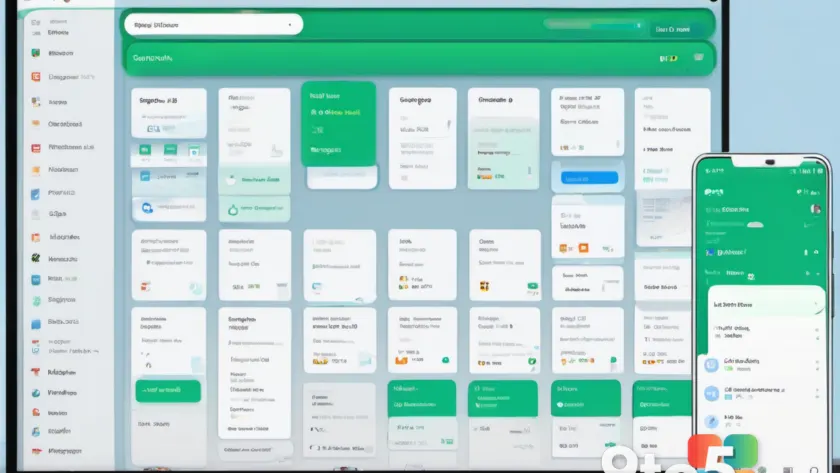
Once the managers are ready, the main window shows your installed apps grouped by their source, each flagged with its current version and whether a newer release is available.
How to manage app updates with UniGetUI
The update workflow is the heart of the tool. Head to the Updates section in the left-hand menu, where UniGetUI lists every installed program that has a newer version waiting. Each entry shows the app name, its source, the installed version, and the available version.
To update everything at once, click the Update All button and let the app work through each package manager in turn. To be more selective, you can check individual boxes and update only the programs you choose, which is useful when you want to avoid a large, disruptive update on a busy machine.
Updates run in the background with a progress bar, and the app reports success or failure for each package. If one fails, the others continue, so a single problem won’t stall your whole batch.
How to schedule app updates
One of the more useful features is scheduling. Instead of checking for updates yourself, you can set UniGetUI to run automatically on a schedule you define. This is handy for keeping a fleet of machines or a home setup current without remembering to do it.
You configure the schedule through the app’s settings, choosing how often it checks and installs updates. Once set, the tool handles the routine in the background, which is especially convenient for people who prefer to let maintenance happen on their own.
Scheduled updates also reduce the chance of falling behind on security patches, since the app keeps everything current on a fixed cadence rather than relying on your memory.
How to back up installed app packages
UniGetUI can also generate a list of everything installed on your system, which doubles as a backup for reinstalling apps later. This is genuinely useful after a fresh Windows install or a hardware swap, where you’d otherwise have to remember every program you’d added.
The export lets you save your app list to a file that you can reuse to reinstall the same set of programs, saving you from re-downloading each one individually. For anyone who rebuilds their PC periodically, this turns a tedious chore into a single step.
What this means for you
For everyday Windows users, UniGetUI means one less thing to juggle when it comes to keeping software current. Instead of trusting a scattered mix of store updates, self-updating apps, and manual downloads, you get a single, ad-free interface that can even run maintenance on its own schedule.
The real value shows up if you install a lot of third-party software. Managing app updates through one tool saves time and makes it easier to stay current, which is a small step toward better security hygiene.
How to get it
Head to the Microsoft Store and search for UniGetUI, or visit the developer’s GitHub releases page to download the standalone installer. It’s free to use, and because it’s open source, you can review exactly what it does before installing.
Once it’s running, point it at your installed apps and let it take care of the rest. It’s a lightweight addition to your toolkit that quietly keeps everything else up to date.
Source: Neowin
Over to you: Do you prefer letting UniGetUI schedule updates automatically, or do you like checking for them yourself?