Windows 11 provides a few different ways to share files and other information to or from your PC and with other PCs, apps, and people. Whether you are moving a photo to a messaging app, sending a document to a colleague, or transferring a file to another device in the same room, Microsoft has built a unified system designed to handle these tasks without forcing you to navigate complex menus. Understanding how Windows 11 sharing works will save you time and keep your workflow running smoothly.
How Windows 11 Sharing Works
At the core of the experience is the Share sheet, a centralized hub that appears whenever an app supports the Windows Share contract. You can trigger it by pressing Win + H on your keyboard, clicking the Share icon in the app’s toolbar, or right-clicking a file in File Explorer and selecting Share. The sheet displays a grid of installed apps that can receive the selected content, along with options to copy a link or share via Bluetooth.
From a technical standpoint, the Share sheet relies on the Universal Windows Platform (UWP) sharing framework. When you initiate a share, Windows packages the content—be it text, an image, a file, or a URL—into a standardized format. The operating system then queries your installed applications to see which ones have registered themselves as capable recipients. This means you do not need to open each app manually; Windows handles the routing for you. If you are running a third-party email client or a note-taking app like OneNote, you will see them listed here provided they support the feature.
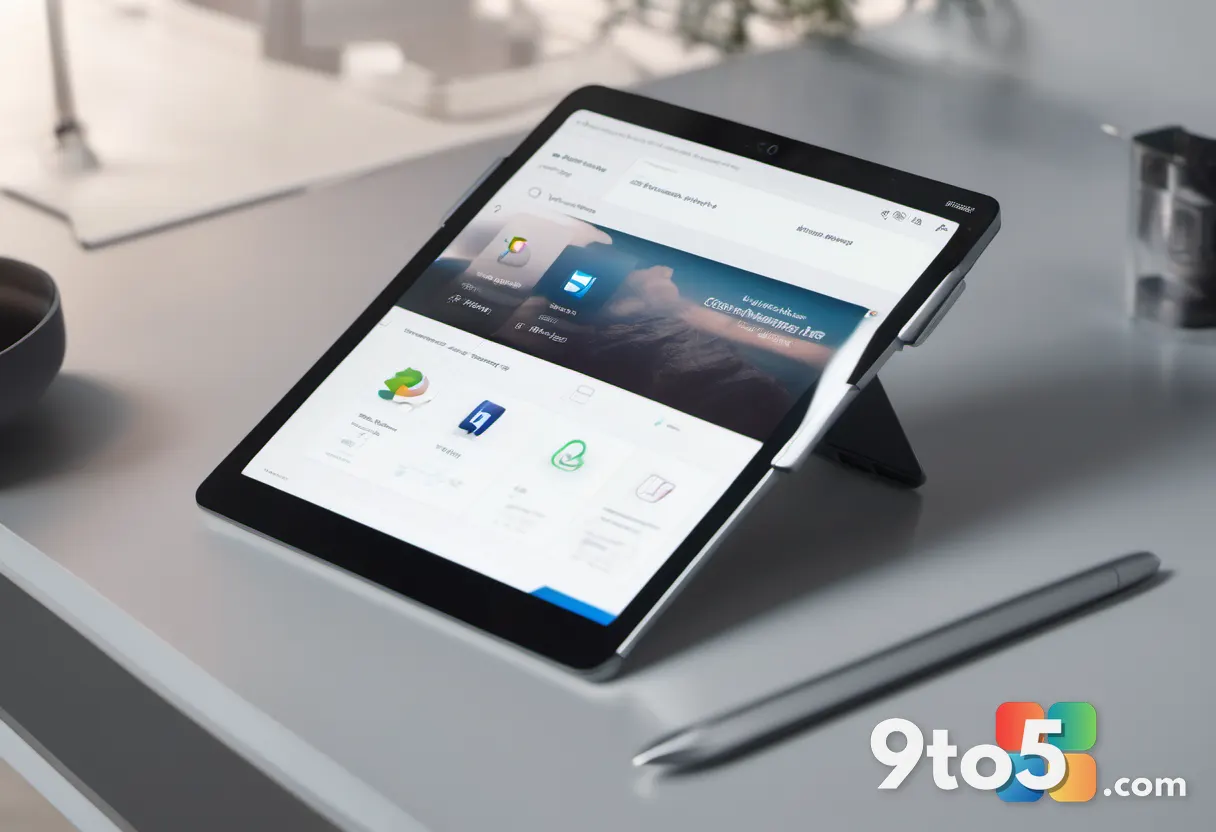
One of the most practical aspects of the Share sheet is its context awareness. If you select a text string, the sheet will prioritize messaging and note-taking apps. If you select an image, it will surface social media and photo editing tools. This dynamic filtering reduces clutter and gets you to your destination faster. However, the reliability of this feature depends heavily on the app developer. If an app has not been updated to support the latest sharing protocols, it may not appear in the list, or the content might fail to transfer correctly.
Transferring Files Between Devices
While the Share sheet handles app-to-app transfers, moving files between your Windows 11 PC and other devices requires a different approach. Microsoft has transitioned from the legacy Nearby Sharing feature to Quick Share, a partnership with Samsung that leverages Bluetooth for device discovery and Wi-Fi Direct for high-speed data transfer. This change aligns Windows 11 with the Android ecosystem, making it significantly easier to send photos and documents to Samsung smartphones and tablets.
For users who prefer to stay within the Microsoft ecosystem, cloud integration remains the most robust solution. By signing into your Microsoft account, your files automatically sync to OneDrive. You can then access them from any other device by simply opening a web browser or the OneDrive app. This method bypasses the limitations of proximity-based sharing and allows you to send large files to anyone with an internet connection, regardless of their device type.
Network sharing via Local Area Network (LAN) is another option, particularly for home users with multiple PCs. By enabling Network Discovery and File and Printer Sharing in your Network and Sharing Center, you can access shared folders on other computers on the same Wi-Fi or Ethernet network. While this method requires a bit more initial setup, it is ideal for transferring large media libraries or backup files between machines without relying on cloud storage quotas.

App Integration and Share Targets
The true power of Windows 11 sharing lies in how seamlessly it integrates with third-party software. Developers can register their applications as share targets, which allows them to appear in the Share sheet automatically. This is particularly useful for productivity workflows. For example, if you are reading an article in Microsoft Edge and want to save it to a reading list app, you can select the text, open the Share sheet, and tap the app icon. The content is passed directly to the app without you ever leaving the browser.
From an editorial perspective, this integration represents a significant shift from the Windows 10 era. In previous versions, sharing was often fragmented, with different apps requiring their own export functions. Windows 11 centralizes this process, creating a more consistent user experience. However, it is worth noting that not all applications support every type of content. A graphic design tool might only accept image files, while a word processor might only accept text or documents. Always check the supported formats within the Share sheet to avoid compatibility issues.
What This Means for You
For everyday users, the takeaway is simple: you should rarely need to use external tools or cloud storage portals for quick transfers. Start by using the Win + H shortcut as your default method for sending content to other apps. If you are moving files to another device, ensure that Quick Share is enabled in your Settings under System > Nearby sharing. For larger files or cross-platform needs, stick with OneDrive or email attachments.
If you encounter issues where the Share sheet does not appear or apps are missing from the list, try restarting the Windows Explorer process or checking for app updates. In some cases, resetting the Share sheet cache through the Settings app can resolve persistent glitches. By understanding these underlying mechanisms, you can troubleshoot sharing problems more effectively and keep your digital workflow uninterrupted.
Mastering these tools will make your Windows 11 experience feel more connected and efficient. Whether you are a casual user or a power user, leveraging the built-in sharing features will save you time and reduce friction in your daily tasks.
Source: Thurrott.com
Over to you: Which sharing method do you rely on most: the Share sheet, Quick Share, or cloud links?