Unexpected restarts and sudden compatibility breaks can derail an entire workday. Windows Update for Business gives you the framework to delay those changes until you are ready. By configuring deferral windows through Group Policy or the Settings app, you control exactly when your organization receives quality patches and major feature upgrades. This guide shows you how to set those windows, verify they are active, and troubleshoot the most common configuration roadblocks.
Before You Start: Work PCs managed by an IT department often run under a centralized policy. If your device is joined to an Azure AD or on-premises domain, your administrator may already enforce deferral rules. You will need local administrator rights to modify Group Policy, and you should confirm your organization allows manual deferral before making changes.
Step 1: Check Your Current Update Status and Policy Scope
- Open Settings and navigate to Windows Update. Click the Windows icon, select Settings, and choose Windows Update from the left panel. Look for the Update status card at the top of the page. This screen tells you whether your device is receiving updates automatically, whether a deferral window is already active, and when your next scheduled restart will occur. If you see a message stating that your settings are managed by your organization, your IT team is already controlling the deferral timeline through Windows Update for Business, and you will need to request changes through your help desk.
Step 2: Pause Quality Updates Through the Settings App
- Click Pause for 1 week and extend the deferral as needed. The Settings app provides a quick manual override for monthly quality updates. Each click adds seven days to your pause window, allowing you to stretch the delay up to thirty-five days total. This option only affects cumulative security and reliability patches, not major feature upgrades. If the Pause button is grayed out, your Group Policy is overriding the consumer-facing control, and you will need to configure deferral through the Local Group Policy Editor instead.
Step 3: Open the Local Group Policy Editor
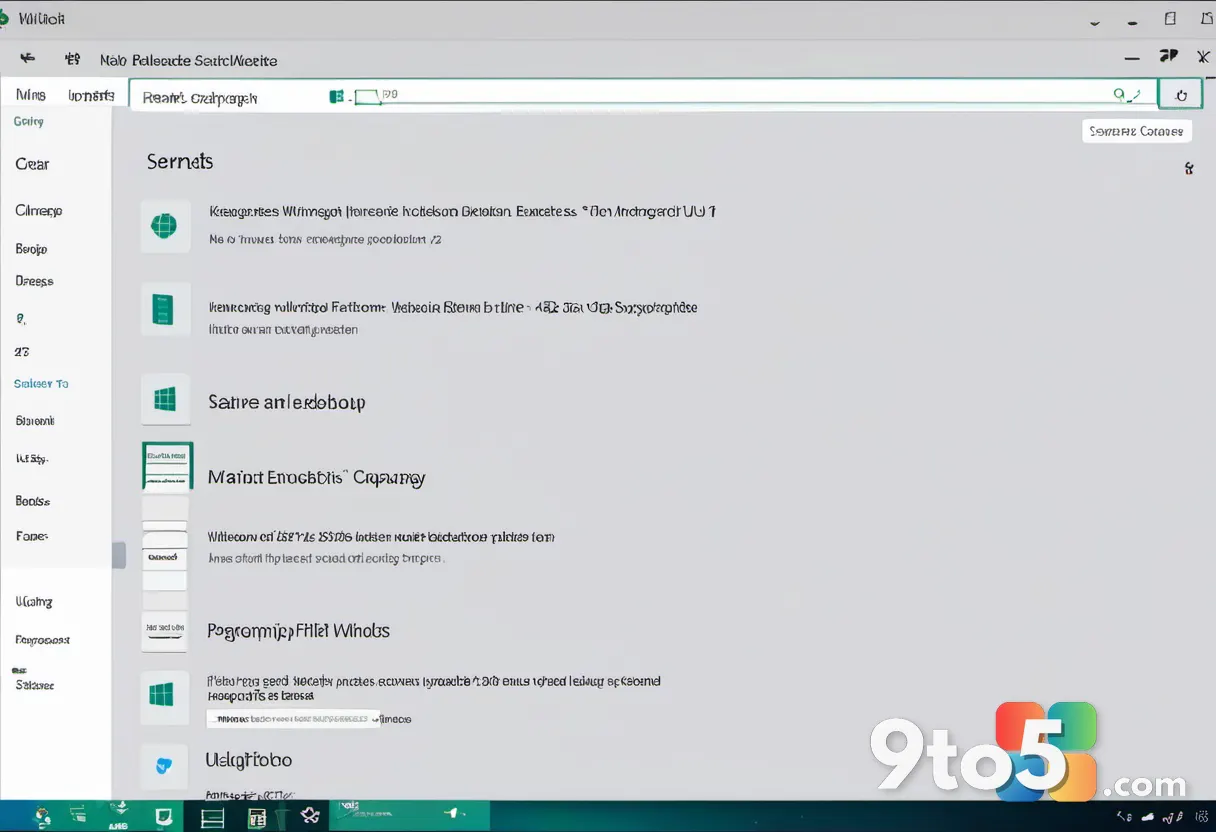
- Launch the editor by running
gpedit.mscfrom the Run dialog. PressWin + R, typegpedit.msc, and press Enter. Navigate to Computer Configuration > Administrative Templates > Windows Components > Windows Update. This folder contains the core Windows Update for Business policies that govern deferral periods, installation behavior, and update delivery optimization. If you are running Windows 11 Home, this editor is not available by default, and you will need to use the Registry Editor or rely on your IT department to apply the policy remotely.
Step 4: Configure Feature and Quality Update Deferral Periods
- Enable the deferral policies and select your preferred delay in days. Locate the policy named Configure Automatic Updates and set it to Enabled. Next, open the policies labeled Choose when Quality Updates are received and Choose when Feature Updates are received. Each policy provides a dropdown with options ranging from seven days to 180 days. Quality updates typically roll out monthly, so a fourteen to thirty day deferral gives you time to verify compatibility. Feature updates arrive twice a year, and a ninety to one hundred eighty day window allows your IT team to test the new build in a pilot group before it reaches your machine.
Step 5: Verify the Deferral Is Active and Apply Changes
- Run a policy refresh and confirm the new timeline in Settings. Open an elevated Command Prompt, type
gpupdate /force, and press Enter. Wait for the confirmation message, then return to Settings > Windows Update. The Update status card will now display your new deferral end date. You can also verify the registry by openingregeditand navigating toHKEY_LOCAL_MACHINE\SOFTWARE\Policies\Microsoft\Windows\WindowsUpdate. TheDeferQualityUpdatesPeriodInDaysandDeferFeatureUpdatesPeriodInDaysvalues should match the numbers you entered in Group Policy.
Troubleshooting Common Deferral Issues
- Group Policy changes are not applying. Run
gpupdate /forceagain and verify you are editing the Computer Configuration branch, not User Configuration. If the policies still do not take effect, check the Resultant Set of Policy report by runningrsop.mscin the Run dialog. This report shows exactly which policies are active and which ones are being blocked by a higher-priority setting. - Settings app shows a different deferral date than Group Policy. Windows Update for Business policies always override the consumer Settings interface. If the two values disagree, trust the Group Policy configuration. You can force a sync by opening an elevated Command Prompt and running
wuauclt /reportnowto push your current status to Microsoft’s update servers. - Deferral resets after a restart or Windows Update for Business sync. Some enterprise environments use Microsoft Endpoint Configuration Manager or Intune to push a separate compliance policy. If your deferral keeps resetting, your device is likely receiving a secondary configuration profile that overrides local Group Policy. Contact your IT administrator to adjust the cloud-based policy instead of modifying the local settings.
Pro Tip: Always test deferral windows on a secondary device first. Apply your chosen delay, wait for the scheduled update to arrive, and verify that your critical applications still run without errors before rolling the policy out across your organization.
Deferring updates through Windows Update for Business keeps your workflow predictable and reduces the risk of sudden compatibility breaks. By combining the Settings pause feature for quick fixes with Group Policy for long-term control, you maintain full visibility over your update timeline. Keep your deferral windows reasonable, document any policy changes for your IT team, and verify the configuration after every major system restart.
What deferral window do you prefer for your work PC, and how has an unexpected update impacted your workflow in the past?
Over to you: What deferral window do you prefer for your work PC, and how has an unexpected update impacted your workflow in the past?