Windows 11’s Cloud Rebuild recovery option has picked up two new capabilities in the latest preview builds, giving PCs a genuinely clean second life and handing IT admins a remote control switch. According to the Windows Insider changelog for the Experimental Build 26340.9502, Cloud Rebuild can now securely sanitize supported storage before reinstalling Windows, and administrators can configure and trigger rebuilds remotely through the Recovery CSP.
That means the feature, which launched in July as a way to reinstall Windows when a PC won’t boot, is now also aimed at the enterprise lifecycle: recycling, reassigning, or decommissioning machines without the headache of manual wipes or a USB stick in hand.
#1 Secure drive sanitization
The headline change is that Cloud Rebuild now offers a real wipe, not just a format. Microsoft’s documentation on the standard Remove files option carries a warning: “This option is faster, but files might be recoverable using specialized recovery tools.” In other words, reinstalling Windows and clearing your local data does not guarantee that a determined recovery tool couldn’t pull fragments back out.
The new Remove & sanitize files option fixes that gap. It asks the storage hardware itself to securely erase the data before Windows goes back on. Because it leans on a hardware-backed erase command rather than a software format, the result is harder to reconstruct with the tools Microsoft is warning about.

There are two choices in the flow:
- Remove files is for users keeping the PC. Windows reformats the system disk and clears local files, accounts, apps, and settings. It is the faster option, but Microsoft warns the data could still be recoverable with specialized tools.
- Remove & sanitize files is for a PC being returned, recycled, reassigned, or decommissioned. It asks the storage hardware to securely erase the data before Windows reinstall.
It is worth understanding what sanitization actually does here. Windows requests the erase operation from the storage hardware and reports back whatever result the drive returns, but it does not independently verify what the hardware did. That distinction matters for anyone relying on the feature for a compliance-driven handoff.
For a device being retired or transferred under a regulatory or policy obligation, Microsoft recommends confirming hardware support first and using a manufacturer-provided tool if that confirmation is not available. Practically, that means an IT admin should not assume every drive in the fleet will honor the command; some older or third-party controllers may not.
If the PC has more than one drive, you also choose which ones get sanitized. The Windows disk only option leaves other drives alone, while All disks sanitizes everything and can take considerably longer. That is an expected caveat, but it is one that affects how long a machine sits on the rebuild bench before it is ready to hand out.

One thing to keep in mind: sanitization is irreversible. Once the storage hardware erases the targeted data, the device cannot go back to its previous state. Cloud data such as OneDrive stays safe, since only local files are affected. That is exactly why the feature may be a good fit for companies cycling laptops between employees or returning leased hardware, where a normal reset has never quite felt thorough enough.
#2 Remote rebuild via Recovery CSP
The second addition, announced in the September 18 Build 26340.9502, is that IT administrators can now configure and start a Cloud rebuild remotely through the Recovery CSP, using either the currently installed build or a target build the admin specifies.
Until now, Cloud Rebuild was largely a hands-on operation. Someone needed physical access to the PC and a working Windows Recovery Environment (WinRE) to trigger it. Microsoft is now letting an administrator configure and trigger the process remotely on managed devices instead.
The controls live under the Recovery CSP at the configuration path ./Device/Vendor/MSFT/Recovery/CloudRebuild. Microsoft’s support document explains the toggle: “When enabled, Cloud rebuild scans the installed operating system to determine the target build to install. When disabled, this rebuild type is blocked for both locally initiated and remotely initiated Cloud rebuilds.”
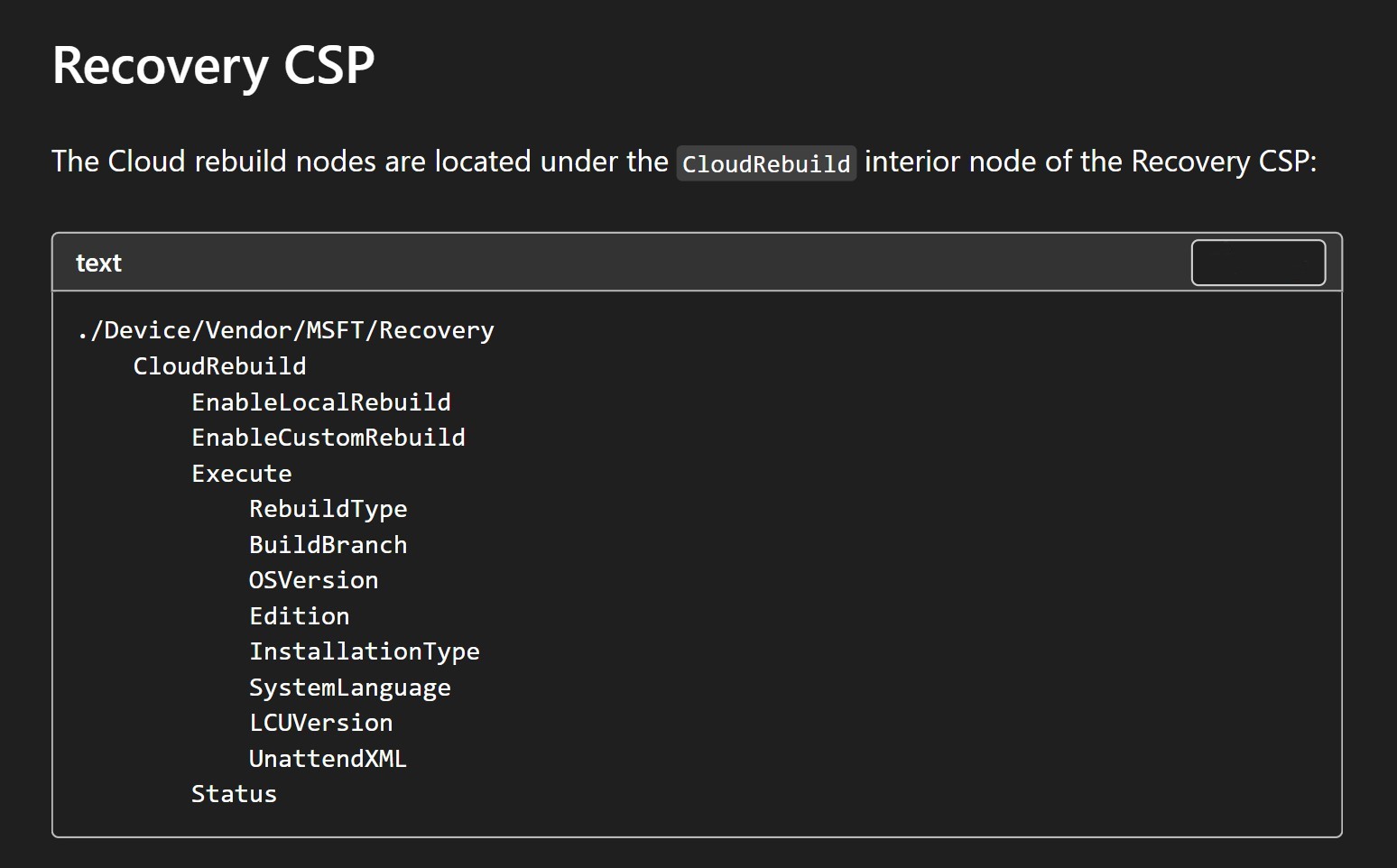

What IT admins can actually do through the CSP includes the following:
- Admins can allow or block rebuilding with the currently installed build.
- Admins can allow or block rebuilding with a specified target build.
- Admins can start a rebuild remotely on a managed device, and retrieve the result of the most recent remotely initiated rebuild.
For IT admins, the most useful aspect is the ability to choose the target build. An organization does not have to accept whatever build happens to be available. An admin can configure a specific build branch, OS version, edition, installation type, system language, and even an unattend answer file, and Cloud Rebuild will install exactly that composition. That level of control is a meaningful shift from a “rebuild to whatever Windows Update hands you” scenario.
What Cloud Rebuild actually is
Cloud Rebuild is a Windows 11 recovery option that fully reinstalls Windows from the Windows Recovery Environment using files downloaded through Windows Update, including drivers. The key detail is that it does not depend on the health of your existing Windows installation. If the OS will not boot, the recovery partition is shot, or the USB installer is missing, Cloud Rebuild still works.
It first arrived on PCs in the Experimental Build 26300.8772. Windows Insider Program lead Stephen Lines described it at the time as a recovery option that restores a Windows 11 PC to a clean, known-good state through a full OS reinstall, even when Windows will not boot.
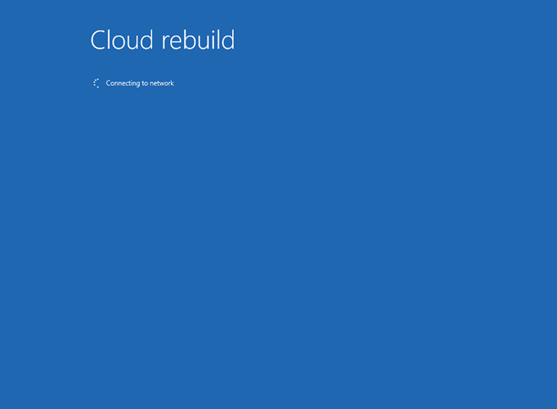
How Cloud Rebuild works
- Windows enters the Windows Recovery Environment, either automatically after repeated boot failures or manually through Settings > System > Recovery.
- You select Troubleshoot, then Cloud Rebuild.
- WinRE connects to the internet, either via Ethernet automatically or via Wi-Fi with a WPA-Personal network and password.
- Windows Update determines the target build and grabs the networking drivers needed to continue.
- You see the target build, edition, and language before accepting a data-loss warning.
- Cloud Rebuild reformats the system disk, downloads and installs Windows with the required drivers.
- The PC boots into the normal setup experience.
Is Cloud Rebuild the same as Reset this PC?
For those wondering, Reset this PC already has a Cloud download option, reached through Settings > System > Recovery > Reset PC. But as Lines noted: “Unlike Reset this PC, Cloud rebuild downloads both the target Windows image and the device’s drivers from Windows Update.” The device comes back fully functional without USB media, a custom image, or any dependence on the condition of the currently installed OS.
Microsoft positions Cloud Rebuild as a separate recovery path that does not depend on the integrity of the currently installed Windows environment. It has not fully explained the technical difference between the two, so it is too early to call this a completely new recovery engine. From the changelog details, the practical distinction is clear: Cloud Rebuild pulls both the OS image and the drivers from Windows Update, while Reset this PC leans more heavily on the local image.
When Cloud Rebuild comes in handy
For a normal user, Cloud Rebuild is useful when Windows is severely corrupted, will not boot, a normal recovery attempt has fallen short, you do not have a Windows USB handy, or you want a properly clean install with drivers already sorted. It is not a repair tool that keeps your apps and files. Cloud rebuild will remove locally stored files, accounts, apps, and settings, so treat it as a fresh start, not a band-aid.
What the preview build adds is the option to remove all data and sanitize the drive instead of leaving behind recoverable fragments. That characteristic is what makes it a strong candidate for enterprise environments, where machines routinely change hands.
Prerequisites you need to know
The feature is not magic, and Microsoft currently lists several prerequisites that shape how it runs in the wild.
- Windows 11 only — there is no support for Windows 10 yet.
- A healthy Windows Recovery Environment.
- A compatible networking driver in WinRE.
- Internet connectivity from WinRE.
- Hardware meeting Windows 11’s minimum requirements — so it will not work on older PCs where you bypassed requirements to install Windows 11.
You can overlook the networking requirement if you have Ethernet. Wi-Fi needs a supported WPA-Personal network and its password entered from inside WinRE, which, as anyone who has used WinRE before, is more limited in usability. That is a real-world friction point IT admins should factor into remote-rebuild planning.


Back up important data before starting, since Cloud Rebuild deletes the local Windows installation. For Data Sanitization, keep the PC connected to power and do not interrupt the operation. As per Microsoft, interrupting a Cloud rebuild can cause Windows to be unable to boot, and you may need a recovery drive or installation media to pick up the pieces.
What this means for you
For the everyday Windows 11 user, the practical takeaway is straightforward: if your PC ever stops booting and you have no USB media, Cloud Rebuild can reinstall a clean, driver-complete copy of Windows straight from Windows Update, no service desk visit required. The new sanitization option gives you a genuinely firmer wipe when you hand the machine to someone else.
For IT admins managing a fleet, the remote Recovery CSP controls are the real win. You can now rebuild a managed device from across the network, lock down which builds can be used, and pull the result of a remote rebuild — all without walking to a desk. That turns a previously physical-only recovery action into something you can push to a machine that is out in the field.
How to get it
As of now, Cloud Rebuild is in preview. Microsoft says to evaluate it only on non-production devices, since features, UX, and command-line options can all change before general availability. If you have run into recovery reliability problems before — like when Microsoft admitted it broke Reset this PC with a 23H2 update in August 2025 (KB5063875, Windows 10 KB5063709) — you should take the “preview” part on a serious note and test before rolling it out to your primary machines.
To try it yourself, you will need one of the Experimental Channel preview builds where these capabilities are present. The drive sanitization and remote Recovery CSP controls shipped in the Experimental Build 26340.9502, while Cloud Rebuild itself first arrived in the Experimental Build 26300.8772. Keep an eye on the Windows Insider release notes and Microsoft Learn’s Cloud Rebuild documentation for the latest prerequisites as the feature moves toward general availability.
Where this is heading
Microsoft has been building toward this for almost a year. The company first described the idea of Cloud Rebuild in a November 18, 2025 Windows Experience Blog post from Dana Huang, Corporate Vice President of Windows Security, and Kristian Andaker, Vice President of Windows Servicing and Delivery, about Microsoft’s Windows Resiliency Initiative.
“Cloud rebuild offers a clean slate without shipping hardware or visiting a service desk,” said Huang. The original enterprise vision had an admin selecting the desired Windows release and language through Intune, the PC downloading installation media and rebuilding itself, Windows Autopilot handling zero-touch provisioning afterward, and OneDrive plus Windows Backup for Organizations restoring user data and settings.
The timeline reads like a steady rollout:
- November 2025, Microsoft describes Cloud Rebuild as part of the Windows Resiliency Initiative.
- July 6, 2026, it arrives in the Experimental Channel with Build 26300.8772 as a local WinRE recovery option.
- September 18, 2026, Build 26340.9502 adds hardware-backed drive sanitization and remote Recovery CSP control.
The November blog also included Quick Machine Recovery, remote recovery through Intune, and Point-in-time Restore. While Point-in-time Restore is capable of rolling back a PC to an earlier working state using local shadow copies from the last 72 hours — useful for a bad update or driver — Cloud Rebuild actually rebuilds the whole OS. Note that 26H2 now auto-enables Point-in-time Restore by default, so these recovery options are being woven into the OS more deeply than before.
After years of blue screen criticism, to the point that even Apple mocked the OS with a “Mac, don’t panic” ad, Microsoft is now making recovery a first-class part of Windows 11, along with Point-in-time Restore and Quick Machine Recovery. Nobody cares about recovery until Windows stops working, but these tools are exactly what you want when that moment arrives.
Source: Windows Latest
Build details:
- kb5063709
- kb5063875
Over to you: Would you use the hardware-backed ‘Remove & sanitize files’ option when handing a laptop to a new user, or stick with the faster ‘Remove files’?
You may also like
 Microsoft’s Research Boss Explains Why Windows 11 Features Don’t Show Up — and His Fix Only Partially Works
 Hands On: Windows 11’s New Magnifier Contrast Themes Reduce Screen Glare
 Windows 11 Start menu changes arrive in Future Platforms build 29671.1000
 Windows 11 Mouse Indicator gets a modern redesign, and we tried it