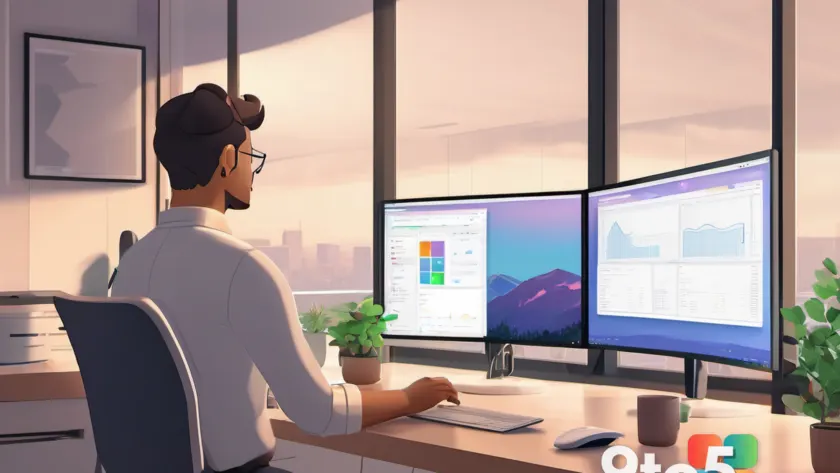
Windows 11 gives you a neat little way to make Windows 11 apps maximized on launch, and it’s a one-time Registry tweak rather than a toggle buried in the usual Settings menu. If you’re tired of the familiar habit of squinting at half-sized windows and manually dragging them to the edges of your screen, this quick tip is worth a look.
What the “always maximized” tweak actually does
By default, Windows 11 launches most apps in whatever window size and screen position they last had when you closed them. That works fine for a single-user machine, but it gets annoying fast on a multi-monitor setup or whenever you simply want everything to fill the screen the moment it opens.
This tweak forces supported apps to open at their maximum size on every launch. It’s worth noting the word “supported”: it isn’t a blanket, system-wide guarantee, and it doesn’t always catch every single program. But for the apps you use most, it removes the repetitive resizing habit entirely.
Unlike a proper built-in setting, this change is silent — you won’t see a new icon in Settings or a confirmation toast. The effect is purely functional, which is exactly why it lives in the Registry rather than the control panel.
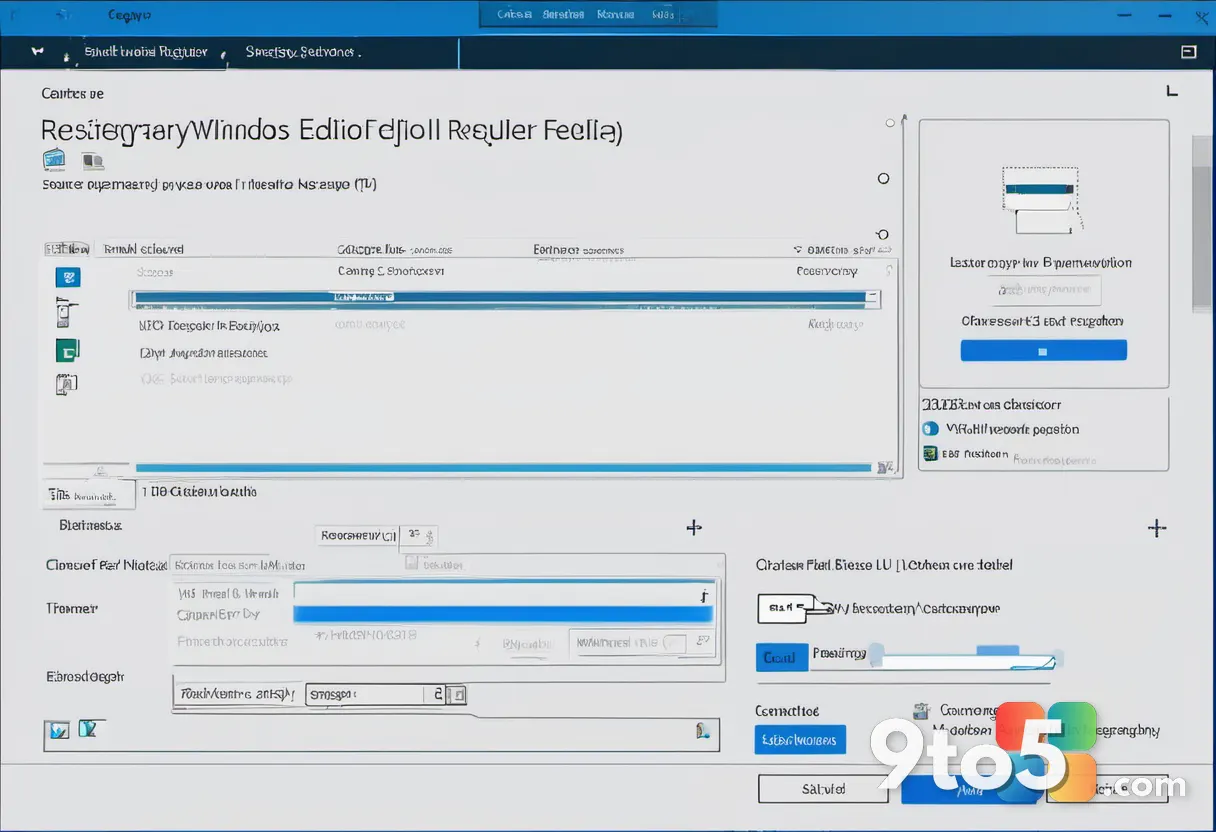
How to make Windows 11 apps maximized via the Registry
This isn’t a switch in the Settings app, so you’ll add a small Registry value by hand. It takes about a minute, and here’s the exact path and value you need.
- Open Registry Editor: Press Win + R, type regedit, and hit Enter. If User Account Control pops up, click Yes.
- Go to the right key: In the address bar at the top of the Editor, paste or navigate to HKEY_CURRENT_USER\Software\Microsoft\Windows\CurrentVersion\Explorer\Advanced.
- Create the value: Right-click in the right-hand pane, choose New > DWORD (32-bit) Value, and name it MMCSS.
- Turn it on: Double-click the new MMCSS entry, set Value data to 1, and make sure the base is set to Decimal.
- Apply it: Sign out and back in, or restart File Explorer from Task Manager. A quick reboot is the simplest way to be sure it takes effect.
Once that’s done, restart a few apps and you should see them snap open full-screen. There’s no fanfare — the change is silent by design.
What this means for you
For most everyday users, this is a low-risk, reversible tweak that just makes your daily experience a little cleaner. If you live on a single big display or a laptop where you want every app to grab as much screen real estate as possible, opening maximized by default removes one repetitive click from your routine.
The catch is that it’s per-user, not per-machine. The value lives under HKEY_CURRENT_USER, so it only applies to the account you signed into when you added it. Add the same tweak to another user’s profile if you want it active on their desktop too.
Things to know before you touch the Registry
Registry tweaks carry a small but real risk, so a few caveats before you dive in.
- Back up first: Export the Advanced key (Right-click > Export) before editing, so you can restore it if something goes wrong.
- It’s not universal: The tweak targets “supported” apps, so don’t expect every single program to obey. Some classic Win32 apps and smaller utilities may still open at their last-used size.
- Reversible: Delete the MMCSS DWORD (or set it back to 0) to go back to normal behavior.
- Not a guaranteed fix: Since it’s a value rather than an official setting, a future Windows update could change how it behaves. Keep an eye on the changelog if it ever stops working.
Bottom line: it’s a handy, quiet customization for anyone who wants apps to grab the whole screen on launch, and it’s easy to undo if you change your mind.
Source: Neowin
Over to you: Do you prefer apps opening maximized by default, or do you like controlling window size yourself? Let us know where you stand.