
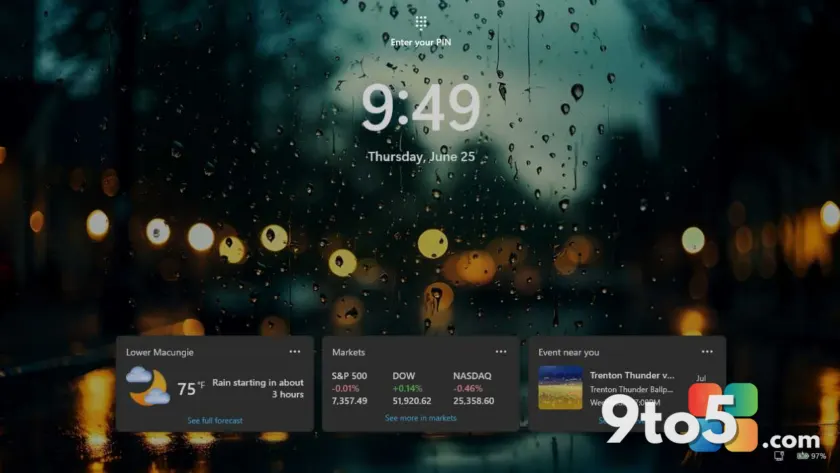
The lock and sign-in screens are the first things you see when you wake your PC from sleep or boot it up in the morning. Unless you are using Windows Hello facial recognition or a fingerprint scanner to bypass them entirely, these screens serve as both a security checkpoint and a canvas for personalization.
Change the lock screen wallpaper
By default, Windows 11 cycles through a selection of high-quality images provided by Microsoft. You can change this behavior to display a static image or one of your own choosing. Navigate to Settings > Personalization > Lock screen. From here, you can select ‘Windows Spotlight’ for daily curated images, ‘Picture’ to choose a single file from your device, or ‘Slideshow’ to rotate through a folder of your personal photos.
If you prefer the default experience but want more control, you can toggle off the option that allows apps to show notifications on the lock screen. This keeps the interface clean and focused solely on the visual background until you are ready to sign in.
Adjust sign-in screen privacy
The sign-in screen appears immediately after you unlock the device, whether by typing a password or using biometrics. While you cannot change the wallpaper of the sign-in screen independently from the lock screen in standard consumer editions, you can control what information is displayed.
In the same Lock screen settings menu, scroll down to find options related to privacy. You can choose whether to show lock screen status messages, such as email previews or calendar reminders. Disabling these ensures that sensitive information isn’t visible to anyone glancing at your screen before you have fully authenticated.
What this means for you
Customizing these screens is more than just an aesthetic choice; it can enhance privacy and reduce distractions. By selecting a static image or disabling notifications, you ensure that your PC presents a neutral face to the world until you are ready to engage with it. This is particularly useful in shared spaces or offices where screen visibility might be a concern.
Take a moment to review your lock screen settings. A personalized background can make your daily startup routine feel more welcoming, while tightened privacy controls keep your data secure.
Source: Thurrott
Over to you: Do you prefer dynamic Windows Spotlight images or a static photo on your lock screen?