Windows includes a built-in security layer designed to keep your computer safe from unwanted network access. At its core, the Windows Firewall operates on a strict default policy: it blocks all incoming network connections unless a specific application explicitly requests permission.
The default block strategy
Unlike physical firewalls that might try to stop everything indiscriminately, the digital version in Windows is smart about what it stops. By default, it assumes any incoming connection attempt is suspicious. This means that if a program on your PC tries to reach out to the internet, it can usually do so. However, if something outside your network tries to initiate a connection to your PC, the firewall intercepts and blocks it immediately.
This approach significantly reduces the attack surface for malware and hackers who rely on scanning for open ports or vulnerable services running on home networks.
How apps request access
When you install new software, such as a game, a file-sharing tool, or a remote desktop application, that program may need to accept incoming connections to function correctly. Instead of guessing which ports to open, the Windows Firewall relies on the application itself to declare its needs.
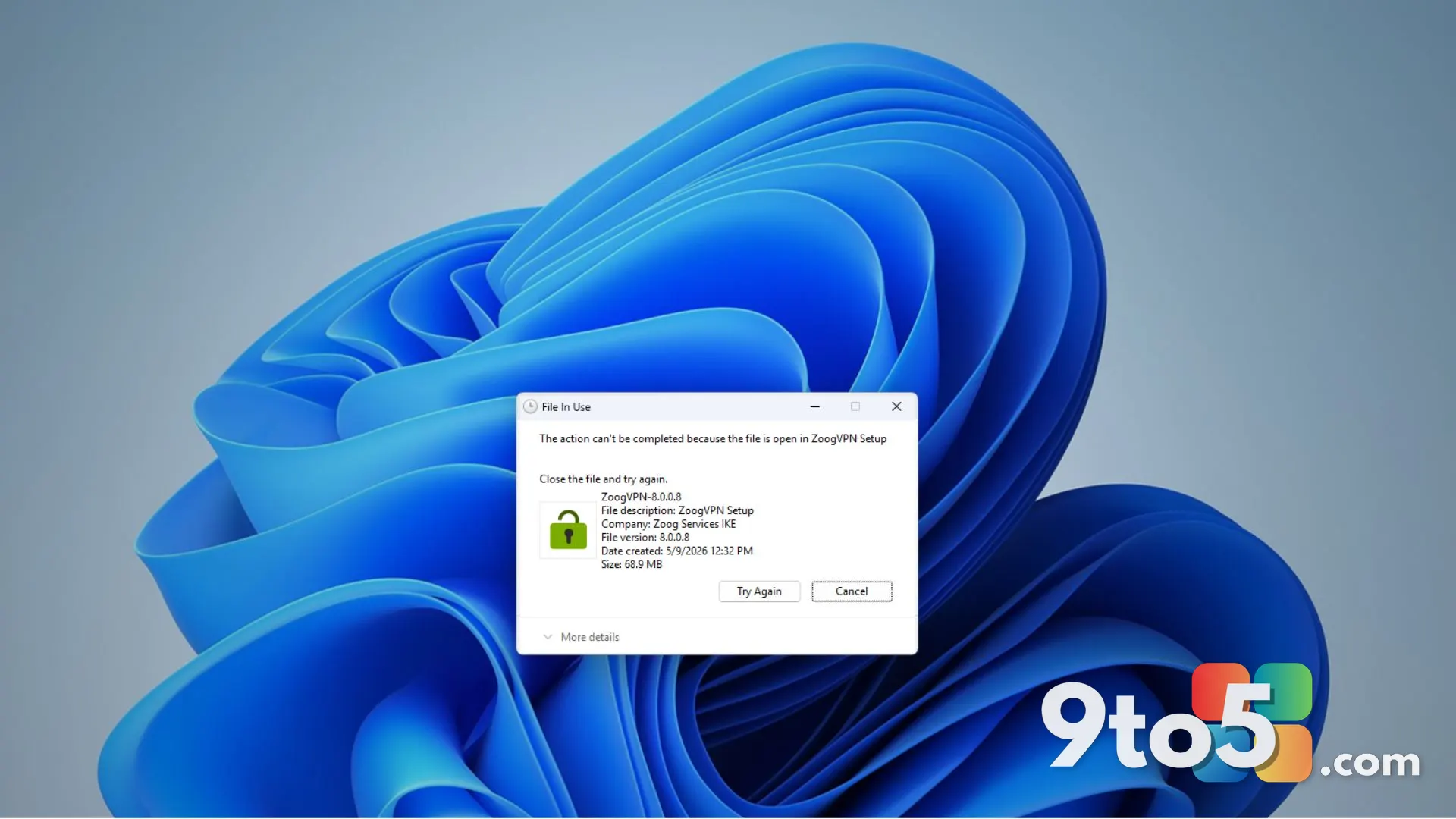
If an app requires inbound traffic, it triggers a prompt asking for permission. You can choose to allow the connection for private networks (like your home Wi-Fi) or public networks (like coffee shop Wi-Fi). This granular control ensures that sensitive services don’t accidentally expose themselves on untrusted networks.
Fine-tuning your firewall settings
While the default settings are generally sufficient for most users, you can adjust them if specific applications are being blocked incorrectly. You can access these controls through the Windows Security app or by searching for ‘Firewall’ in the Start menu.
Here is what this means for you: If a legitimate program stops working after a Windows update, check your firewall settings. Sometimes, updates reset permissions or block previously allowed apps. Reviewing the list of allowed apps can help you restore functionality without compromising your overall security posture.
Source: AskWoody
Over to you: Do you manually adjust your Windows Firewall settings, or do you trust the default prompts?