
Windows 11 includes a hidden performance feature called Low Latency Profile, designed to instantly spike CPU frequency when you interact with the Start menu, Search, or Action Center. While Microsoft has been rolling this out gradually via Controlled Feature Rollout (CFR), many older machines haven’t received it yet. But that doesn’t mean they can’t benefit from it.
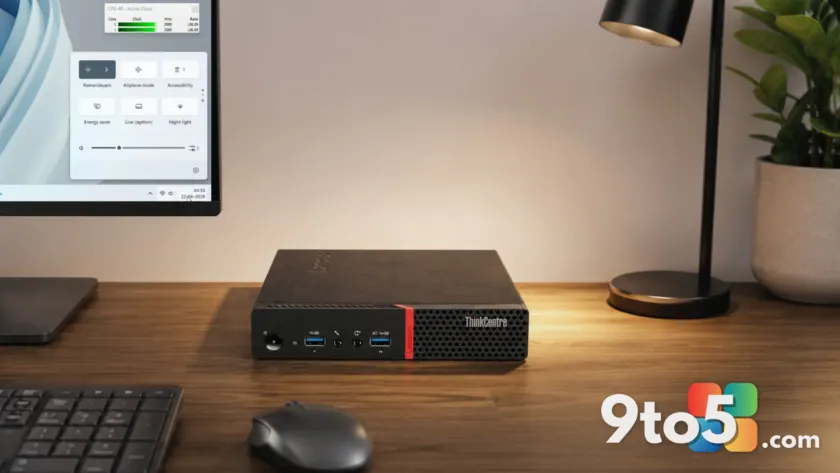
We tested this feature on a decade-old Lenovo ThinkCentre M700 Mini Desktop equipped with a 6th Gen Intel Core i3-6100 and 8GB of RAM. Despite lacking Turbo Boost technology, the system showed noticeable improvements in shell responsiveness after manually enabling the feature.
Why this matters for older hardware
The ThinkCentre M700 runs a dual-core Intel Core i3-6100 (Skylake-S) locked at 3.7GHz. Unlike modern chips, it has no turbo ceiling to exceed. However, it does support Intel Speed Shift Technology, which allows the processor to manage frequency transitions more rapidly than traditional OS-level schedulers.
Normally, when idle, this CPU drops to around 800MHz. Without Low Latency Profile, opening the Start menu causes a gradual ramp-up to between 2GHz and 2.8GHz, resulting in perceptible lag. With the feature enabled, the CPU jumps from 800MHz to its maximum 3.7GHz almost instantly, reducing perceived delay significantly.

How to check if Low Latency Profile is active
First, ensure your system has the June 2026 Patch Tuesday update (KB5094126) installed. Then, download and run HWiNFO to monitor CPU clock frequencies in real-time.
Open the Start menu, Search, or Action Center while watching HWiNFO. If you see a sharp spike to your processor’s maximum rated frequency immediately upon interaction, the feature is already active. On our test machine, no such spike occurred initially, confirming that CFR had not enabled it.
How to force-enable Low Latency Profile
If the feature isn’t active, you can manually enable it using ViVeTool, a third-party utility for managing Windows features. Here’s how:
- Download ViVeTool from the official GitHub releases page.
- Extract the files to a folder, such as
C:\ViVeTool. - Open Command Prompt with administrator privileges.
- Navigate to the folder using:
cd C:\ViVeTool - Run the following command: vivetool /enable /id:58989092
Restart your PC for the changes to take effect. Note that ViVeTool is a third-party tool, so if you’re hesitant, you can wait for Microsoft to remotely activate the feature on your device.

What this means for you
For users with older Windows 11 PCs, especially those with limited RAM or older CPUs, enabling Low Latency Profile can make a tangible difference in daily usability. The Start menu appeared faster, Search felt more responsive, and the Action Center opened with noticeably smoother animations.
Importantly, this feature does not increase CPU utilization or heat output during these interactions. It simply ensures the processor is ready to handle tasks at full speed the moment you need it. Combined with ongoing improvements like the WinUI 3 shell rewrite, even decade-old hardware can feel surprisingly fresh on Windows 11.
Source: Windows Latest
Build details:
- kb5094126
Over to you: Have you noticed any performance improvements after enabling Low Latency Profile on your older PC?