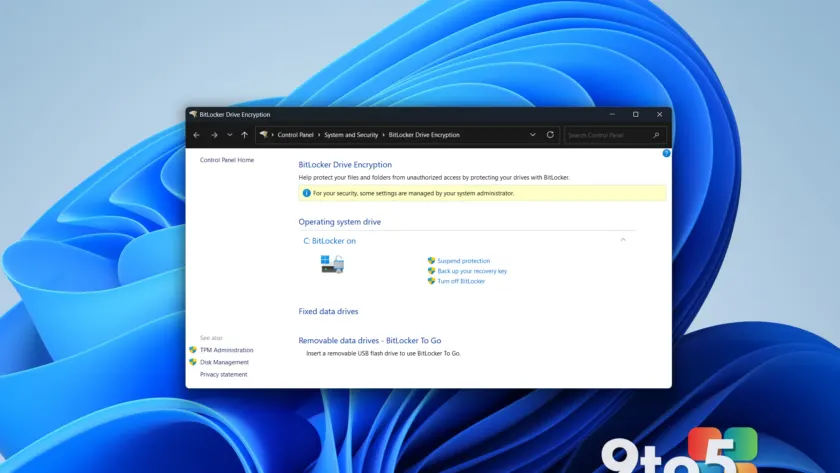
Windows has shipped with built-in drive encryption for years, and for good reason. BitLocker encryption scrambles your data at rest using XTS-AES 128-bit algorithms, keeping tax records, family photos, and sensitive documents unreadable if your machine is stolen or the drive is moved to another system. However, recent discoveries have shaken confidence in relying on it as a standalone solution. The good news is that you do not need to abandon it. Instead, pairing it with a few free, open-source tools creates a defense-in-depth strategy that handles both physical and logical threats.
How BitLocker encryption works
When you enable BitLocker on Windows 10 or 11 Pro, the operating system generates a set of cryptographic keys. A portion of those keys is stored securely in your system’s Trusted Platform Module (TPM) or firmware TPM (fTPM) on the motherboard, while another portion sits on the storage drive itself. To recover your data if the hardware changes or the TPM is cleared, you are required to back up a recovery key to a removable drive, a printed sheet, or your Microsoft account.
For Windows Home users, the feature is branded as “Device Encryption.” It operates on the same principles but typically saves the recovery key to the cloud by default. Regardless of your edition, you should manually verify that your recovery key is accessible at account.microsoft.com/devices/recoverykey. Losing that key means losing access to your data permanently, and there is no backdoor that Microsoft support can use to bypass it.
When your PC is powered off, the drive remains fully encrypted. Even if an attacker bypasses the login screen, they cannot read the raw sectors without the decryption keys. This effectively stops drive-swapping attacks and makes forensic recovery of deleted or hidden files nearly impossible without the proper credentials.
The current physical attack vulnerabilities
BitLocker has not been immune to scrutiny. Security researchers recently demonstrated a physical attack vector dubbed “YellowKey,” which showed how an attacker with direct hardware access could bypass the encryption without needing the recovery key. The exploit did not require sophisticated lab equipment, and Microsoft responded by publishing a mitigation guide for CVE-2026-45585 rather than a complete architectural fix.
Shortly after, the same researcher uncovered a second flaw, tracked as CVE-2026-50507, which also targets the physical boot process. Both vulnerabilities highlight a fundamental reality of full-disk encryption: it protects against remote theft and casual snooping, but it cannot stop someone who can physically manipulate your hardware during the boot sequence.
These findings are concerning, but they are not unprecedented. Full-disk encryption has always been designed to raise the cost of theft, not to make it impossible. The vulnerabilities target specific hardware interaction methods, meaning the average opportunistic thief or secondhand buyer will still find your encrypted drive useless. However, for professionals handling highly sensitive data, relying solely on BitLocker is no longer the safest default.
Why you should still enable BitLocker
Despite the headlines, disabling BitLocker is not the answer. The vast majority of data breaches involve remote malware, phishing, or stolen credentials, not physical drive removal. BitLocker encryption remains highly effective against those threats. It also serves as a critical baseline for compliance in many enterprise environments and provides a safety net for accidental data exposure.
Think of BitLocker as the lock on your front door. It keeps out most intruders and makes forced entry difficult. But if you are storing actual valuables inside, you would not leave them sitting on the entryway table. You would put them in a safe. That is exactly how you should approach your file-level security.
Top free encryption apps to layer on top
Adding a dedicated encryption tool does not conflict with BitLocker. In fact, the two work independently. BitLocker handles the drive, while your chosen app handles specific folders or files. When you log in, BitLocker unlocks the drive, and your secondary app asks for a separate password to mount your encrypted vault. This separation means that even if one layer is compromised, the other remains intact.
For most users, two open-source applications provide the best balance of usability and security. Both are free, regularly updated, and auditable by the security community.
Cryptomator for everyday folders
Cryptomator is the easiest entry point for users who want to encrypt specific files without managing complex volumes. You simply create a vault, assign it a location, and set a master password. The application uses AES-256 encryption to scramble each file individually, then mounts the vault as a virtual drive in File Explorer.
What makes Cryptomator particularly useful is its seamless integration with cloud storage. If you sync your documents to OneDrive, Dropbox, or Google Drive, you can create a Cryptomator vault inside your cloud folder. The files are encrypted locally before they ever leave your machine, meaning your cloud provider only ever sees scrambled data. The vault also grows dynamically, so you do not have to pre-allocate storage space or worry about hitting a container limit.
VeraCrypt for high-security containers
When you need stronger guarantees, VeraCrypt is the industry standard. It offers a more technical interface, allowing you to choose encryption algorithms, hash functions, and file system types during setup. You can create a fixed-size encrypted container file or encrypt an entire physical drive, including USB sticks and external SSDs.
For most Windows users, creating container files is the recommended approach. You can store highly sensitive documents, such as identity paperwork or financial records, inside a VeraCrypt volume and keep it on a separate USB drive or in an offline backup. The trade-off is that larger containers take longer to mount and decrypt, and you must remember to safely eject the volume before disconnecting the drive to avoid data corruption.
VeraCrypt also offers a portable mode that requires no installation. You can run it directly from a folder, which is useful for temporary sessions or when you cannot install software on a work machine.
The best defense strategy for your files
Combining these tools gives you a three-layer security model that covers almost every threat vector:
- Layer one: BitLocker. Enables full-disk protection against theft and drive removal. It catches anything you store in standard folders or temporary directories.
- Layer two: Cryptomator. Secures documents you access occasionally, such as tax returns, insurance policies, and private photos. You can maintain multiple vaults for different categories.
- Layer three: VeraCrypt. Houses your most critical files in a tightly encrypted container. Store a backup on a dedicated USB drive kept in a secure location, or sync it to an encrypted cloud bucket.
What This Means for You
You do not need to choose between BitLocker and third-party encryption. Enable BitLocker first to protect your entire system, then add Cryptomator for your everyday sensitive files. Reserve VeraCrypt for documents that require maximum isolation. The setup takes only a few minutes, and the open-source nature of both tools means the code is publicly audited for backdoors or weaknesses.
How to Get It
BitLocker is built into Windows 10/11 Pro and Enterprise. Windows Home users can enable Device Encryption in Settings > Privacy & security > Device encryption. Cryptomator is available at cryptomator.org, and VeraCrypt can be downloaded from veracrypt.io. Both offer Windows, macOS, and Linux versions.
Source: Windows News, Reviews, Advice & Deals | PCWorld
Over to you: Which layer of encryption do you rely on most for your sensitive documents?