Windows Update for Business gives your organization a structured way to roll out patches and new versions without breaking daily operations. If you manage a work PC, you likely notice that updates arrive on a schedule set by your IT department. While you cannot override enterprise policies, you can still control how aggressively your device downloads and installs them. This guide walks you through the exact settings you need to adjust to defer updates, pause installations, and keep your workflow uninterrupted.
Before You Start: You will need an active Windows 11 or Windows 10 work PC that is signed in with your corporate account. Your device may be managed by Microsoft Intune, Azure AD, or a traditional Group Policy domain. If your organization enforces strict update policies, some options below might appear grayed out. That behavior is normal and indicates your IT team controls the deferral window.
Step 1: Open the Windows Update Settings Panel
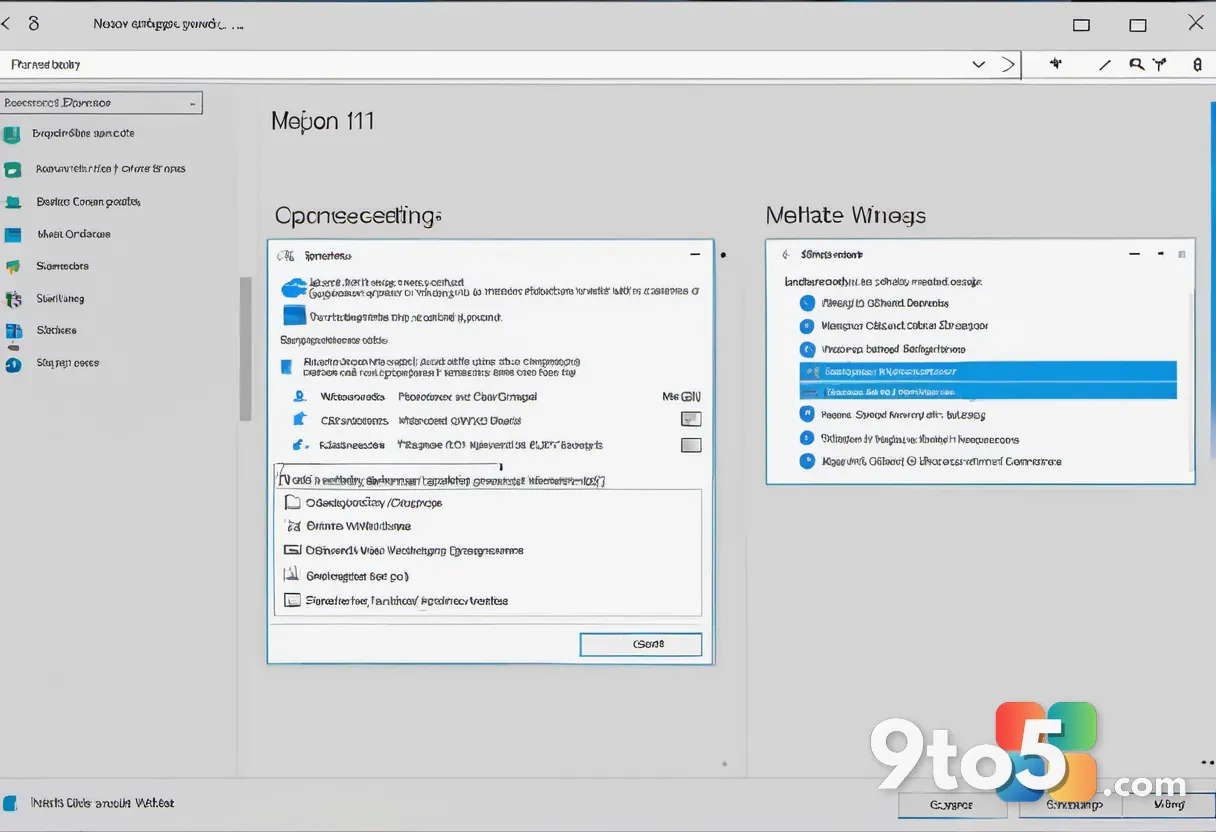
Click the Start button and select Settings, or press Win + I to launch the system menu. Navigate to Windows Update in the left sidebar. This panel serves as the central hub for all update-related controls on your device. You will see a large Check for updates button at the top, along with your current update status and recent activity log. If you do not see the Windows Update option, your device is likely using a legacy Settings layout. Click the Advanced options link at the bottom of the page to access the full configuration menu.
Step 2: Review Your Organization’s Update Policy
Scroll down to the Windows Update policies section and click View policies. This screen reveals exactly which rules your IT department has applied to your machine. You will see entries for Feature updates, Quality updates, and Driver updates, each showing a deferral period in days. Understanding these values tells you how long your organization waits before pushing a new Windows version to your device. If a policy shows Not configured, you can adjust the setting locally. If it displays a specific number of days, that window is locked until your IT team changes it.
Step 3: Adjust Active Hours to Prevent Interruptions
Return to the main Windows Update page and click Change active hours. Active hours define the window during which Windows will never restart your PC for an update. You will see a time picker that defaults to your current local time. Shift the start and end times to match your typical workday, then click Save. Windows will respect this window for up to 35 days before allowing a forced restart. If you forget to update the hours after a weekend or vacation, your device may attempt to restart during off-hours. You can reset the window manually at any time by returning to this same menu.
Step 4: Pause Updates for Up to Five Weeks
Click the Pause for 1 week button located directly under the update status. Each click extends the pause by seven days, allowing you to defer updates for a maximum of 35 days. This feature is designed for situations where you are finishing a major project or preparing for a presentation. Windows will download the latest patches in the background while blocking installation and restart prompts. If you need to resume updates before the pause expires, click Resume to trigger an immediate check. Note that paused updates will eventually install once the timer runs out, so plan your workload accordingly.
Step 5: Configure Delivery Optimization and Optional Updates
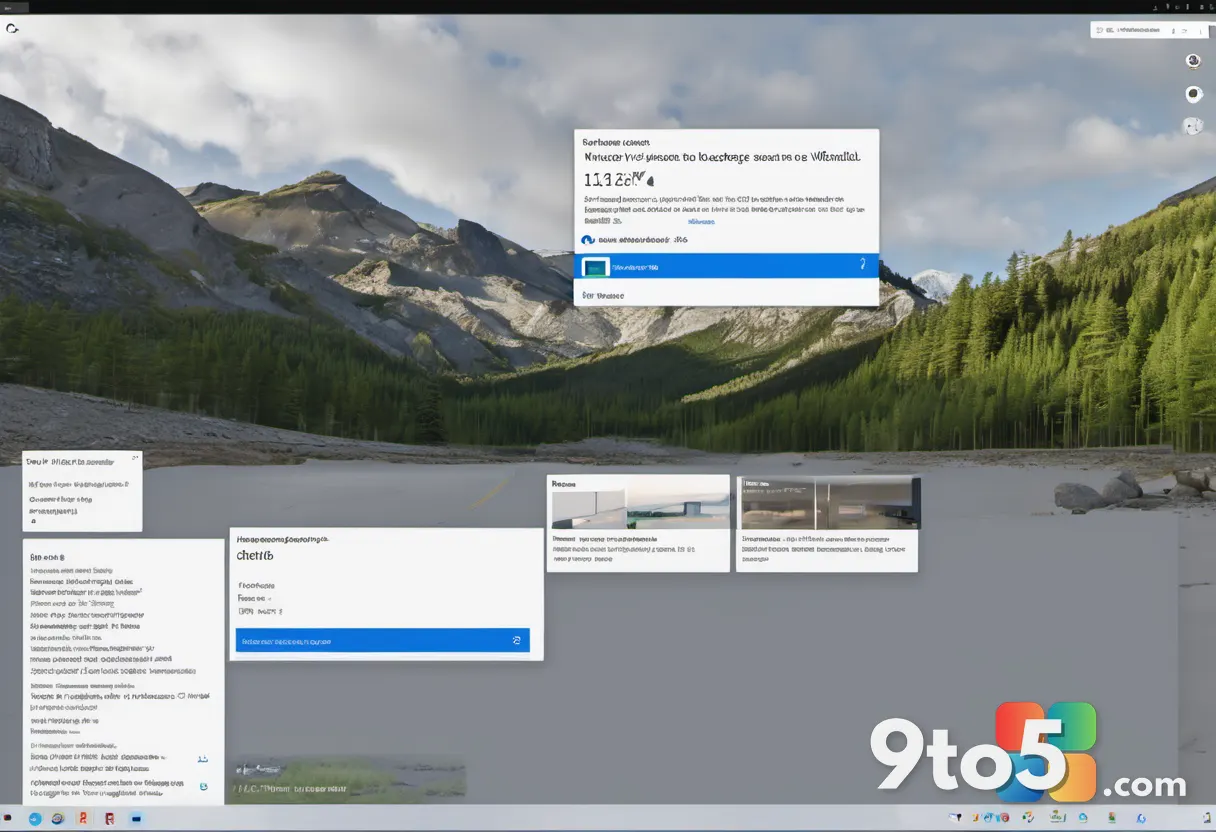
Navigate to Advanced options and select Delivery Optimization. This setting controls how your PC downloads update files from other devices on your local network. Toggle Allow downloads from other PCs to Off if you want to restrict bandwidth usage during business hours. Next, return to the main Windows Update page and click Optional updates. Here you can review driver updates and feature packs that are not automatically installed. You can toggle individual items to Install or Hide depending on your needs. Hiding optional updates prevents them from cluttering your system while keeping critical patches active.
Troubleshooting Common Deferral Issues
Even with the correct settings in place, you may encounter situations where updates refuse to defer or pause. The following steps address the most frequent failure points for work PC users.
- Settings appear grayed out or locked: Your organization likely enforced a Group Policy or Intune configuration that overrides local changes. Contact your IT helpdesk and request a temporary deferral window for your specific project timeline. They can apply a targeted policy that grants you a few extra days without disrupting the broader rollout schedule.
- Updates install despite being paused: Windows may force an installation if a critical security vulnerability is detected. The system prioritizes device safety over pause timers when a high-risk exploit is actively circulating. If this happens frequently, ask your IT team to adjust the
Automatic Maintenancethreshold or enable Dynamic Delivery controls in your management console. - Active hours reset unexpectedly: A pending update or system maintenance task can reset your active hours to a default 8 AM to 5 PM window. To prevent this, manually set your hours again after any major update completes. You can also schedule a recurring calendar reminder to update the window when your work schedule changes.
Final Tips for Managing Updates
Deferring updates on a work PC requires a balance between staying secure and maintaining your daily workflow. Always verify that critical security patches remain enabled, even when you defer feature updates. Keep an eye on your Update history tab to track what your device has already installed. If you notice unusual network activity during business hours, pause updates temporarily and report the behavior to your IT department. Understanding the difference between quality updates and feature updates will help you prioritize what truly needs to wait.
Pro Tip: Create a quick text file on your desktop listing your current deferral settings and pause expiration date. When your IT team rolls out a new update policy, you will have a clear baseline to reference during troubleshooting conversations.
Over to you: Have you ever missed a critical deadline because of an unexpected Windows update restart?