Windows 11 continuously gathers usage data, crash reports, and browsing habits to improve Microsoft services. While this telemetry helps developers fix bugs, it can also consume bandwidth, raise privacy concerns, and slow down older hardware. You can take control of your system by reducing diagnostic data collection through built-in settings, group policies, and registry tweaks. This guide walks you through every method, from the quickest toggle to the most thorough lockdown.
Before You Start: Completely disabling telemetry on Windows 11 Home requires registry edits, while Pro, Enterprise, and Education editions support Group Policy. Microsoft may reset certain privacy toggles after major feature updates, so plan to verify your changes afterward. Create a system restore point or back up your registry before making any modifications.
Step 1: Reduce diagnostic data through Settings
Open Settings and navigate to Privacy & security. Click on the Diagnostics & feedback section in the left sidebar. You will see a dropdown menu labeled Diagnostic data. Change this setting to Send optional diagnostic data. This option still allows Microsoft to receive basic error reports, but it stops the collection of browsing history, search queries, and app usage patterns. After you make the change, Windows will display a confirmation message. If the dropdown refuses to update, restart your computer and try again, as some background services may temporarily lock the setting.
Step 2: Disable activity history and tailored experiences
Stay in the Privacy & security menu and select Activity history. Uncheck both boxes that ask Windows to save your activity history and allow installed apps to access your activity. These features feed the diagnostic data stream by tracking which programs you open and how you interact with your desktop. Below that section, locate the Tailored experiences toggle and switch it to Off. This prevents Windows from showing you personalized ads and suggestions based on your usage. Pro Tip: Turn off the Advertising ID in the General section of Privacy & security to stop apps from building a profile of your interests for marketing purposes.
Step 3: Apply Group Policy restrictions
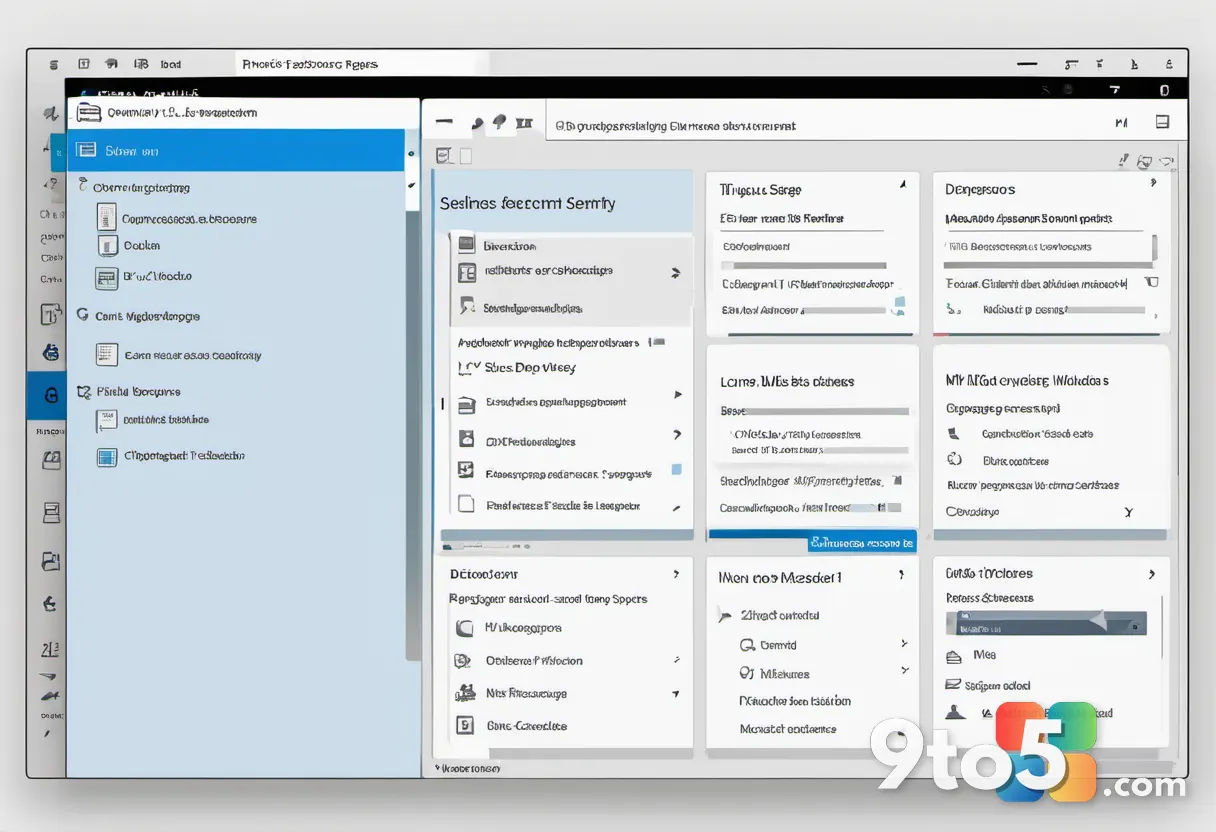
Press Windows key + R, type gpedit.msc, and press Enter. This opens the Local Group Policy Editor, which is available only on Windows 11 Pro, Enterprise, and Education editions. Navigate to Computer Configuration → Administrative Templates → Windows Components → Data Collection and Previews. Double-click the Telemetry toggle and select Disabled. In the Options panel, find the Telemetry level dropdown and choose Security (the lowest possible data collection tier). Click Apply and OK. Group Policy changes take effect immediately, but you can run gpupdate /force in an elevated Command Prompt to speed up the process. If you receive an access denied error, open Command Prompt as an administrator before running the command.
Step 4: Modify the registry for Windows 11 Home
Press Windows key + R, type regedit, and press Enter. Navigate to HKEY_LOCAL_MACHINE\SOFTWARE\Policies\Microsoft\Windows\DataCollection. If the DataCollection key does not exist, right-click the Windows folder, select New → Key, and name it DataCollection. Right-click inside the right pane, choose New → DWORD (32-bit) Value, and name it AllowTelemetry. Double-click the new value and change the data to 0. This registry entry forces the operating system to block all diagnostic data transmission, regardless of the Settings menu selection. Close the Registry Editor and restart your computer for the change to apply. If Windows reverts the value after an update, you will need to reapply the registry tweak or create a scheduled task to enforce it.
Step 5: Block telemetry servers via the hosts file
Open Notepad as an administrator by searching for it in the Start menu and selecting Run as administrator. Click File → Open, navigate to C:\Windows\System32\drivers\etc, change the file type dropdown to All Files, and open hosts. Scroll to the bottom of the file and add the following entries on separate lines: 127.0.0.1 vortex.data.microsoft.com, 127.0.0.1 vortex-win.data.microsoft.com, and 127.0.0.1 telemetry.microsoft.com. Save the file and close Notepad. These entries redirect Microsoft telemetry endpoints to your local loopback address, effectively cutting off the data pipeline. You can verify the block by opening Command Prompt and pinging one of those addresses to confirm it resolves to 127.0.0.1.
Troubleshooting Common Issues
Settings revert after a Windows update. Microsoft occasionally pushes privacy resets through cumulative updates. To prevent this, apply the Group Policy or registry method after every major feature update, and consider creating a backup of your registry key to restore quickly.
Group Policy Editor is missing on your system. This is normal for Windows 11 Home. You must rely on the registry method in Step 4, or upgrade to Windows 11 Pro. Third-party tools that unlock gpedit.msc on Home editions exist, but they may conflict with system integrity checks.
Telemetry services continue running in the background. Open Task Manager, go to the Services tab, and locate DiagTrack and dmwappushservice. Right-click each service, select Properties, and change the Startup type to Disabled. Click Stop, then Apply. This halts the telemetry collection service entirely. Note that disabling these services may prevent some Windows Update features from functioning correctly.
Final Tips
Combining the Settings toggle with the registry or Group Policy method provides the strongest privacy shield. Monitor your network activity using Task Manager or a tool like GlassWire to confirm that data transmission has actually dropped. Keep in mind that completely severing telemetry may trigger compatibility warnings in certain Microsoft Store apps, though core functionality remains intact. Regularly review your privacy settings after updates to ensure your preferences stay locked in.
Over to you: Have you noticed a difference in battery life or network usage after turning off Windows 11 telemetry?