If you are staring at a warning that your Google account is running out of space, your first instinct is probably to blame your email inbox. You might be scouring your Gmail for old newsletters, deleting attachments, or wondering why that one email from your uncle is taking up so much room. However, focusing on email is likely the wrong approach. The reality is that your Gmail storage problem probably isn’t Gmail at all.
Google provides a shared pool of storage across its ecosystem. When you sign up for a free account, you are allocated 15 gigabytes to divide between Gmail, Google Drive, and Google Photos. This means that every photo you back up, every file you save to Drive, and every video you record on your phone counts against the same limit. If you are part of a Google One family plan, that limit is shared across multiple users, making the problem even more acute.
When you hit that ceiling, the consequences are immediate and frustrating. You will stop receiving new emails entirely. Your Android phone will cease backing up to the cloud. Google Photos will refuse to upload new images. If you rely on these services for daily productivity, a full storage quota brings your digital life to a halt. The good news is that you can reclaim that space without opening your wallet, but it requires looking in the right places.

Why Email Is Rarely the Culprit
It is easy to assume that email is the storage hog. After all, we all accumulate thousands of messages over the years. However, a typical email, even one with a few attachments, occupies a negligible amount of space compared to modern media files. A single high-resolution photo from your smartphone can take up as much space as hundreds of emails. A short video clip can equal thousands.
Most users find that their photos and videos account for the vast majority of their used storage. If you have been using Google Photos for automatic backups for several years, you likely have gigabytes of images and videos stored in the cloud. This is especially true for users who have not manually curated their libraries. We tend to keep everything, including blurry shots, accidental screenshots, and duplicate videos, assuming they might be useful later.
Google is aware of this pattern. The company has built specific tools to help you manage Google storage quota by targeting these media files rather than your inbox. These tools are often buried deep in the settings, which is why many users miss them until they are forced to deal with a storage warning.
Using the Google One Storage Manager
The starting point for any storage cleanup is the Google One Storage Manager. You can access this tool by visiting one.google.com/storage/management. While you can use your phone, the interface is significantly more navigable on a desktop browser, allowing you to see the full breakdown of your usage at a glance.
At the top of the page, you will see a visual representation of how your storage is allocated. It breaks down exactly how much space is being used by Gmail, Google Drive, and Google Photos. For most users, the bar representing Photos will be the largest, confirming that media is the primary driver of your storage consumption.
Below the breakdown, Google provides suggestions for cleaning up space. These suggestions often include deleting old emails with large attachments or removing files in Drive that you no longer need. While these are valid steps, they are rarely the most effective way to free up significant space. The low-hanging fruit is almost always in your photos and videos.
One helpful feature in the Storage Manager is that Google will tell you exactly how much data you need to delete to resume receiving emails. This gives you a concrete target to work toward. As you delete files, this number adjusts in real time, providing immediate feedback on your progress.
Tapping Into Google Photos Quota Management
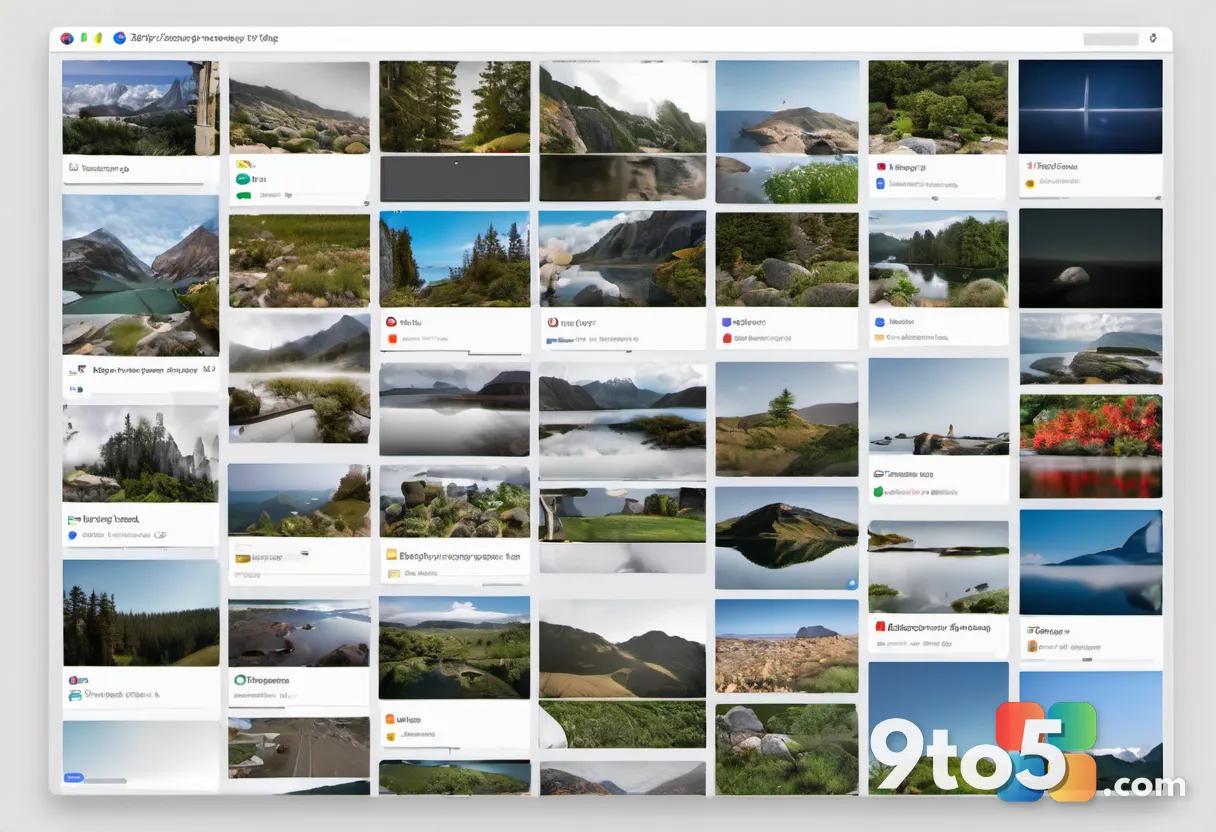
The most powerful tools for managing your storage are located within Google Photos itself. Google has created a dedicated Quota Management page at photos.google.com/quotamanagement. This feature is designed to help you identify and remove files that are taking up space but may not be worth keeping.
One of the most useful categories here is “Blurry Photos.” Google uses image analysis to identify photos that are out of focus, obscured by a finger, or taken through a dirty window. These are often accidental shots that we keep out of habit. Google allows you to review these photos in a tile format and delete them in bulk. In many cases, this single category can contain hundreds of megabytes of unnecessary data.
Another major category is “Screenshots.” If you are a tech enthusiast or someone who frequently references information on your phone, your screenshot folder may be massive. Google will show you how much space these images are using and ask if you want to keep them. For most users, the vast majority of screenshots are no longer relevant and can be safely removed. This category alone can often free up close to a gigabyte of storage.
These tools are incredibly efficient because they automate the identification of waste. Instead of manually scrolling through thousands of photos, Google highlights the files that are most likely to be duplicates or low-quality shots. This makes the cleanup process much less daunting and more productive.
Dealing with Video Files
Once you have addressed your photos, the next step is to tackle videos. Video files are significantly larger than images, and even a few minutes of footage can consume a gigabyte of storage. If you record a lot of video on your phone, this is likely where the bulk of your storage is being used.
Google Photos allows you to review and delete videos directly from the Quota Management page. You can watch the videos before deleting them to ensure you are not removing anything important. This is particularly useful for identifying glitchy clips, accidental recordings, or videos of low interest that you no longer need.
Deleting a single three-minute video can free up a gigabyte of space, depending on the resolution. If you are shooting in high definition, the space savings are even more dramatic. By reviewing your recent videos and removing the ones you do not need, you can quickly bring your storage usage back under control.
It is worth noting that Google tends to download the video before you can watch it, which can take some time. However, this process ensures that you are making an informed decision about what to delete. Once you have reviewed your videos, the cleanup is usually complete.
Considering Local Backups
If you find that you are still running out of space after cleaning up your photos and videos, it may be time to consider alternative storage options. You are not obligated to store all your data in the cloud. Using a physical backup can be a reliable way to preserve your memories without consuming your Google storage quota.
For Android users, transferring files to a PC is a straightforward process. You can connect your phone to your computer using a USB-C cable. It is important to select the option to transfer files when prompted on your phone. Some users find that using a USB-C hub provides a more stable connection, especially if you are using older hardware.
iPhone users can also transfer files to a Windows PC, though the process may require additional software or the use of iCloud for Windows. Once the files are on your computer, you can store them on an external hard drive or your PC’s internal storage. This frees up your cloud quota for other uses.
Local backups are a great way to reduce your reliance on cloud storage. They provide an additional layer of security for your data, ensuring that you have a copy even if your online account is compromised. However, it is always a good idea to maintain a duplicate copy of your backup, whether on another drive or in a different physical location.
What This Means for You
The key takeaway is that your Gmail storage problem is likely a Google Photos or Google Drive problem in disguise. By focusing your cleanup efforts on media files rather than email, you can free up space much more efficiently. Google has provided tools to help you identify and remove unnecessary files, but you need to know where to look.
Regular maintenance of your storage can prevent the frustration of hitting your limit. Set aside time every few months to review your photos and videos, and delete the files you no longer need. This proactive approach will help you stay within your free quota and avoid the need to purchase additional storage.
Additionally, consider whether you truly need all your data in the cloud. Local backups can be a practical solution for users who have large amounts of media. By diversifying your storage strategy, you can reduce your dependence on a single provider and maintain greater control over your data.
How to Get It
To start managing your Google storage quota, visit the Google One Storage Manager at one.google.com/storage/management. Review the breakdown of your usage and follow the suggestions provided. Then, head to the Google Photos Quota Management page at photos.google.com/quotamanagement to identify and delete blurry photos, screenshots, and unnecessary videos. If you prefer local storage, connect your device to your PC and transfer your files. These steps will help you reclaim space and keep your Google account running smoothly.
By taking these actions, you can resolve your storage issues without paying for an upgrade. The tools are available, and the process is straightforward. The next time you receive a storage warning, you will know exactly where to look and what to do.
Source: PCWorld
Build details:
- 26H2
Over to you: Have you tried using Google’s Quota Management tools to free up space, or do you prefer backing up to a local drive?