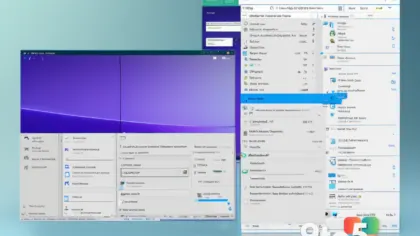
Microsoft has begun rolling out a change to Windows 11 Search indexing that automatically adds your most-used folders to the search index, putting files from those locations into results without you having to manually select them.
The feature is live on Windows 11 versions 24H2 and 25H2, and it can be turned on or off from a new toggle under Settings. Here’s what actually changed, the builds involved, and what it means for you.
What changed: Windows 11 Search indexing now adds your most-used folders
According to Microsoft, “Windows now automatically indexes your most used folders,” meaning files from locations you visit regularly show up in search results. The intent is simple: Windows watches which folders you open most often, then adds them to the index so you find what you need faster.
The catch is that Microsoft hasn’t published the criteria it uses to decide which folders count as “most used.” Its documentation gives no access threshold or specific number of openings that triggers automatic indexing, so you can’t easily predict which of your folders will be flagged.
The change first shipped with the August 27 KB5120998 preview update. That update pushed Windows 11 25H2 to build 26200.9278 and Windows 11 24H2 to build 26100.9278, with the Search changes listed under Microsoft’s gradual rollout.
It was later bundled into the September 8 KB5124008 cumulative security update, which moved 25H2 to build 26200.9445 and 24H2 to build 26100.9445.
Because this is a gradual rollout, installing the update doesn’t guarantee every PC gets the option immediately. Availability can vary between eligible devices, so some machines may not show the toggle yet.

How to control it
If you want to manage this, the toggle lives under Settings, then Privacy & security, then Search. On eligible devices you’ll find an option labeled “Automatically find additional relevant locations.”
Flip it on or off from that page. Turning it off does not disable Windows Search indexing entirely — existing indexed locations stay available, and you can keep managing search locations through Windows’ regular indexing controls.
That last point matters: disabling the new option is an opt-out, not a full stop. Your existing indexed folders keep working, and the manual Customize search locations and Modify controls remain untouched.
Other Search changes bundled in
The automatic folder indexing didn’t arrive alone. Microsoft shipped several other modifications to Windows Search at the same time, part of a broader set of Search refinements the company has been rolling out over the past months.
- Search home has been simplified. The results page was cleaned up for a leaner, less cluttered layout.
- Results now show their source. Each result is labeled as coming from an app, a setting, a file, a web result, or a Microsoft Store suggestion.
- Web and Store suggestions are optional. A new toggle under Settings, Privacy & security, and Search lets you choose whether those suggestions appear next to your local results.
Those changes line up with a separate update Microsoft released around the same time, which made Bing and Store suggestions optional in Windows 11 Search worldwide. Together, they point toward a Search experience that gives users more granular control over what appears where.
What this means for you
For most users, the automatic indexing is a convenience: your regularly used folders show up faster in search. But the silent classification is the part to watch. Because Microsoft hasn’t defined what triggers automatic indexing, you may find folders indexed that you didn’t consciously “use” much — with no easy way to see why they were added.
It’s also worth understanding how this fits into the two indexing modes Microsoft documents. Classic indexes Documents, Pictures, Music, and the desktop by default, with extra folders added through the manual controls. Enhanced mode indexes the entire PC, including user folders and files, which Microsoft says gives more comprehensive results but may use additional system resources.
The new option slots in between those modes. A folder you access frequently can become an indexed location without you manually selecting it through the existing controls, so the line between Classic and Enhanced gets a little blurrier.
Admins managing a fleet will notice that this is a staged rollout. Not every device in your environment will show the setting at the same time, and Microsoft hasn’t published a completion date, so plan for inconsistent availability across your machines.
How to get it
To check whether the option has reached your PC, open Settings, go to Privacy & security, then Search, and look for “Automatically find additional relevant locations.”
If it’s there, toggle it as you see fit. If it isn’t, your build is still waiting for the rollout to reach it — installing the August 27 KB5120998 or September 8 KB5124008 update won’t force it in immediately.
Source: Windows News: Updates, Security Patches, Microsoft OS Changes – gHacks
Build details:
- build 26100.9278
- build 26100.9445
- build 26200.9278
- build 26200.9445
Over to you: Will you leave automatic indexing turned on for speed, or switch it off for tighter control over what Windows indexes?
You may also like
 File System Tunnelling: Why Windows Dates a New File Like a Deleted One
 Why Windows 11 Hardware Requirements May Need Google-Style Enforcement
 Windows 11 Cloud Rebuild now wipes drives securely and can be rebuilt remotely by IT admins
 Microsoft’s Research Boss Explains Why Windows 11 Features Don’t Show Up — and His Fix Only Partially Works