If you’ve ever used a Mac, you know the feeling: select a file, tap the Spacebar, and a preview pops up instantly. Windows doesn’t do this out of the box, but a tiny free utility brings the same trick to File Explorer. Here’s how to preview files with the Spacebar on your PC.
What the Spacebar preview actually does
On macOS, the feature is called Quick Look. You highlight any file—image, PDF, video, document, archive—and press the Spacebar to open a floating preview window without launching the app that normally owns that file type. Press Spacebar again and it closes. It’s one of the fastest ways to glance at a file’s contents without committing to opening it fully.
Windows has never included an equivalent built-in shortcut. File Explorer offers a separate Preview Pane (toggled with Alt+P) that shows file contents in a sidebar, but that requires an extra click to enable and takes up screen space. There’s no native single-key hover preview, which is exactly what the QuickLook app fills in.
Installing the QuickLook app
The utility that powers Spacebar previews on Windows is called QuickLook, and it’s available for free directly from the Microsoft Store. It’s a lightweight, standalone program with no account required and no ads, which is why it’s remained a popular pick for years.
To install it, open the Microsoft Store on your Windows 11 or Windows 10 PC and search for “QuickLook.” Pick the official listing from the developer QuickLook Team, then click Get or Install. The app is small, so the download finishes quickly, and it adds itself to your Start menu and system tray without changing any system settings.

Using the Spacebar to preview files
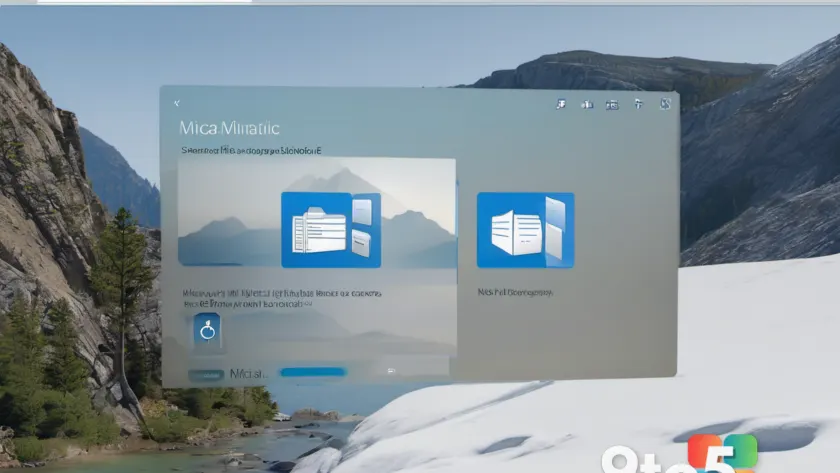
Once installed, QuickLook works the moment you select a file. Highlight an item in File Explorer—by clicking it or navigating to it with the arrow keys—and press the Spacebar. A preview window appears over your current folder showing the file’s contents.
Press the Spacebar again and the preview closes. There’s nothing else to configure for basic use; the app runs quietly in the background and listens for the shortcut whenever a file is selected.
What types of files can you preview?
QuickLook supports a wide range of formats, including common image types (JPG, PNG, GIF, HEIC), PDFs, documents (Word, Excel, PowerPoint), text files, videos, audio, and archives like ZIP and RAR. For formats Windows doesn’t natively understand, the app can use additional viewers you install if you want to extend coverage.
One useful detail: you can also preview multiple files at once. Select several items and press Spacebar to cycle through them with the arrow keys, which is handy when you’re sorting through a folder of screenshots or photos.
Customizing the experience
QuickLook includes settings you can tweak from its system-tray icon. From there you can adjust the preview window size, enable a hover-based preview that opens without pressing the key, and change how the app behaves across different folders. These options let you match the behavior to your workflow, whether you prefer a quick tap or a full hover gesture.
What this means for you
The practical upshot is simple: you get a Mac-style preview shortcut on Windows without switching operating systems or installing heavy software. Instead of double-clicking into every image, PDF, or document to see what’s inside, you can skim a whole folder in seconds. It’s especially useful if you frequently sort through downloads, photos, or exported files and want to check contents before deciding what to open.
Unlike File Explorer’s Preview Pane, it doesn’t permanently consume screen real estate—it appears only when you ask for it and vanishes the instant you press Spacebar again.
How to get it
Open the Microsoft Store, search for QuickLook, and install the free app from the QuickLook Team. Launch it once, select any file in File Explorer, and press the Spacebar to start previewing instantly. That’s the entire setup—no registry edits, no third-party launchers, no reboot required.
Source: Neowin
Over to you: Would you start using the Spacebar to preview files, or do you prefer File Explorer’s built-in Preview Pane?