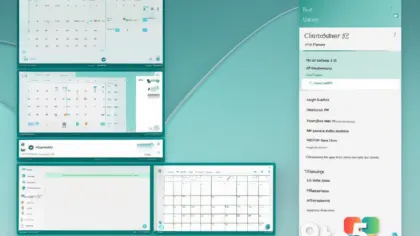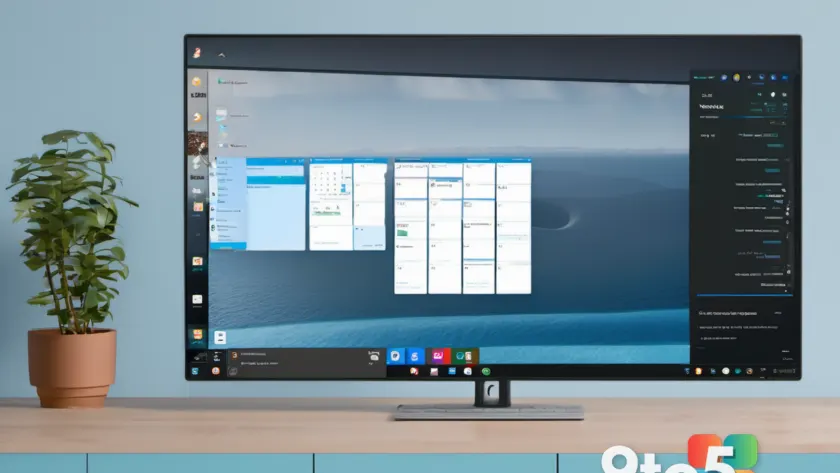
Microsoft built three Copilot-focused apps — People, Files, and Calendar — in early 2025 and shipped them as “Microsoft 365 companions,” hoping they’d make you more productive. Now the company is killing them, even though it went so far as to force-install and pin them to your taskbar.
The logic behind the whole effort was simple: Microsoft wanted the Windows 11 taskbar to be the single place to manage Microsoft 365 and Copilot features. That belief drove changes like “Ask Copilot,” which was later rolled back, and eventually produced these three “mini” apps pushed to eligible Microsoft 365 users.
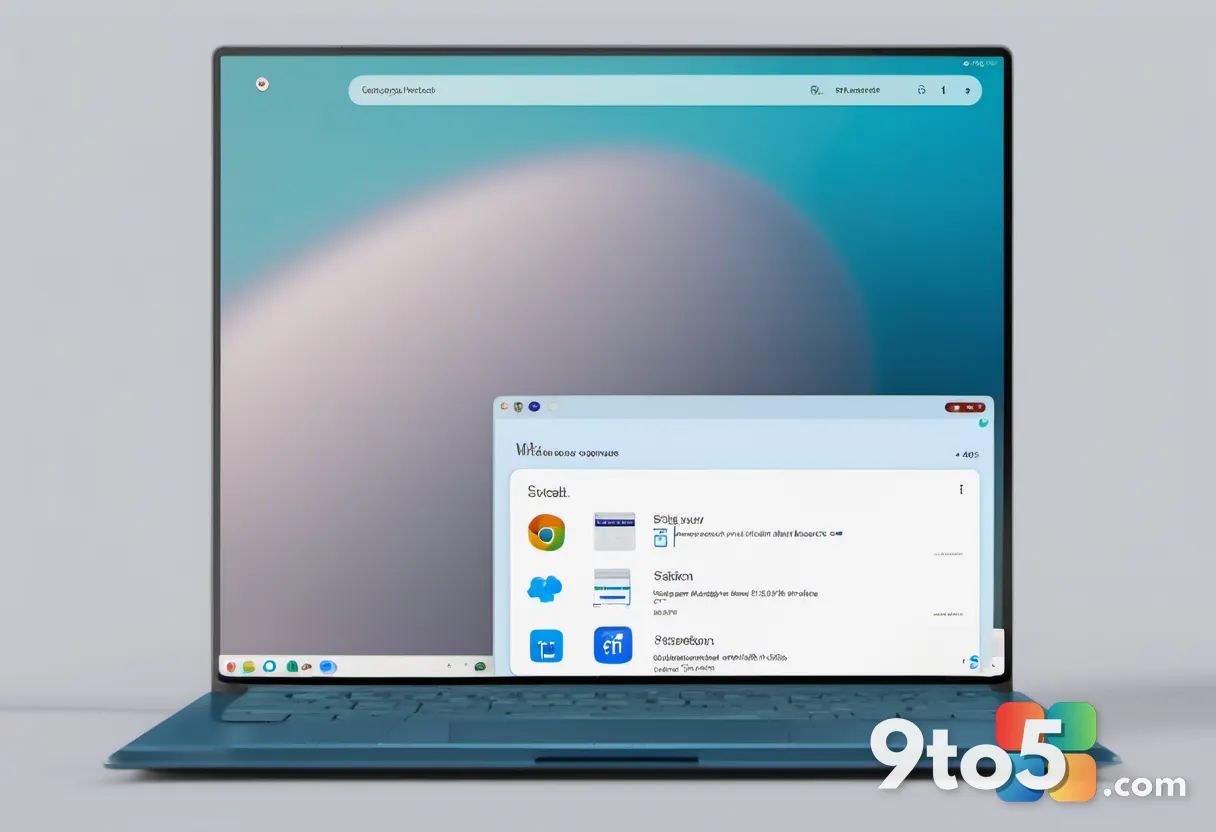
How People, Files, and Calendar mini apps worked
Initially, only users with a Microsoft 365 business license could access the apps, though there was an expectation they’d eventually roll out to everyone since they also work with personal accounts. In practice, these turned out to be WebView2 wrappers that pulled information straight from Microsoft 365 services rather than being native Windows apps.
People let you look up someone in your organization — similar to an Outlook contact card, but parked on the taskbar so you could pull up a face during a meeting. It called a Microsoft 365 endpoint to fetch details like contact information and a person’s role, included a Teams chat icon to message someone directly, and carried an “Ask Copilot” button that, by most reports, never worked properly.
Files let you search OneDrive and SharePoint, and Microsoft was testing a Copilot button that would have analyzed documents right from the mini app. Calendar was the most straightforward of the three, with Copilot integration that mostly focused on joining Teams meetings.
The whole pitch was convenience: click one of these apps mid-call to view a contact card, find files in Microsoft 365, or glance at your calendar without switching windows. There were genuine use cases, especially if you constantly bounce between Microsoft 365 apps during a meeting. But forcing bloatware onto people was never a good idea, and now Microsoft is asking users to clean up the apps it pushed out.
Microsoft says it’s killing companion apps it once forced
In an updated support document spotted by Windows Latest, Microsoft confirmed that the Microsoft 365 companion apps will retire by December 16, 2026. The document doesn’t explain why the company is taking down apps it once hyped for productivity.
Microsoft’s only justification is that “companion apps were an additional way” to find calendar information, people, and files. The company’s official statement reads: “Removing them doesn’t delete or affect any existing capabilities or Microsoft 365 data. You can continue finding the same information by using existing Microsoft 365 and Windows experiences.”
Here’s the catch: the apps won’t uninstall themselves. Microsoft confirmed they’ll stop working by the retirement deadline, but you have to remove them. “If your organization doesn’t manage your device, you must remove them yourself,” the company noted — in other words, Microsoft pushed these apps onto PCs and is now leaving users and admins to deal with the aftermath.
Microsoft has stopped automatic installations through Microsoft 365 updates, but organizations still need to stop deploying the apps on their own. If an Intune assignment still requires the apps, they can be reinstalled after removal, so admins should review their deployment policies before cleaning up a fleet.

What this means for you
If you never opened these apps, their retirement probably won’t change how you use your PC at all. But some users won’t even realize the apps were added to their Windows installation, since they arrived silently through Microsoft 365 updates. That’s worth checking.
In practice, this means a quick look at your installed apps list. If you find People, Files, or Calendar sitting there and you don’t use them, removing them is a good housekeeping move — it clears taskbar clutter and frees a sliver of local resources. If you do rely on quick access to contacts, files, or your calendar, you’ll still reach the same data through the normal Microsoft 365 and Windows experiences, just not from a pinned mini app.
For IT admins managing a fleet, the practical takeaway is to verify whether devices under your control actually have the apps deployed, and to stop any Intune or deployment policies still targeting them before the December 2026 deadline. Otherwise, you could find apps reappearing on machines you thought you’d cleaned up.
How to remove Microsoft 365 companion apps from Windows 11
The simplest route is to open Windows Settings > Apps > Installed apps, search for “Microsoft 365 companions,” click the three-dot menu, and select Uninstall. You can also search for People, Files, or Calendar in Windows Search, right-click the app, and choose Uninstall. Removing any one of these companion apps removes the other two.
You may need to restart Windows to fully clear the apps, or you can sign out and sign back in to see whether that’s enough. If you prefer the command line, PowerShell makes it quick.
To remove the apps for your current user account, run:
powershell -NoProfile -Command "Get-AppxPackage Microsoft.M365Companions | Remove-AppxPackage"
If you have multiple user accounts and want to remove the apps for everyone, run this command as an administrator:
powershell -NoProfile -Command "Get-AppxPackage -AllUsers Microsoft.M365Companions | Remove-AppxPackage -AllUsers"
To clear any leftover local app data for your account, close the apps first and then run this optional command in Command Prompt:
rmdir /s /q "%LOCALAPPDATA%\Packages\Microsoft.M365Companions_8wekyb3d8bbwe\LocalState"
With the apps scheduled to stop working by December 16, 2026, there’s no rush — but clearing them out now keeps your taskbar tidy and removes a feature Microsoft clearly didn’t think users wanted.
Source: Windows Latest
Over to you: Are you going to remove the People, Files, and Calendar apps now, or just wait for them to stop working in December 2026?