Windows 11’s File Explorer can once again show a quick preview of files you’ve downloaded straight from your browser, and it’s a small quality-of-life change that many users had started to miss. The catch is that Microsoft is treating HTML files differently, asking you to take one extra step before their contents render in the preview pane.
According to a report from Neowin, the update restores automatic previews for the majority of downloaded file types, while singling out HTML documents for slightly more cautious handling. Here’s what actually changed, why HTML gets special treatment, and how to make sure the Preview Pane is working for you.
What changed in File Explorer
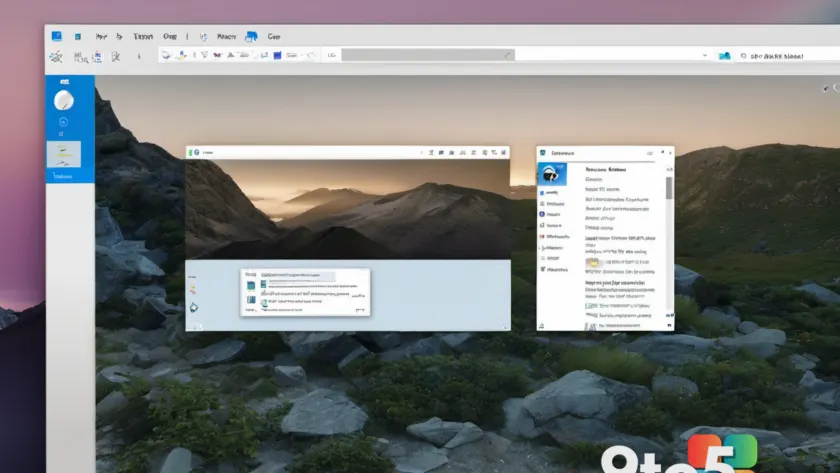
File Explorer’s Preview Pane has long been one of its more useful features. Instead of double-clicking every document to see what’s inside, you select a file and get a live preview of its contents in a side panel. It works for images, text files, PDFs, and several other formats without opening the associated application.
At some point, Microsoft dialed back automatic previews for files sitting in your Downloads folder, likely as a precaution tied to how Windows marks files that arrive from the internet. That change left users clicking through files they could previously just glance at. The latest update reverses that for most file types, bringing back the automatic preview behavior.
So if you download a photo, a PDF, or a plain text file, selecting it in the Downloads folder should show a preview again without any additional action on your part. It’s the same fast, glance-and-go experience that the feature was designed for.
Why HTML files get an extra step
HTML files are the exception, and there’s a good reason for it. An HTML document isn’t just static content — it can hold scripts, links, and other elements that behave more like a live webpage than a plain document. When File Explorer renders HTML in the preview pane, it can execute that content in a limited environment, which is exactly the kind of thing security teams tend to be wary of.
Because of that, Microsoft isn’t fully auto-rendering HTML previews the way it does for other downloaded files. Instead, you’ll need to take one additional step to actually load the HTML content in the preview. In practice, this means the preview area may show a placeholder or a prompt for HTML files until you interact with it, rather than immediately displaying the page’s contents.
This is a deliberate, conservative choice rather than a bug. It mirrors how Windows has historically treated web content that originates from untrusted sources, giving you a moment of friction before potentially risky material is fully rendered.
The security angle
The distinction makes sense when you consider how Windows tracks downloaded files. Anything you grab from a browser gets tagged with a security marker — technically an alternate data stream that flags the file as having come from the internet. This is the same mechanism behind the “This file came from another computer and might be unsafe” prompt you see when opening downloaded attachments.
For most file types, a preview is low risk. But HTML files can carry active content, so Microsoft is asking for a bit more confirmation before letting them fully render in the preview pane. It’s the same philosophy that has driven Windows to sandbox or prompt before running downloaded executables and scripts.
From an IT standpoint, this is consistent with the zone-protection model Windows has used for years: content from the internet gets treated with more scrutiny than content already trusted on your machine, and HTML sits right at the boundary where that scrutiny matters most.
How to get the preview working
If you don’t already see a preview when you select a file, you can turn the Preview Pane back on. Open any folder in File Explorer and press F4 on your keyboard, or head to the View menu at the top and choose Show, then Preview pane.
Once it’s enabled, click a downloaded file in your Downloads folder and its contents should appear in the side panel. For HTML files, expect to take that one extra step to load the content, as described above. The Preview Pane stays on until you turn it off, so you don’t have to re-enable it each time you open Explorer.
What this means for you
For everyday users, this is a net positive: glancing at downloaded photos, documents, and text files no longer requires opening them one at a time. The Preview Pane gives you a fast way to sanity-check a file before opening it in its full application, which is handy when you’re sifting through a folder full of recent downloads.
The HTML exception is worth a moment’s attention. If you frequently preview HTML files, you’ll just need to get used to that extra click. It’s a minor inconvenience, but it’s the price of Windows being cautious about rendering web content that could contain scripts. It’s not something to worry about — just a small nudge before an HTML preview fully loads.
Overall, this update is a reminder that Microsoft is still tuning how Windows 11 balances convenience with security. Most downloads preview freely again, while the handful of file types that can carry active content get a bit of extra scrutiny.
Source: Neowin
Over to you: Will you keep the Preview Pane open in your Downloads folder, or do you still prefer opening files one at a time?