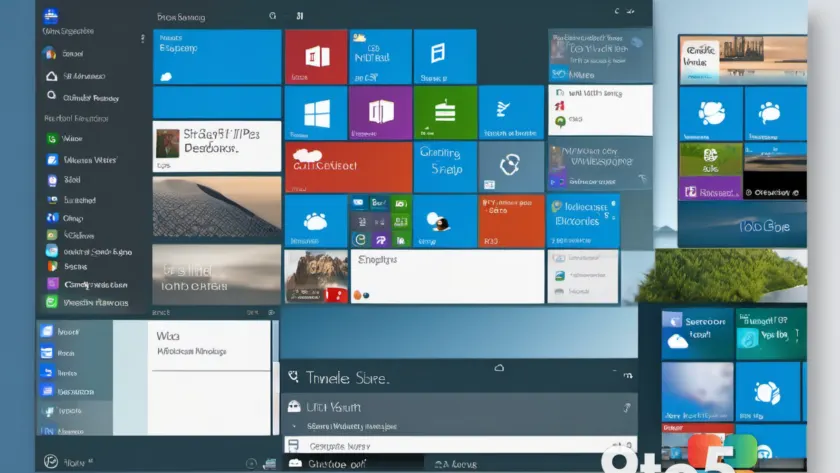
Microsoft has steadily expanded the options available inside the Windows 11 Start menu, and the 25H2 and 26H2 builds added several new personalization controls on top of the basics. If your home screen feels crowded with app recommendations, suggested files, and half-finished folders, this guide walks you through cleaning it up and making the menu actually yours.
The good news is that most of these controls live in the Settings app under Personalization, and none of them require a registry tweak or a third-party tool. Here are the steps to take, in the order that will get you from cluttered to clean.
#1 Remove the Recommended section
The Recommended section is the row of small tiles at the bottom of the Start menu that surfaces suggested apps, recent files, and tips from the Microsoft Store. It’s the single biggest source of visual noise for most users, and it’s the easiest one to remove.
Open Settings, then navigate to Personalization > Start. Look for the toggle labeled Show “Recommended” items on the Start menu and switch it off. The moment you do, that row disappears from the menu entirely.
- This setting syncs across devices if you’re signed in with a Microsoft account and have device sync turned on.
- You can’t restore individual recommended tiles without turning the toggle back on, so keep this in mind if you like the occasional suggestion.
#2 Group apps into folders
If you’ve pinned a dozen or so apps and they’re spilling off the bottom of the menu, the fix isn’t to unpin them—it’s to organize them. Windows 11 lets you create folders right inside the Start menu by dragging one app tile onto another.
Press and hold (or right-click) a pinned app, drag it on top of a second app, and release. Windows will prompt you to name the folder, then move both apps—and any you drag in afterward—into it. Tap the folder’s name to expand it and see everything inside.
- You can nest folders inside folders, so you can build a hierarchy like “Games > Strategy” if that’s your style.
- Right-click a folder to rename it, or drag an app out of it to return it to the main grid.
#3 Hide the “Recently added” row
Alongside the Recommended section, Windows 11 also shows a “Recently added” area that surfaces apps you installed in the last few days. It’s useful for a while, but it starts to look like leftover clutter once the novelty wears off.
Head back to Settings > Personalization > Start and toggle off Show recently added apps. The row clears out immediately, leaving your pinned apps as the only thing displayed.
#4 Make search work for you
When the Start menu gets too fiddly, the search bar is the fallback—and Windows 11’s search has gotten smarter in the 25H2 and 26H2 builds. Typing an app name still launches it directly, but the results pane now surfaces relevant files, settings pages, and web results in one place.
- Type a keyword to jump straight to a file, then use the filter tabs at the top to narrow to Apps, Documents, or Web.
- If web results feel like intruders, you can adjust search permissions under Personalization > Start to keep them off your local results.
#5 Tidy up the lock screen recommendations
Decluttering the Start menu doesn’t stop at the menu itself. The same Recommendation settings that power the Start tiles also feed the “Tips and suggestions” you see on the lock screen and as toast notifications.
While you’re in Settings > Personalization > Start, scroll down to the recommendation-related toggles and turn off anything you don’t want—such as Show suggestions for Tips and suggestions on Start and Lock screen. It’s a slightly longer scroll, but it closes the loop on the personalization you’ve just trimmed.
What This Means for You
The bottom line is that you don’t have to pick between a bare-bones Start menu and a crowded one. With these five adjustments, you can keep the apps you actually use front and center while quietly silencing the suggestion engine in the background.
Everything is reversible—each toggle flips back on in seconds—so there’s no commitment. If you’re running 25H2 or 26H2 and haven’t touched these settings yet, it’s worth ten minutes to make the Start menu reflect how you actually work.
Source: Neowin
Over to you: Which of these five tweaks will you try first—removing the Recommended section or grouping apps into folders?