
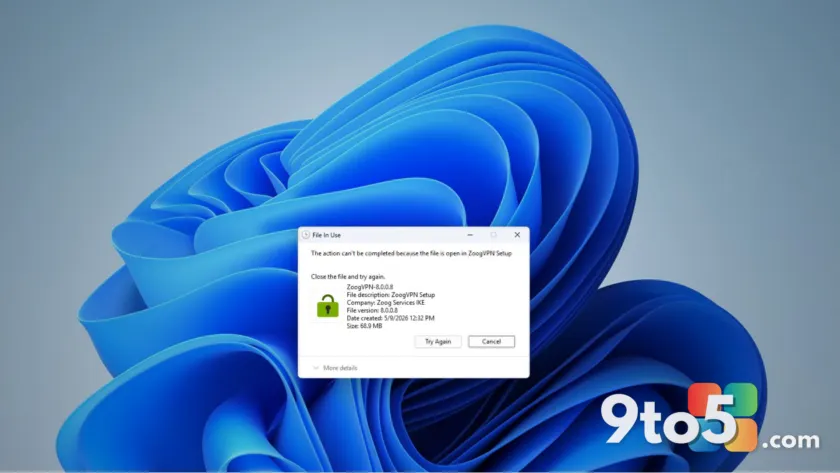
If you’ve ever tried to delete or rename a file in Windows only to be blocked by the message “The action can’t be completed because the file is open in another program,” you’re not alone. This error has been part of the Windows experience for decades. Mark Russinovich, Microsoft’s Azure CTO and Technical Fellow, recently broke down why this happens and how to resolve it.
What causes the ‘file in use’ error?
When a program opens a file, Windows creates a file handle. This is essentially a reference that tracks which application has access to the data. To prevent data corruption, Windows blocks deletion or renaming while that handle remains active.
In theory, closing an application should release all associated handles. In practice, however, the visible app window closing does not always mean every background process has let go of the file. Russinovich identifies three primary reasons why a file stays locked:
- Antivirus scanning: Security software often opens system-level handles to scan files in the background. Even if you’ve closed Word or Media Player, your antivirus might still be holding onto the file.
- Network references: If another device on your network accessed the file, that remote process may maintain an open handle, preventing local changes.
- DLL mappings: This is the most complex scenario. If a file is loaded as a Dynamic Link Library (DLL) into a process’s memory space, it doesn’t appear as a standard file handle. Instead, it’s mapped into the application’s address space. Standard tools won’t show an open handle; you must terminate the entire application to release the lock.
How to identify the locking process
Russinovich originally built the Handle command-line tool in the 1990s to solve this exact problem. Part of the Sysinternals suite, Handle lists every open file handle on your system along with the responsible process name and ID. You can search for a specific filename to pinpoint the culprit.
For users who prefer a graphical interface, Process Explorer is the companion tool. It offers deep visibility into system processes. To find a locked file:
- Open Process Explorer.
- Press Ctrl + Shift + F to open the Find Handle or DLL search window.
- Type the name of the locked file.
- The tool will highlight the process holding it. You can right-click to close the handle directly or terminate the process entirely.
Russinovich noted that despite Windows 11’s modern interface, these legacy diagnostic tools remain essential because the underlying Win32 architecture still governs how files are handled.
Easier fixes for everyday users
If command-line tools feel too technical, Microsoft offers a more accessible solution through PowerToys. The utility includes File Locksmith, which integrates directly into the Windows context menu.
To use it, right-click the locked file and select “Unlock with File Locksmith.” A window will appear listing every process holding that file open. You can end the offending process from this interface without leaving your desktop environment.
A workaround for stubborn locks
If you cannot terminate the process holding the file, Russinovich suggests a practical workaround: rename the file. Windows often allows renaming even when a file is open in certain contexts. Once renamed, you can drop a fresh copy of the file with the original name into the same folder. Other processes needing the file will pick up the new version, allowing you to delete the old, renamed copy once the lock is finally released.
What this means for you: You don’t need to restart your computer every time a file won’t delete. By understanding that background scanners or network shares might be holding the handle, you can use tools like File Locksmith to resolve the issue quickly and safely.
Source: Windows Latest
Over to you: Do you rely on PowerToys for file management, or do you prefer traditional restarts when files get stuck?