Most of us start with a single laptop screen or a standalone monitor, but productivity often demands more real estate. Windows 11 is built to handle multi-display setups natively, allowing you to extend your workspace across two, three, or even more screens depending on your hardware.
Extending vs. Duplicating your display
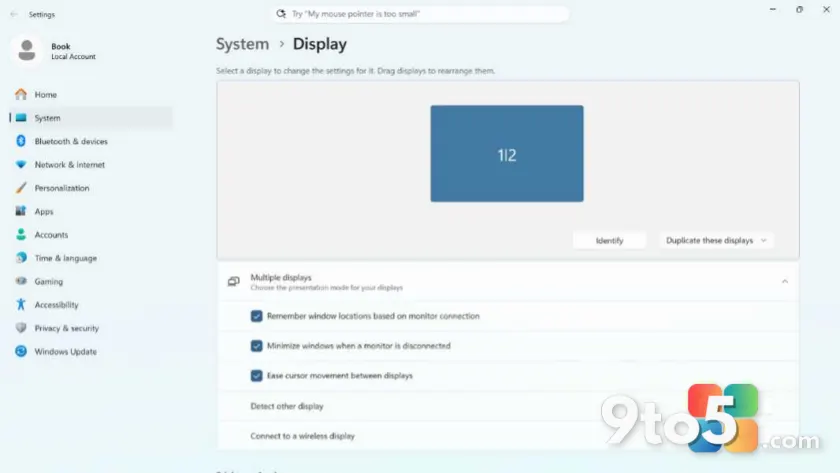
When you connect an external monitor, Windows gives you immediate control over how the signal is handled. The two primary modes are ‘Duplicate’ and ‘Extend.’ Duplicating mirrors your main screen onto the secondary display, which is useful for presentations or quick troubleshooting. Extending, however, creates a larger virtual desktop, letting you drag windows between screens to keep apps organized.
Configuring display arrangements
If your monitors are not physically side-by-side in a perfect line, you can adjust their logical positions. Right-click the desktop and select ‘Display settings’ to open the configuration panel. Here, you will see boxes representing each connected screen. Drag these boxes to match your physical desk layout. This ensures that when you move your mouse cursor from one monitor to another, it travels in the direction you expect.
Windows 11 also allows you to set a primary display. This is where the taskbar and most new windows will appear by default. You can change this at any time within the same settings menu, ensuring your workflow remains intuitive regardless of which screen holds your main applications.
What this means for you
For everyday users, adding a second monitor can significantly reduce window clutter and context switching. Whether you are working with spreadsheets while referencing emails or browsing the web while watching a video, multi-display support in Windows 11 is straightforward to configure and highly effective for boosting efficiency.
Source: Thurrott
Over to you: Do you prefer extending your display across multiple monitors or sticking to a single large screen?