

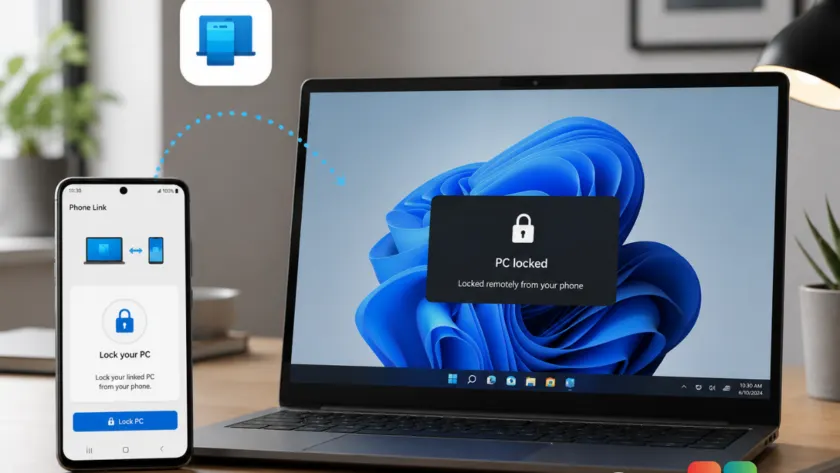
Microsoft has rolled out a new security convenience in the Phone Link app: you can now lock your Windows PC directly from your Android phone with a single tap. This update addresses a common scenario where users step away from their desks in shared or open-plan offices and forget to secure their machines.
The feature requires no complex setup. As long as both your Windows PC and Android device are running the latest versions of Phone Link, the option appears automatically. It is currently exclusive to Android; iPhone users will not see this button yet.
How remote locking works
When you open the Phone Link app on your paired Android device, look for the new Lock PC button. Tapping it sends a command that locks your computer within seconds. The process is designed to be immediate and reliable.
Once the lock command is executed, the Phone Link connection on the phone side disconnects automatically. You will need to physically unlock your PC with your PIN, password, or biometric sensor before the apps can reconnect. This ensures that the session remains secure after the remote action.
The button is intuitive in its state management. If your phone is not connected to the PC, the Lock PC option appears grayed out, giving you clear visual feedback that the feature is unavailable until connectivity is restored.
Remote Lock vs. Dynamic Lock
Windows has long included Dynamic Lock, which automatically locks your PC when a paired Bluetooth device moves out of range. The new Phone Link remote lock serves a similar purpose but operates differently.
- Explicit control: Dynamic Lock relies on proximity sensors and can sometimes be finicky or trigger unexpectedly. Phone Link requires an intentional tap, removing uncertainty about whether the lock engaged.
- Battery efficiency: Phone Link communicates over Wi-Fi for this feature. This means you don’t need to keep Bluetooth constantly active just for locking purposes, which can help conserve battery life on your phone.
- Visibility: The grayed-out state in the app provides immediate status updates, whereas Dynamic Lock offers no visual confirmation until you return to the screen.
If you prefer automation and already have Bluetooth paired for other reasons, Dynamic Lock remains a viable option. However, if you want deliberate control without relying on Bluetooth range detection, the new Phone Link button is likely more reliable.
Managing the feature and iOS status
You can disable remote locking if you prefer not to use it or want to prevent accidental taps. On your Windows PC, go to Settings > Bluetooth and devices > Mobile devices. Select your paired phone and toggle off the Remote PC controls option.
As for iPhone users, Microsoft has not announced plans to bring this specific remote lock feature to iOS. While Phone Link for iPhone has recently gained support for Apple Messages, deeper system-level integrations like remote locking remain restricted by Apple’s ecosystem policies. For now, Android users hold the advantage in cross-device security controls.
What this means for you: If you work in a busy office or frequently step away from your desk to grab coffee or attend meetings, this feature adds a layer of convenience and security. You no longer need to rush back to hit Win + L; just tap your phone before walking away.
Over to you: Will you use this new remote lock feature, or do you prefer the automatic nature of Dynamic Lock?
You may also like
 Microsoft admits Outlook’s most critical feature is currently broken
 Microsoft to auto-install Microsoft 365 Copilot app on eligible Windows PCs starting June 2026
 Microsoft kills Edge Drop, Collections, and Sidebar to clear the way for Copilot
 Secure Boot deadline passed: What happens to your Windows 11 PC if you missed the update