
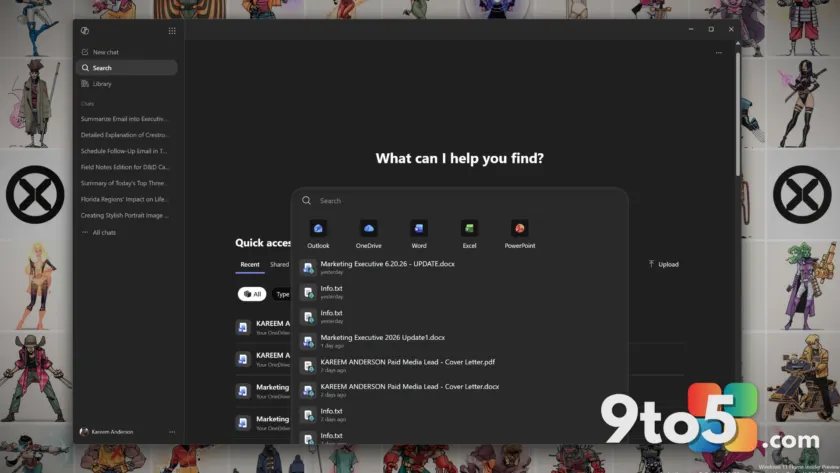
Microsoft has confirmed that it will resume the automatic installation of the Microsoft 365 Copilot app on eligible Windows devices running Microsoft 365 desktop applications. According to an update in the Microsoft admin portal, this rollout is scheduled to begin between mid-June and mid-July 2026.
This move marks a shift back to aggressive deployment strategies for the company’s AI assistant, despite previous public pushback. The installation is enabled by default and does not require user interaction. However, organizations based in the European Economic Area (EEA) are exempt from this change.
How the installation works
Unlike previous methods that relied on the Microsoft Store, Microsoft is utilizing the built-in Microsoft 365 Apps updater within Office applications to deploy the Copilot app. This means the software will appear on devices automatically as part of routine updates for eligible subscriptions.
Microsoft states that this change aims to “simplify access to Copilot” and help users discover productivity-enhancing features. However, for administrators who do not want the app installed, an active opt-out is now required through the Microsoft 365 Apps admin center under Customization > Device Configuration > Modern Apps settings.

What this means for you
If you are a personal user or part of an organization that has not opted out, you will likely see the Microsoft 365 Copilot app appear on your Windows 11 device soon. While the app itself is separate from the Copilot buttons embedded in Word, Excel, and PowerPoint, its presence signals Microsoft’s continued push to integrate AI deeply into the productivity suite.
For those looking to minimize Copilot’s footprint without uninstalling the entire suite, there are several supported methods to disable or hide features:
- Per-App Toggle: In Word, Excel, PowerPoint, and OneNote, go to File > Options > Copilot and clear the “Enable Copilot” checkbox. Note that Outlook requires navigating to Settings > Copilot or Quick Settings.
- Privacy Settings: Disable connected experiences by going to File > Account > Account Privacy > Manage Settings and turning off “Turn on experiences that analyze your content.” This blocks Copilot but may also affect other cloud features like suggested replies.
- Ribbon Customization: Hide the Copilot button from the interface by going to File > Options > Customize Ribbon and unchecking the Copilot entry. This hides the UI element but does not remove the underlying AI capabilities.
Advanced removal options
For advanced users or IT administrators comfortable with system-level changes, Group Policy can be used to block connected experiences. By opening gpedit.msc, navigating to User Configuration > Policies > Administrative Templates > Microsoft Office 2016 > Privacy > Trust Center, and disabling “Allow the use of connected experiences in Office that analyze content,” you can restrict Copilot functionality.
Microsoft warns against using firewall blocks to stop Copilot, as this can inadvertently break other Microsoft 365 services, templates, and cloud features. Additionally, registry tweaks are not considered a clean or reliable method for managing these settings in an organizational environment.
For personal subscribers, Microsoft has introduced “Classic” plans without Copilot in some regions, including the United States. Users can check if they are eligible to switch by visiting their account services page and looking for the option during the subscription cancellation or switch flow.
Source: Windows Latest
Over to you: Will you opt out of the automatic Copilot app installation, or do you find the AI assistant useful enough to keep it enabled?