- Status: Confirmed by users, workaround available
- Affected versions: Windows 10 and Windows 11 (all builds)
- Root cause: Google Chrome scheduled task
RunPlatformExperienceHelperOnUnlock
An increasing number of users on both Windows 10 and Windows 11 are reporting a frustrating visual glitch: a large, blank white window that appears in the corner of their screen. This issue typically triggers when you start up your PC, unlock it from sleep, or restart the system.
The white overlay is significant enough to cover large portions of the desktop, making it difficult or impossible to interact with icons, taskbar elements, or open applications. While some users report that the window disappears after a few seconds, others find it remains permanently stuck until they intervene.
What causes the white screen bug?
Reports indicate this issue affects systems running both Intel and AMD processors, suggesting it is not hardware-specific. The culprit appears to be linked to Google Chrome, but not the browser application itself. Instead, a specific background scheduled task associated with Chrome is triggering the behavior.
The problematic process is named RunPlatformExperienceHelperOnUnlock. While its exact function isn’t fully documented by Microsoft or Google, it seems related to Chrome’s background activities, such as extension updates or plugin interactions. Terminating this specific task prevents the white window from appearing.
How to fix the issue
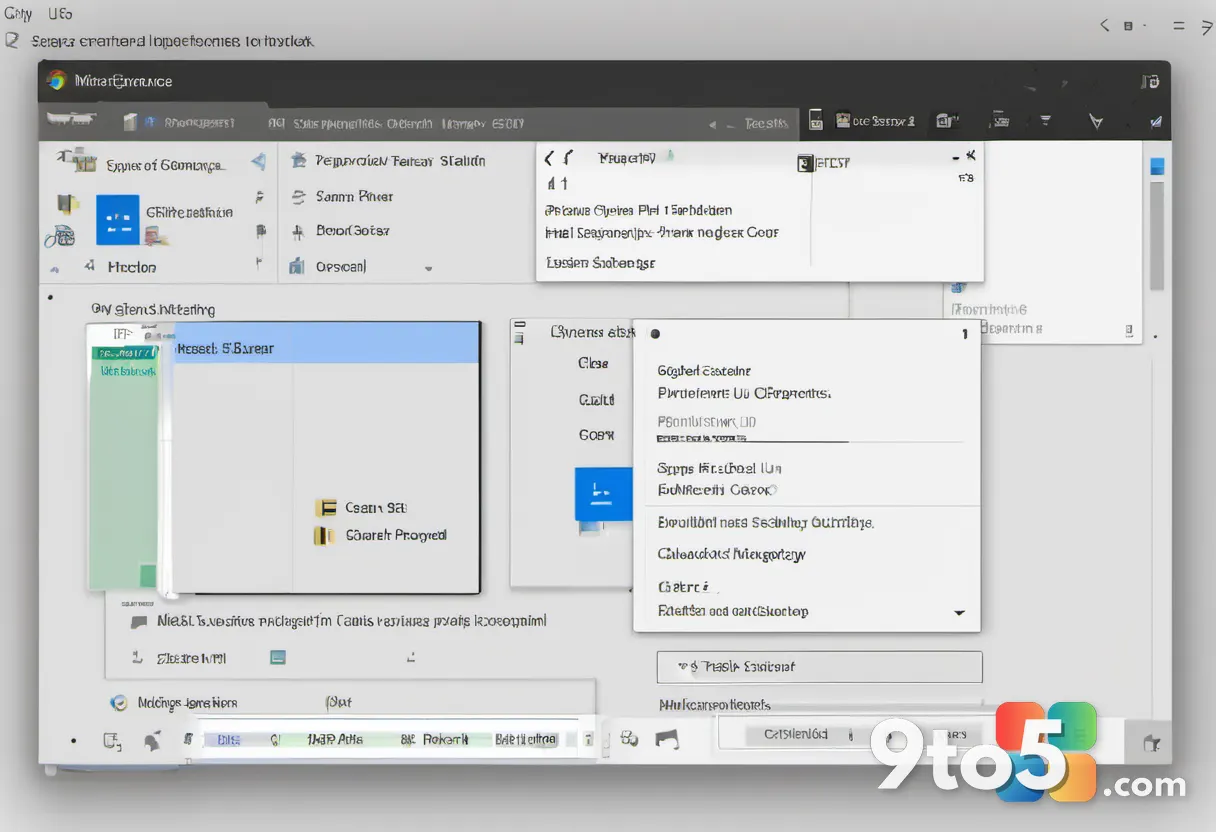
If you are seeing this white window on your desktop, you can resolve it by disabling the associated scheduled task. This fix has been tested by users with no reported negative side effects on Chrome’s core functionality.
- Press Windows Key + R to open the Run dialog box.
- Type
taskschd.mscand press Enter to launch the Task Scheduler. - In the left-hand navigation pane, expand Task Scheduler (Local), then click on Task Scheduler Library.
- Select the folder named GoogleUserPEH.
- In the middle panel, locate the task named RunPlatformExperienceHelperOnUnlock.
- Right-click on this task and select Disable from the context menu.
Once disabled, restart your computer or lock/unlock your screen to verify that the white window no longer appears. Neither Microsoft nor Google has officially confirmed the bug as of yet, but disabling this specific task provides an immediate solution for affected users.
What this means for you
If you haven’t noticed any strange white overlays on your desktop, you likely don’t need to take any action. However, if your screen is being obstructed by a blank window every time you log in, this simple Task Scheduler tweak should restore your desktop to normal without requiring a full reinstall of Chrome or Windows.
Source: PCWorld
Over to you: Have you encountered this white window bug on your PC, or did disabling the Chrome task fix it immediately?