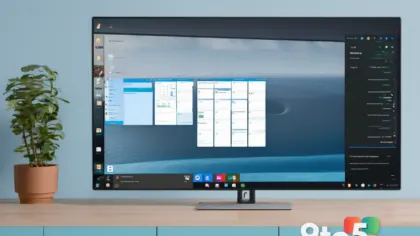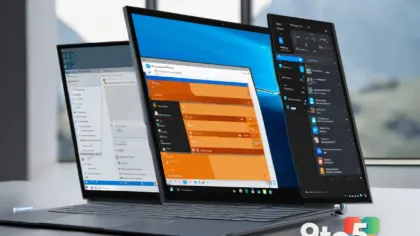
Microsoft is quietly adding a quality-of-life tweak to Windows 11 that could change how every app launches on your PC. In the latest preview builds, testers have found a new setting that lets you force apps to open maximized by default, so you no longer have to resize or stretch each window to the edges of the screen by hand.
Force apps to open maximized: what’s new
Up until now, the behavior was predictable: virtually every Windows app opens in a default-sized windowed state, and it’s up to you to maximize it. That’s fine on a large monitor, but it gets tedious when you open the same handful of programs dozens of times a day.
According to Windows Central, the new option was first spotted by X user phantomofearth in recent Windows 11 preview builds. It lives in the accessibility section of Windows Settings and is labeled “Automatically open app windows maximized when they open,” complete with a simple on/off toggle.
Turn it on and every app launches already maximized. Turn it off and you’re back to the current default. The feature is deliberately broad, applying to Windows apps in general rather than targeting specific programs.

Why small screens and handhelds benefit most
The real payoff shows up on devices with smaller displays. For PCs under 13 inches, apps often feel cramped in windowed mode, and forcing them to fill the screen can make them noticeably more usable. The reporter behind the discovery said that on their 12-inch Surface Pro, apps are generally easier to work with when maximized.
The effect is even more pronounced on sub-10-inch screens. That’s the territory of the Surface Go line and, more importantly, PC handheld gaming devices. Machines like the Xbox ROG Ally X ship with a 7-inch display, and Windows has long been criticized for not being well optimized at those small sizes.
Letting users force apps full screen is a straightforward way to improve that experience without waiting for a deeper redesign of how Windows 11 handles window management on tiny panels.
This isn’t the first time Windows tried
Interestingly, Windows 11 already had a version of this behavior at one point. At an earlier stage, the OS would automatically force apps to open maximized on PCs with small screens. That automatic behavior was later dropped, and apps reverted to opening in windowed mode across the board.
The new toggle represents a different approach entirely. Rather than applying the maximized behavior only to small screens, it gives users the choice to enable it on any device, which most people would consider the more sensible design.
Part of a broader Windows 11 customization push
This setting fits into a wider wave of Windows 11 personalization changes Microsoft has been rolling out. Over the past several months, the company has announced new customization options for the Start menu, along with major upgrades to the right-click context menu aimed at improving both performance and customizability.
Quality-of-life tweaks like the maximize-by-default option are a consistent theme in that effort, giving power users and casual users alike more control over how the desktop behaves out of the box.
What this means for you
If you primarily use a handheld gaming PC, a small tablet, or a PC that sits across the room on a shelf beneath a TV, this is one you’ll want to watch closely. The ability to force apps to open maximized removes a small but repeated annoyance, and it’s especially useful in the “watch movies or play games from a distance” scenario, where a tiny windowed app is nearly pointless.
For everyone else, it’s a matter of preference. If you like managing your own windows, you can leave it off. If you’d rather apps just fill the screen, one toggle handles it for every program at once.
How to get it
As of now, the feature is only available in Windows 11 preview builds, so it isn’t ready for the general public. Once Microsoft ships it to a stable release, you’ll find it in the accessibility section of Windows Settings under the “Automatically open app windows maximized when they open” toggle.
Until then, there’s no way to enable it on a stable build. If you want to try it, you’ll need to join the Windows Insider program and run a preview build. Keep an eye on Microsoft’s official changelogs and the Windows Insider Blog for confirmation of when this lands in a public release.
Source: Latest from Windows Central
Over to you: Would you turn on force-maximize for every app, or do you prefer managing your own windows yourself?