Windows 11 Insiders on the Experimental channel have a new build to test, and it centers on a small but frequently used feature: automatic File Explorer PDF previews.
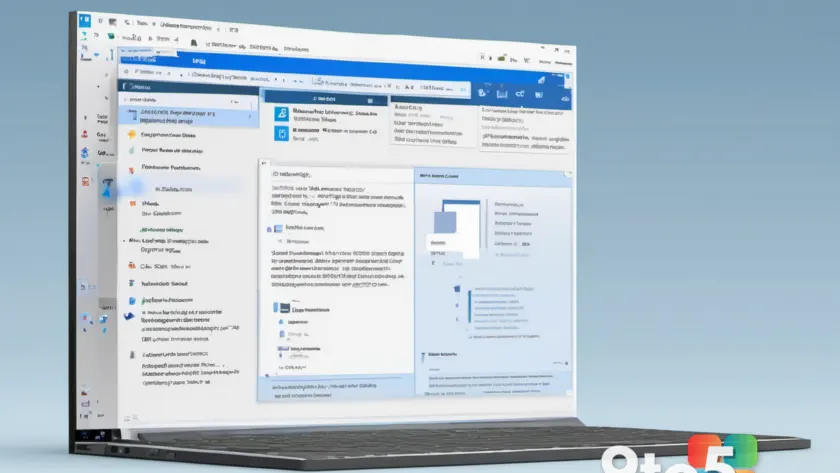
According to Neowin’s report on the build changelog, the latest Experimental builds add the ability to see a PDF’s contents right in the folder view, without having to double-click to open it in a separate reader.
Which builds get the change
Microsoft pushed the update to two Experimental Channel builds, each tied to a different Windows 11 feature release:
- Build 26340.9233 — the 26H2 branch.
- Build 28120.2760 — the 26H1 branch.
Both builds landed in the Experimental Channel, Microsoft’s most testing-ground tier. It’s where the company ships features it wants Insiders to examine closely before they reach the more stable Beta and Release Preview channels. If you’re not already on Experimental, you’ll be further back in line than users on the Canary or Beta channels.
For context, 26H2 and 26H1 are internal codenames for upcoming Windows 11 feature releases, and the two build numbers above are the specific point-in-time snapshots that carry the new preview behavior.
What automatic PDF previews actually do
In earlier versions of Windows, File Explorer could show a thumbnail of the first page of a PDF when you viewed a folder in Thumbnail or Large Icons mode. That preview only covered the front page, though, and it required you to switch to a visual mode to see it at all.
The new behavior, as described in the changelog, takes a step further by generating previews automatically. In practice, this means File Explorer prepares preview data for PDF files in the background so that when you click a document to select it — or interact with it in certain views — you get a faster, more complete look at what’s inside without launching your default PDF reader.
The exact trigger and how much of a multi-page document shows up haven’t been spelled out in detail by Microsoft, so treat the finer technical points as provisional until Insiders report back on real-world behavior across larger files.
Why this matters for everyday users
PDFs are among the most common file types people handle daily, from tax documents and invoices to e-books and work contracts. Having a quick preview means you can confirm you’ve opened the right file before committing to read it in full, which saves time when sorting through a crowded Downloads folder.
It also cuts down on the number of times you have to launch a separate application just to verify a document’s contents. For people who keep many PDFs open at once, that can mean less memory pressure and fewer app switches throughout the day.
What this means for you
For most Windows users, this is a minor but genuinely useful refinement. You don’t need to change any settings to start benefiting from it — the behavior ships with the build itself. The main practical takeaway is that you’ll want to be on a recent build to test it, and if you want to try it early, that means opting into the Experimental Channel.
It’s worth flagging that Experimental Channel builds can be less stable than the regular Windows 11 experience, so avoid installing them on your primary work machine unless you’re comfortable with occasional glitches.
How to get the update
To try the new PDF previews, you’ll need to join the Windows Insider Program and switch to the Experimental Channel from Settings. From there, check for updates — the new builds (26340.9233 and 28120.2760) should appear once Microsoft has provisioned them to your account.
If you’re on the stable release of Windows 11, you won’t see this change yet. Microsoft typically rolls refined features like this out to the broader public months after they’ve been validated on the Insider channels, so keep an eye on future stable updates if you’re not an Insider.
Until then, you can keep using your current PDF workflow as-is. This feature is an addition, not a replacement for whatever reader you already rely on.
Source: Neowin
Over to you: Will you switch to the Experimental Channel to try the new PDF previews, or stay put on a stable build?