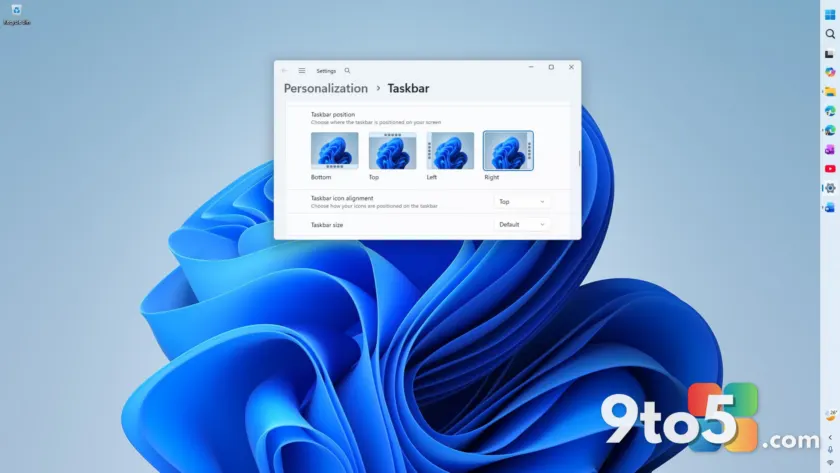
Windows 11 has finally regained one of its most-requested Windows 10 features: a taskbar you can move to any edge of the screen. The capability shipped with the September 2026 Patch Tuesday update, KB5124008, ending a five-year wait for users who wanted to relocate the taskbar to the top, left, or right.
Like most additions that arrive with major updates, the Windows 11 movable taskbar doesn’t appear the moment you install the patch. It rolls out gradually through Microsoft’s Controlled Feature Rollout program, so you may need to force it on manually. Here’s what changed, how to enable it, and what to expect.
How to enable the movable taskbar right now
The first step is getting the update onto your PC. Install KB5124008 through Settings > Windows Update, or download the offline .msu installer if you prefer a manual route. The update bumps your system to Build 26200.9445 on version 25H2, or Build 26100.9445 on version 24H2. Once it finishes, restart your PC.
After rebooting, head to Settings > Personalization > Taskbar > Taskbar behaviors and look for a Taskbar position option. If you don’t see it yet, don’t worry — your PC already has the code, but Microsoft simply hasn’t flipped the remote switch for your device. That staged approach is intentional, designed to catch stability problems before the feature reaches everyone.
If you’d rather not wait for the rollout, you can force the feature on yourself using ViVeTool, a command-line utility that toggles hidden Windows features. Download it from its GitHub page, extract it to a folder like C:\ViVeTool, then open Command Prompt as administrator and run cd C:\ViVeTool.
With the tool ready, enable the movable taskbar by typing:
vivetool /enable /id:61161244,61754985
Restart your PC afterward. If the position option still doesn’t show up, run the full bundle to activate this update’s other features as well, including the resizable Start menu and Bing-free Search:
vivetool /enable /id:61161244,61754985,62353331,62762248
Restart once more, then return to Settings > Personalization > Taskbar > Taskbar behaviors. You should now find a Taskbar position menu offering Left, Top, Right, or Bottom, complete with a small visual preview of each layout.
What the feature actually does
Based on hands-on testing, the Windows 11 movable taskbar is fully functional. The Start menu and Search adapt to wherever you place the bar, and icon alignment shifts automatically so nothing looks off-center. Animations, tooltips, and flyouts all follow the new position correctly.
There are also options to change the Start button and icon alignment, which respond to your chosen orientation: top or center for a vertical taskbar, and left or center for top and bottom placements.
However, this is clearly version one of the feature, and longtime Windows 10 users will notice a few gaps. The biggest omission is drag-and-drop repositioning — in Windows 10 you could grab the taskbar and slide it to any edge. That convenience is gone here; you must open Settings to move the bar.
Other limitations are worth knowing before you reorganize your desktop. The option to shrink the taskbar only applies when it sits at the bottom or top, though icons get smaller regardless of orientation. The Search box doesn’t appear in vertical positions at all, and the auto-hide option is limited to the bottom position. On 2-in-1 devices, the “Optimise taskbar for touch interactions when this device is used as a tablet” toggle works only in the bottom position as well.
Why it took five years
Windows 11 launched in 2021 without the ability to move the taskbar, a surprise to many since relocating the bar to the top, left, or right had been standard since Windows 95. Microsoft later confirmed it simply chose not to include the feature at launch, a decision that frustrated longtime users who saw no technical reason for the omission.
The request quickly became one of the most upvoted items in the Feedback Hub. With no official option coming, users turned to registry hacks and third-party tools like ExplorerPatcher and StartAllBack just to regain control over their taskbar’s placement.
The September 2026 update finally answers that long-standing demand, restoring a core taskbar capability that had been missing for half a decade. It also quietly removes the need for those workarounds for most users.
What this means for you
For everyday users, this is a genuine quality-of-life improvement. If you’ve ever felt cramped by a bottom-only taskbar, you can now free up screen space by moving the bar to the side or top — a setup many power users prefer for multi-window workflows and ultrawide monitors.
The catch is patience. Because the feature rides on Controlled Feature Rollout, some people will see it immediately after installing KB5124008, while others may wait days or weeks. Those on newer hardware appear to receive it sooner. If you don’t want to wait, the ViVeTool workaround is a reliable shortcut — though it does require running commands as an administrator.
Installing KB5124008 is safe even before the rollout reaches you
If you’ve already taken the August optional update without trouble, installing KB5124008 and running the ViVeTool commands is safe. The update also ships with a record number of fixes — Microsoft addressed a record 974 issues this month — so the security benefits alone make it worth installing regardless of the taskbar feature.
Whether you enable the movable taskbar now or let it turn on automatically, there’s no reason to delay the security update. Open Settings > Windows Update > Check for updates to download and install it.
How to get it
To enable the Windows 11 movable taskbar, follow these steps:
- Install the update: Go to Settings > Windows Update and check for updates, or grab the offline .msu installer for KB5124008.
- Restart: Reboot your PC once the installation completes.
- Check Settings: Look under Personalization > Taskbar > Taskbar behaviors for the Taskbar position option.
- Force it (optional): Use ViVeTool with the commands above if the option hasn’t appeared yet.
With the update in place and the feature enabled, you can finally place your taskbar wherever works best for you — a small change that marks a big step toward closing the gap with Windows 10.
Source: Windows Latest
Build details:
- kb5124008
Over to you: Now that you can move the taskbar to any edge, which position would you put it on — left, right, or top?
You may also like
 Windows 11 Insider Preview builds for September 8 add cross-device resume, Narrator math, and per-monitor Magnifier
 Windows 11 Could Get a Dark Mode Schedule That Toggles on Its Own
 Microsoft Tests Windows 11 Desktop Ads as Wallpapers
 Microsoft Confirms Windows 11 Will Get Windows 10-Style Customization Options