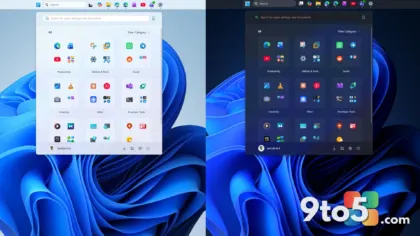
There was a stretch of time when the consensus on Windows 11’s redesigned Search felt almost unanimous: it was fine, forgettable, and apparently going nowhere fast. Search had been a sore spot since Windows 11 launched, and years of small tweaks hadn’t done much to shake that reputation. So when Neowin got hands-on time with the latest version, expectations were deliberately low. The verdict, apparently, went the other way.
According to Neowin’s hands-on, the short version is this: we were wrong. The newest Windows 11 Search experience isn’t just another search box. As the outlet frames it, it “can now do things for you” — a shift from merely surfacing results to actually carrying out actions. That’s a meaningful change in direction, and one worth unpacking.
What’s actually new in Windows 11 Search
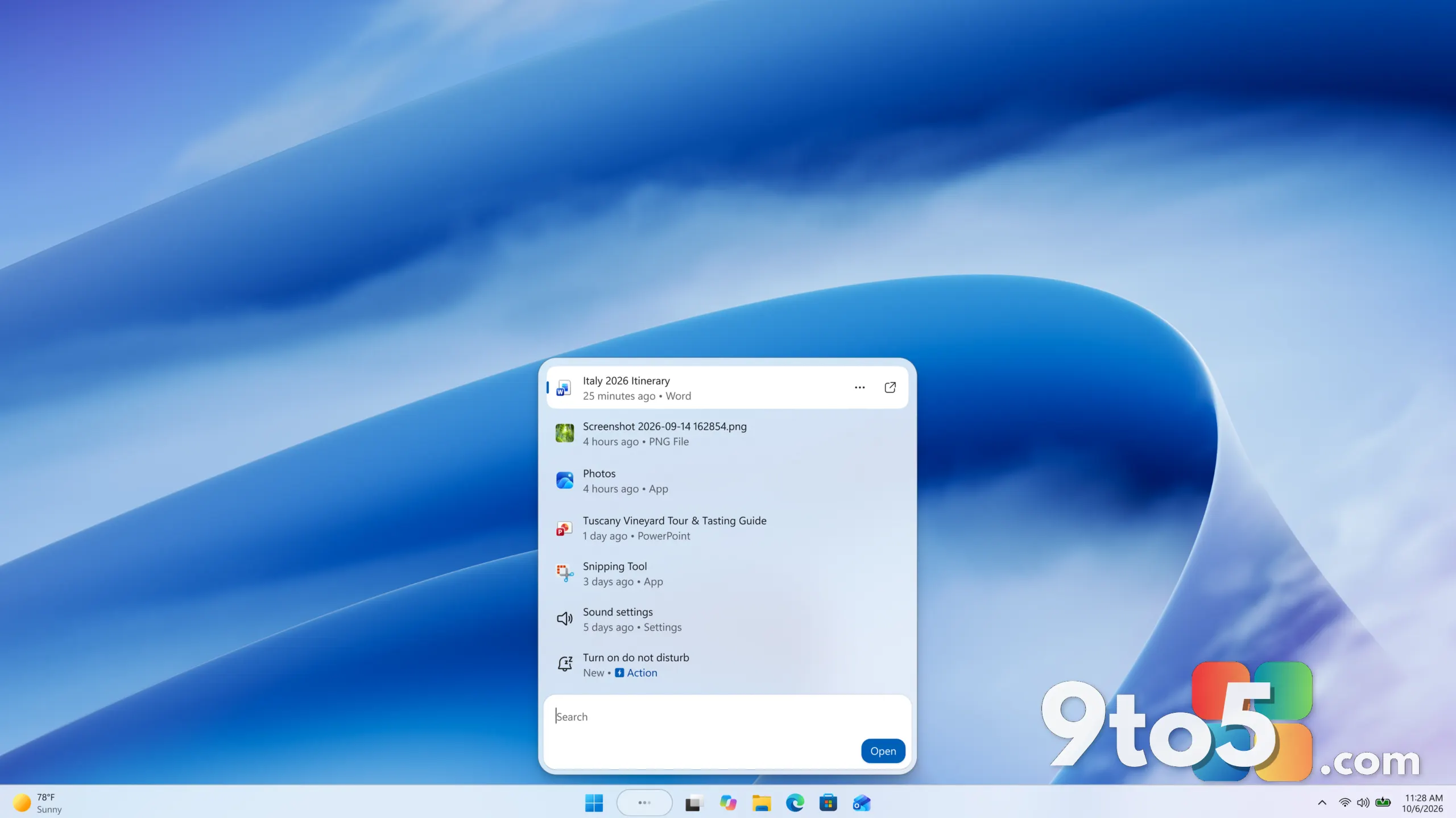
The core of the update is a move toward an action-oriented Search. Historically, Windows Search has been a discovery tool: you type a query and it returns files, apps, web results, and settings. The redesigned experience appears to push further, using Search as a point where you can get tasks done rather than just look them up.
In practice, that language suggests Search is becoming an interface for commands and outcomes, not just results. Think of it less as a search bar and more as a place where you ask Windows to do something and it responds. Whether that means launching complex workflows, adjusting settings, or handling multi-step requests, the direction is clear: Microsoft wants Search to be something you act through, not just search through.
Why we were wrong about Windows 11 Search
Search is one of the most-used entry points on Windows, which is exactly why small changes here ripple outward. For years, the feature’s reputation lagged behind its potential. Windows 10’s Search was widely criticized, and Windows 11’s redesign was expected to fix that — but much of the early feedback settled on “adequate at best.”
What makes this hands-on notable is that the writer’s initial skepticism flipped. That’s often a sign that a change is more substantial than a quick glance reveals. When a feature you’ve written off quietly starts doing work for you, it tends to stick. The redesign seems aimed at turning Search from a utility you tolerate into one you rely on.
How Windows 11 Search fits Microsoft’s bigger picture
This isn’t happening in a vacuum. Microsoft has spent recent years steering Windows toward more proactive, assistant-driven interactions — most visibly through Copilot and AI-powered features woven into the operating system. An action-oriented Search fits neatly into that strategy: instead of waiting for you to navigate menus, Windows reaches out and handles things.
It’s worth noting that this is contextual analysis based on Microsoft’s broader direction, not a claim about specific features in this build. The hands-on didn’t spell out every capability, so readers should treat the exact scope of what Search can do as still unfolding. But the trajectory is unmistakable: Search is being positioned as a command center, not just a lookup tool.
What this means for you
For everyday users, the practical upshot is simple: give Search another shot if you’d written it off. The version you’re running may well be more capable than the one you last tested. If you’ve been relying on the Start menu, File Explorer, or the Run dialog for quick tasks, the redesigned Search could consolidate a lot of that into a single box.
That said, don’t expect a magic assistant on day one. The hands-on frames this as a promising direction rather than a finished product. The real test will be whether the actions it offers match how you actually work — and whether they’re easy to discover. New features are only useful if you can find them.
How to get the new Windows 11 Search
The redesigned Search ships with Windows 11 updates, so the path to trying it is the same one you’d use for any system update: head to Settings and check for the latest updates. Because feature rollouts often arrive in stages, some users may see the new behavior before others — this is standard for Windows, where capabilities are gradually enabled across builds and editions.
If you don’t see the new behavior yet, you’re not doing anything wrong. Microsoft tends to roll out Search enhancements incrementally, so patience is the practical move. Keep your system updated, and the experience should reach you in due course.
Source: Neowin
Over to you: If Windows 11 Search can actually perform tasks for you, will you start replacing the Start menu and Run dialog with it, or stick with what you know?