Microsoft announced new Windows 11 Insider Preview builds for the Beta and Experimental channels on 21 August 2026, according to the Windows Insider Blog. The release lands alongside a fix for a long-running Experimental channel annoyance and two notable feature additions, giving testers something concrete to try this week.
#1 Experimental channel Feature Flags fixed
Before the new features, there was a housekeeping fix. Insiders in the Experimental channel had been seeing an empty Feature Flags list — the menu inside Settings where you toggle experimental Windows 11 features before they roll out to the public. Microsoft says it resolved the underlying issue, and the flags should reappear after installing the latest Experimental build.
For those who lean on Feature Flags to test cutting-edge settings early, an empty list was a genuine blocker. The menu is where you enable or disable options that aren’t ready for general release, so browsing it with nothing to switch on was frustrating. Now that it’s restored, testers can get back to actually toggling things.
#2 New Windows 11 Insider Preview builds this week
Here are the exact builds Microsoft shipped today, so you can confirm your PC is on the latest version:
- Beta Channel: Build 26220.9223
- Experimental Channel: Build 26340.9233
- Experimental Channel (26H1): Build 28120.2738
If you’re running any other build, these are the ones to check for. The 26H1 Experimental build sits on an earlier codebase than the main Beta and Experimental channels, which run on the current Windows 11 development line. Each channel serves a different risk appetite: Experimental receives features first but is the least stable, Beta is the more polished testing ground, and the mainline public channels get updates last.
#3 Modernized Autoplay experience
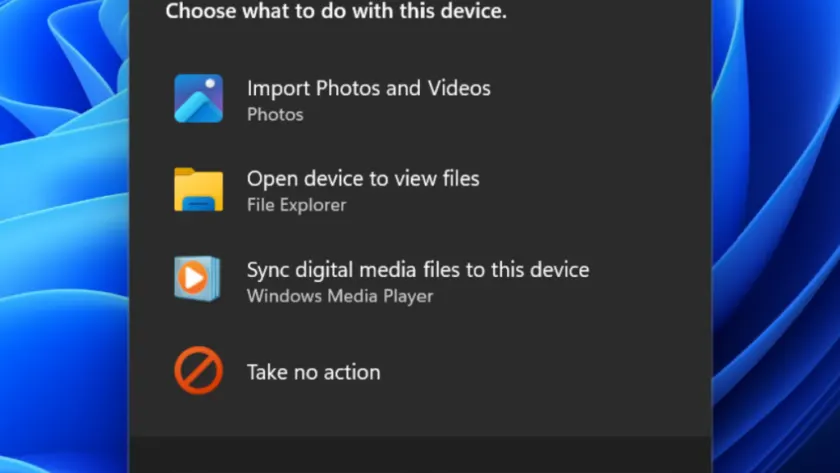
One of the more visible changes is a rebuilt Autoplay dialog. When you plug in a phone, camera, or removable drive, Windows pops up a small dialog asking how you want to handle the connection — and Microsoft has rebuilt that dialog on WinUI 3.
The refreshed experience is designed to look consistent with the rest of modern Windows 11, including full dark mode support. It also responds better to text scaling and display settings, so it shouldn’t look cramped or misaligned if you run Windows at an unusual resolution or with large accessibility text. Notifications for the dialog are now docked in the notification center, giving you quick access to your recent Autoplay actions.
This is a small but frequently encountered piece of UI. Autoplay fires almost every time you connect a peripheral, so a dialog that looks out of place or breaks at certain text sizes has been a minor annoyance for years. Rebuilding it on WinUI 3 finally brings it in line with newer Windows 11 controls.
#4 Accessibility: Open apps maximized
The other headline feature is a new accessibility setting called “Open apps maximized.” As the name suggests, it automatically maximizes application windows when they open, so you no longer have to click the maximize button yourself every single time.
Microsoft frames it as a way to remove everyday friction. It’s pitched as useful whether you use a screen reader or magnification, work in tablet mode, or simply prefer a consistent, full-screen workspace. To turn it on, go to Settings > Accessibility > Visual effects and switch on “Open apps maximized.”
The setting is available in both the Experimental and Beta channels, making it one of the more broadly reachable additions in this update. Once enabled, Windows maximizes windows as they launch — behavior some users have long requested through power-user tweaks and third-party tools.
What This Means for You
For most Windows users, this update reads as a behind-the-scenes maintenance release with a couple of quality-of-life touches. The Feature Flags fix matters mainly to Experimental channel testers chasing bleeding-edge options. The Autoplay rebuild is a subtle visual and consistency upgrade that most people won’t notice unless their old dialog looked off at certain text sizes. The “Open apps maximized” setting is the one you might actually want to try — it’s a genuine convenience for anyone tired of resizing windows.
Nothing here is forced on you, and both features are either opt-in or cosmetic, so there’s no urgency to install if you aren’t part of the Insider Program.
How to Get It
If you’re an Insider in the Beta or Experimental channel, the new builds should arrive automatically through Windows Update. To check manually, go to Settings > Windows Update and select “Check for updates.” You can also request a build directly via the “Advance your build” option if the automatic push hasn’t landed yet.
Insiders can switch channels at any time from Settings > Windows Update > Windows Insider Program, though moving between channels can sometimes require a clean reset. If you’re not part of the Insider Program, these builds won’t reach you until the features mature and eventually land in a public Windows 11 release.
Source: Windows Blog
Over to you: Which would you turn on first — the refreshed Autoplay dialog or the ‘Open apps maximized’ setting?