
- Status: Support Ending
- Affected Versions: Microsoft 365 Apps installed via Microsoft Store (Appx/UWP)
- Key Dates: Feature updates ended October 2025; Security updates end December 2026
Microsoft has confirmed that support for the Microsoft Store installation type of Microsoft 365 Apps is officially coming to an end. If you installed Word, Excel, PowerPoint, or other Office apps directly from the Microsoft Store on Windows 11, you are affected by this change. The company is pushing users to migrate to the Click-to-Run installation method.
New feature updates for Store-based Office installations stopped in October 2025. Security updates will cease entirely in December 2026. After that date, these apps will no longer receive critical security patches or new features.
Why Microsoft is retiring the Store version
The decision stems from architectural differences between the two installation types. The Store version uses Appx packaging, similar to Universal Windows Platform (UWP) apps. This design sandboxes applications and ties their updates to the Windows Update cadence.
Click-to-Run is a streaming installer designed for faster feature delivery and greater enterprise control. It downloads updates directly from Microsoft’s CDN rather than waiting for Windows Update cycles. This allows for quicker deployment of new features, including cloud-based enhancements and Copilot integrations.
For IT administrators, the Store version lacks support for essential management tools like Intune and Configuration Manager. It also does not support XML configuration or multi-user environments effectively. Click-to-Run provides the necessary controls for update channels, shared device activation, and telemetry management.
How to check your current installation type
Most users do not know which version they are running because both look identical in use. You can verify your installation type in seconds:
- Open any Microsoft 365 app (e.g., Word or Excel).
- Select File from the top-left menu.
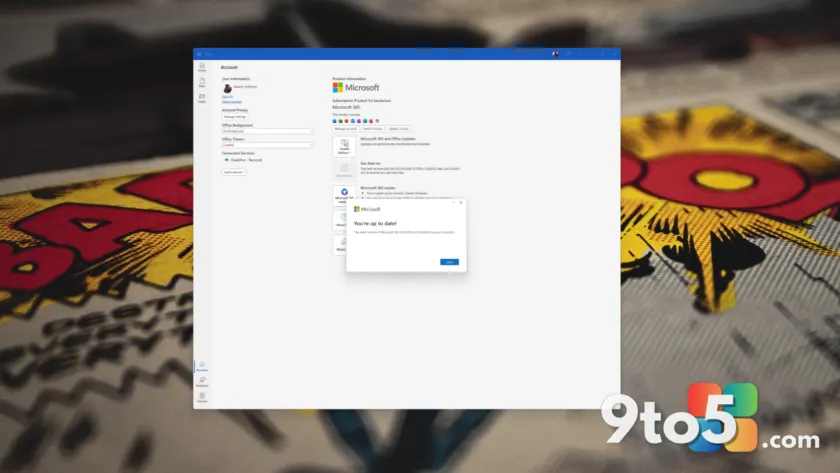
- Choose Account (or Office Account).
- Look next to the About Word (or relevant app) button.
The text will explicitly state either Click-to-Run or Microsoft Store. If you see Click-to-Run, no action is required. If you see Microsoft Store, you must migrate before December 2026 to maintain security support.
How to migrate to Click-to-Run
Switching from the Store version to Click-to-Run is straightforward and does not require a new license. Microsoft provides an automated tool to handle the transition:
- Save all open work and close every Office application.
- Visit the official Microsoft 365 Installer download page.
- Sign in with the Microsoft account associated with your subscription.
- Download and run the installer.
The installer automatically detects the existing Store version, removes it, and reinstalls Office using Click-to-Run. Your settings and license information carry over during this process. For enterprise environments, IT admins can deploy this change at scale via Intune or Configuration Manager without manual intervention on each device.
What this means for you: While the visual experience of Office remains unchanged, staying on the Store version after December 2026 leaves your system vulnerable to security threats. Migrating now ensures you continue receiving both feature updates and critical security patches seamlessly.
Source: Windows Latest
Build details:
- BUILD 2026
Over to you: Did you know your Office apps were installed via the Microsoft Store? Will you migrate to Click-to-Run before the deadline?
You may also like
 Microsoft pushes Windows 11 25H2 to all consumer PCs ahead of 26H2
 Microsoft confirms major bugs in Windows 11 KB5094126: Office crashes, Recycle Bin glitches, and HP BSODs