A widely used unofficial Windows 11 app just received a significant visual and functional refresh, and the person behind the latest polish is an official Microsoft engineer. According to reporting from Neowin, the update brings a cleaner interface, smoother animations, and tighter integration with the current Windows 11 design language. The release arrives at a moment when Microsoft is quietly acknowledging the role community-built utilities play in bridging gaps left by the stock operating system.
What Changed in the Latest Release
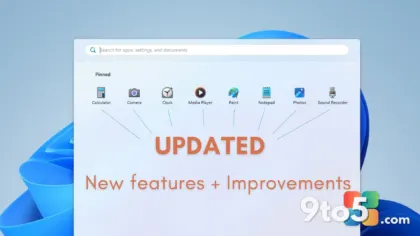
The most immediate difference users will notice is the refreshed user interface. The engineer has aligned the application’s windows, toggles, and navigation panels with Microsoft’s Fluent Design system, which means rounded corners, Acrylic or Mica material effects, and system-aware light and dark mode support now behave consistently with the rest of Windows 11. This is not merely a skin swap; it involves restructuring how the app communicates with the desktop compositor, which reduces rendering lag and eliminates the visual mismatch that previously made the tool feel out of place on a modern desktop.
Beyond aesthetics, the update addresses long-standing interaction patterns. Scrolling behavior, keyboard shortcuts, and context menus have been reworked to match Windows 11 conventions. In practice, this means fewer muscle-memory adjustments when switching between the app and native system settings. Users who previously relied on workarounds to make the utility feel native will find those patches unnecessary now.
Under the hood, the engineer has also tightened resource management. Memory allocation routines were audited, and background polling intervals were adjusted to reduce CPU wake-ups. For users who run multiple customization tools simultaneously, this translates to a quieter system and fewer battery drain concerns on laptops.

Why Microsoft Is Engaging With the Unofficial Windows 11 App Ecosystem
Microsoft has never officially shipped a complete set of power-user controls into Windows 11. Features like taskbar grouping tweaks, right-click menu expansion, and advanced display scaling have historically lived in the community space, maintained by independent developers who fill gaps that Redmond either cannot address or chooses to leave open. When a Microsoft engineer steps in to polish one of these tools, it signals a shift in how the company views third-party utilities: not as competitors, but as complementary pieces of the broader Windows experience.
This is not the first time internal staff have contributed to outside projects, but the visibility of this particular update is notable. It reflects a broader industry trend where platform holders recognize that user retention often depends on ecosystem flexibility. As long as Windows 11 leaves certain customization doors open, community developers will keep building the keys. Microsoft’s quiet endorsement through direct engineering involvement is a pragmatic way to ensure those keys meet baseline compatibility and security standards.
From a technical standpoint, an engineer with insider knowledge of Windows internals can navigate API changes faster than external developers. Microsoft frequently adjusts shell extensions, registry structures, and UI framework behaviors between feature updates. Having someone on the inside helps ensure that third-party tools survive major version transitions without breaking user workflows.
What This Means for You
If you currently rely on this utility to customize your Windows 11 experience, the update is worth installing. The visual alignment reduces eye strain when switching between apps, and the resource optimizations mean the tool will sit lighter on your system. More importantly, the engineering involvement suggests a longer support horizon. Community tools often disappear or become unstable after major Windows updates; this release points toward sustained maintenance.
That said, third-party system utilities always carry a degree of risk. Even polished tools can interfere with Windows Update, Group Policy, or built-in accessibility features if their hooks run too deeply. Before applying the update, create a system restore point and verify that your existing configurations export cleanly. If you manage multiple machines, test the new build on a single device before rolling it out across your fleet.
How to Get the Update
The new release is available through the developer’s official distribution channel. You can download the latest installer directly from the project’s verified website or official repository. If you are upgrading from an older version, the installer will typically preserve your existing settings, but it is still wise to back up your configuration folder before proceeding. Once installed, the app will prompt you to restart the Windows Explorer shell or log out and back in to apply the new rendering pipeline.
For users who prefer automated management, the developer has included an optional auto-update toggle in the settings panel. Enabling this ensures you receive future patches without manually checking for new versions. Keep in mind that auto-updates can sometimes push changes before compatibility testing is complete, so monitor your system for a day or two after the first automatic install.
What to Watch Next
The broader implication of this release extends beyond a single utility. As Windows 11 continues to mature, the line between official and unofficial tools will keep blurring. Microsoft has already integrated several community-requested behaviors into the OS itself, but the pace of change means gaps will persist. Users who depend on deep customization should expect a hybrid model: native settings for everyday adjustments, supplemented by carefully vetted third-party tools for advanced workflows.
For now, the priority is straightforward. Update the utility, verify your settings carry over, and report any regressions through the developer’s official support channels. The engineering polish is a clear step toward a more stable, visually consistent Windows 11 experience, and it is one worth adopting while it is available.
Source: Neowin
Over to you: Will you stick with the stock Windows 11 experience, or do you rely on community tools to make the OS feel complete?
You may also like
 Microsoft’s WinUI 3 Modernization Reaches Print Management in New Windows 11 Build
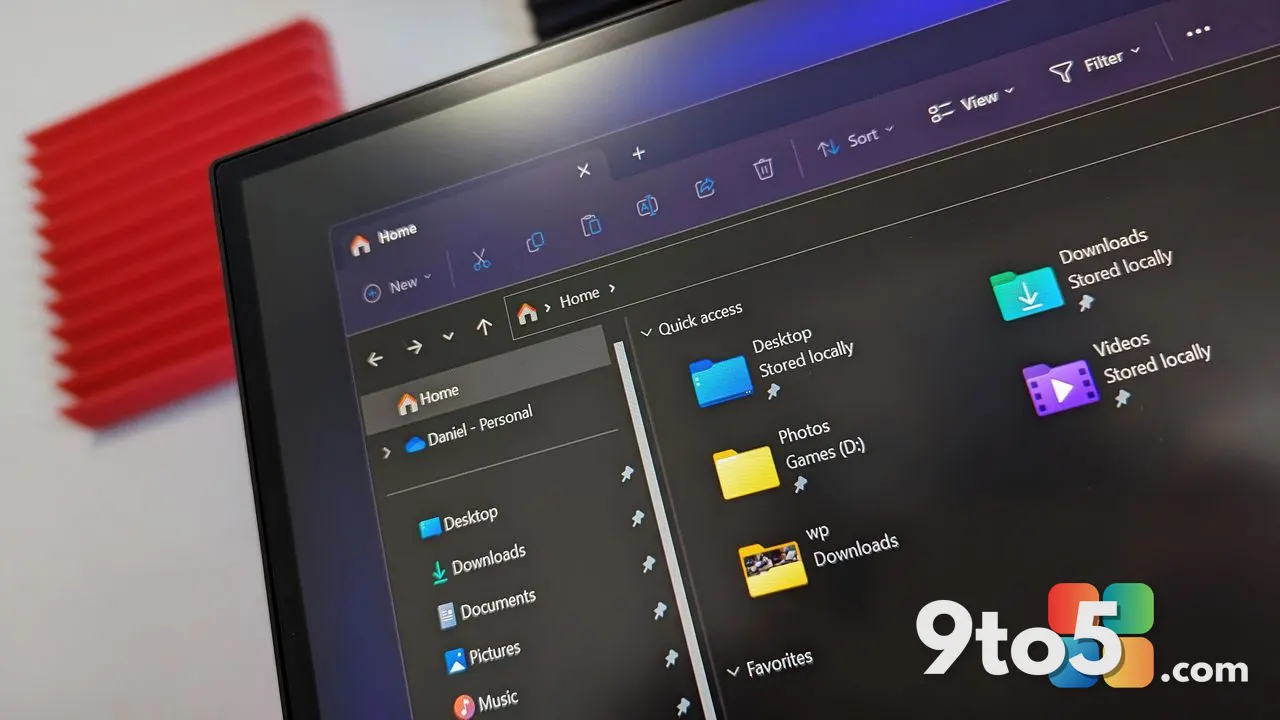 Microsoft Changes How Windows 11 Displays File Sizes in Upcoming Patch Tuesday Update
 New OneDrive Photos App Just Appeared on Windows 11: Here’s What It Does and How to Remove It
 Windows 11 Insider Preview Builds Get Adaptive Hibernate, Taskbar Positioning, and Compact Size Options