
Browser notifications were supposed to make your life easier — a new message, an event reminder, an update from something you trust. Instead, scammers have turned them into a persistent delivery channel for fake virus warnings and decoy security alerts, and Microsoft now says its Scareware blocker in Edge caught the abuse and is shutting it down at the source.
Here’s what changed, who it affects, and how to keep control.
How the Scareware blocker reports exposed notification abuse
Microsoft Edge has been fighting notification spam for years, with multiple workstreams detecting and blocking abusive notifications by the billions. But the new insight came from a less obvious place: the user-submitted reports flowing out of the Scareware blocker.
Enabled by default on qualifying PCs for just over a year, the Scareware blocker directly protects tens of thousands of users per day against scareware scams. It also shields millions more indirectly, because a report caught by the Scareware blocker feeds intelligence to Microsoft Defender SmartScreen, which then protects other people who haven’t hit the blocker yet. According to Microsoft, each report can help protect around 50 more users, and that network effect keeps growing.
When Edge engineers reviewed those reports, they spotted a recurring shape to the attacks. Many scams didn’t just interrupt you once — they began with a website notification, then kept drawing you back to the same scam page, even after you closed the original tab. SmartScreen and the Scareware blocker could already catch the destination page, but the notification itself was the lure that brought you back in a loop.
That pattern pointed to a cleaner fix: stop the sites that send notifications leading to scams, rather than only reacting to the scam page after the fact.
What changed in Edge 156
As of last month’s rollout of Edge 156, the behavior now shifts automatically. When Microsoft Defender SmartScreen or the Scareware blocker detect a scam that was pushed through a notification, Edge will disable notifications from the site that sent them.
The change doesn’t happen the instant the scam fires. Edge applies it, and the next time you start the browser, an information bar explains what happened — something like notifications being blocked from a suspicious site during your last session.
This is a meaningful shift in how the browser handles repeat exposure. Rather than letting a scammer keep pinging you from the desktop taskbar, Edge treats the notification channel itself as hostile once it’s tied to a detected scam.
If you think a site was blocked incorrectly, you’re not stuck. You can review the list of sites with blocked notifications and unblock them from Edge Settings, so the decision stays reversible and in your hands.
The new “Block and report” option
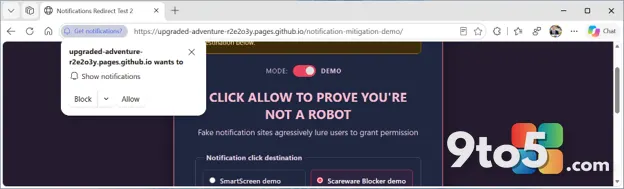
The second change targets the abuse before it even starts. Notification abuse typically begins on a page that asks for permission to show notifications — often disguised as a step like “prove you’re not a robot” or some other misleading action designed to get you to tap Allow.
Edge now adds a “Block and report” choice to that permission prompt. From the menu next to “Block,” you can select “Block and report,” then include the requesting URL and a screenshot of the page that tried to persuade you. That gives SmartScreen additional evidence before the first abusive notification is ever delivered, disrupting the threat at its root instead of cleaning up after it.
You still have manual control
Even when Edge hasn’t detected an unwanted notification, you can still block it. From any notification that pops up, open the “…” menu on the toast and disable future notifications from that origin.
There’s a practical trap worth flagging: because fake alerts are built to confuse you, clicking other buttons on the alert — the ones designed to look like “OK,” “Scan,” or “Close” — will often just open more popup windows. The “…” menu on the notification itself is the safe way to cut the connection, not the buttons baked into the scam message.
What this means for you
For everyday users, the takeaway is that the notification permission prompt is now one of the most important decisions you’ll make in a browser. Saying “Allow” to an unfamiliar site hands a scammer a standing channel that can reach you repeatedly, even after you’ve closed the tab.
The good news is that Edge is doing more of the heavy lifting automatically now. Once a notification is tied to a scam, the browser disables that site’s notifications on its own and tells you about it on your next launch. And if you want to stay ahead of it, the “Block and report” option lets you turn a suspicious prompt into useful intelligence for everyone.
The bottom line: treat notification requests from sites you don’t trust like any other unsolicited contact. When in doubt, block — and if it feels off, report it so SmartScreen can protect others before the first fake alert lands.
Source: Windows Blog
Over to you: Next time a site asks to send you notifications, will you tap Allow out of habit, or pause and weigh the scam risk first?