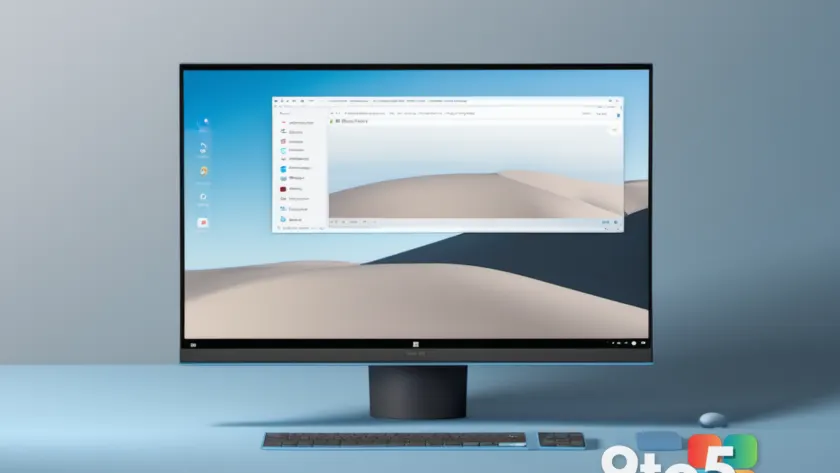
By default, Windows 11 displays a dedicated section for widgets on the far left side of your taskbar. This feature, known as the Widgets panel, provides at-a-glance information such as current weather conditions, stock market prices, news headlines, and calendar reminders. While many users find these quick updates convenient, others may prefer to tailor the selection or remove the feature entirely to reclaim taskbar space and reduce visual clutter.
Whether you want to swap out the default widgets for ones that better suit your needs or disable the panel completely, Windows 11 offers straightforward controls to manage this feature. Below, we will walk you through the process of customizing your widget selection and the steps to turn off the Widgets panel altogether.
Customizing Your Widgets Selection
The Widgets panel allows you to personalize the information displayed on your taskbar. By default, it includes a mix of weather, news, and finance widgets. However, you can easily remove widgets you do not use and add new ones from a curated list.
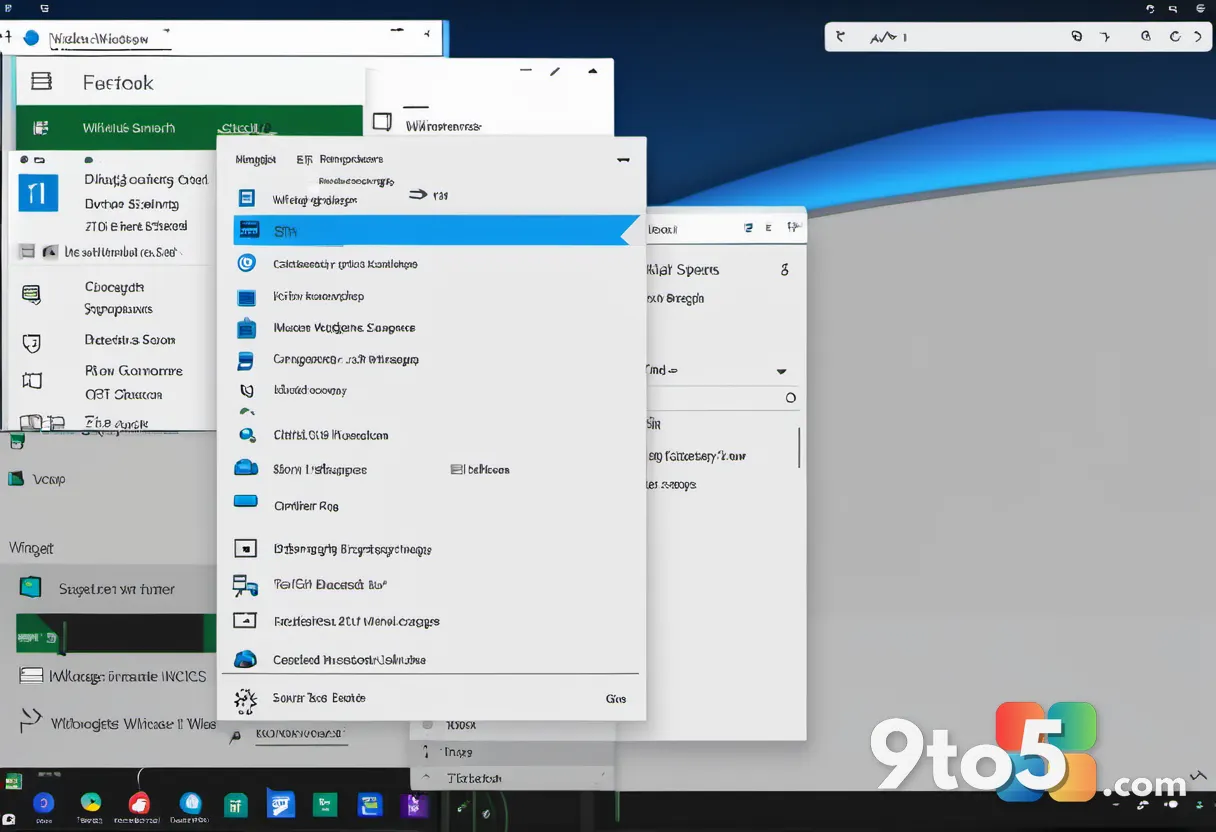
To begin, click on the widget currently displayed on your taskbar. This action opens the full Widgets panel, revealing a grid of available widgets. If you wish to remove a specific widget, locate the three-dot menu icon in the top-right corner of that widget and select Remove from the dropdown options. This will instantly clear it from your panel.
Once you have removed the unwanted widgets, you can add new ones by clicking the plus sign (+) located in the top-right corner of the Widgets panel. This action opens a comprehensive list of available widgets, including options for a countdown timer, news from specific categories, and various financial tickers. Simply click on the widget you wish to add, and it will appear in your panel immediately.
This customization process is particularly useful for users who want to prioritize specific information. For instance, if you frequently check the weather, you might want to keep that widget prominent while removing news headlines that you rarely read. The ability to tailor this panel ensures that your taskbar remains relevant to your daily workflow.
Disabling the Widgets Panel Completely
If you find the Widgets panel unnecessary or distracting, you can disable it entirely. This will remove the widget icon from your taskbar and prevent the panel from opening, giving you a cleaner and more streamlined taskbar appearance.
To disable the Widgets panel, open the Settings app in Windows 11. Navigate to Personalization and then select Taskbar from the left-hand menu. In the Taskbar settings, you will find a toggle switch labeled Widgets. Click this switch to turn it Off.
Once disabled, the widget icon will disappear from your taskbar, and the Widgets panel will no longer be accessible. This is an ideal solution for users who prefer a minimalist taskbar or those who do not rely on the quick information updates provided by the widgets.
Disabling the Widgets panel can also have minor performance benefits, as it reduces the background activity associated with fetching and displaying widget data. While the impact is typically negligible, it is a consideration for users who prioritize system resources.
What This Means for You
The decision to customize or disable the Widgets panel ultimately depends on your personal preferences and workflow. For many users, the panel serves as a useful dashboard for staying informed without opening separate applications. However, for others, it can contribute to visual clutter or distract from primary tasks.
Microsoft has designed the Widgets panel to be easily manageable, allowing users to adapt it to their needs. The ability to remove and add widgets provides flexibility, while the option to disable the panel entirely ensures that users who do not find value in it are not forced to keep it.
It is worth noting that the Widgets panel is integrated into the Windows 11 experience and is enabled by default. This reflects Microsoft’s ongoing effort to provide users with quick access to information and services. However, the customization options ensure that users retain control over their desktop environment.
How to Get It
The Widgets panel is a built-in feature of Windows 11 and is available on all supported editions, including Windows 11 Home and Windows 11 Pro. There is no additional download or configuration required to access the customization options described above.
If you are using an older version of Windows, such as Windows 10, the Widgets panel is not available in the same form. Windows 10 users can access similar features through the Microsoft News app or third-party widgets, but the integration seen in Windows 11 is unique to the newer operating system.
For users who have recently upgraded to Windows 11, the Widgets panel may be a new addition to their desktop experience. Taking a few minutes to customize or disable it can help you create a more personalized and efficient workspace.
Source: PCWorld
Over to you: Do you find the Widgets panel useful for quick information, or do you prefer a clutter-free taskbar?