Microsoft’s Windows 11 September update is quietly reshaping some of the OS’s most visible surfaces, handing you back controls that many users have wanted since the system launched. If you’ve ever wished you could move the Taskbar, resize the Start menu, or silence the web results cluttering Windows Search, this is your moment.
Here’s what changed and how to apply the three customizations that will make the new release feel faster, cleaner, and more your own.
Important: Before we dive in, one caveat. Microsoft is expected to begin gradually rolling out these features with the September update, meaning not every device will get them the moment you install it. If you don’t see an option yet, a later incremental push should bring it to you. The options live inside the Settings app as part of Microsoft’s ongoing Windows K2 effort to make the desktop more customizable.
#1 Place the Taskbar at the top of the screen
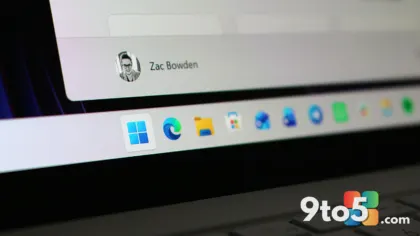
The most requested change is finally here. Starting with this release, you can move the Taskbar off its default bottom position and place it at the top, left, or right edge of the screen. You can also shrink it to free up vertical space.
To relocate the Taskbar, use these steps:
- Open Settings.
- Click Personalization.
- Select the Taskbar page on the right.
- Under the new “Taskbar position” setting, pick Bottom, Top, Left, or Right.
- (Optional) Choose the Small option in “Taskbar size” to reduce the height and icon size.
Once applied, flyouts, tooltips, and animations adjust to your chosen position as expected. One practical quirk worth flagging: when you dock the Taskbar on the left, the Notification Center slides to the left as well, which some users find awkward. If that bothers you, Top or Right may feel more natural.
For longtime Windows 10 users, this repositioning will feel familiar, since Windows 10 always allowed Taskbar placement on any edge. Windows 11 removed that flexibility at launch, and this change effectively restores it.
#2 Change the Start menu size
Microsoft is also loosening its grip on the Start menu. You can now resize it, toggle which sections appear, and hide your profile name and picture from the experience.
To customize the Start menu, use these steps:
- Open Settings.
- Click Personalization.
- Select the Start page.
- Turn off the toggles for any sections you don’t want to see.
- (Optional) Configure the Recent section (formerly Recommended) to show recently added apps, recent and suggested files, and tips and app recommendations.
- Quick tip: The “Show recent and suggested files” option works independently from File Explorer’s file history, so disabling it here won’t touch your Explorer activity feed.
- Choose Small or Large in the “Start menu size” setting to change the menu’s footprint.
- (Optional) Turn on “Hide your name and profile picture on Start” to strip the personalization from the top of the menu.
#3 Disable web results from Windows Search
Perhaps the cleanest win is the ability to remove Bing web results and Microsoft Store suggestions from search. The Search home experience is also being simplified to cut clutter, results will now clearly label whether an item is an app, setting, file, web result, or Store suggestion, and Windows can automatically index frequently used folders so those files surface faster in future searches.
To strip web results from Search, use these steps:
- Open Settings.
- Click Privacy & security.
- Select the Search page.
- Turn off the Web Searches toggle under “Show suggested search results” to stop Bing results from appearing.
- Turn off the Microsoft Store toggle to suppress Store app suggestions.
After you finish, search results will focus on files, settings, and apps instead of mixing in promotional content.
What the Windows 11 September update means for you
These aren’t revolutionary changes, but they address areas where Windows 11 has felt needlessly restrictive since launch. Being able to move the Taskbar, resize the Start menu, and finally remove web and Store suggestions gives you control over how you actually use the desktop instead of being locked into defaults.
For most users, disabling web results in Search is the highest-impact tweak. If you’re hunting for a file, app, or setting, you generally don’t want Bing or Store suggestions mixed in. The Taskbar repositioning is the biggest deal for longtime users who’ve wanted that flexibility since day one.
How to get these customizations
Install the September 2026 update through Windows Update, then check Settings > Personalization and Privacy & security > Search for the new options. Because Microsoft is rolling these out gradually, you may need to wait for an incremental push before they appear. Keep your device updated and check back if they’re missing.
Microsoft confirmed via Windows Central that these options are part of the September 2026 update and are being phased in over time, so patience is the key if your machine hasn’t caught up yet.
Source: Latest from Windows Central
Over to you: Would you move the Taskbar to the top, or keep it at the bottom and just disable the Search web results?
You may also like
 Windows 11 Will Let You Force Apps to Open Maximized by Default
 Windows 11 Experimental build adds automatic PDF previews in File Explorer
 Windows 11 Insider Preview builds bring a modernized Autoplay and a new ‘Open apps maximized’ setting
 Windows 11 Could Let You Decide How Much RAM Goes to Graphics and AI