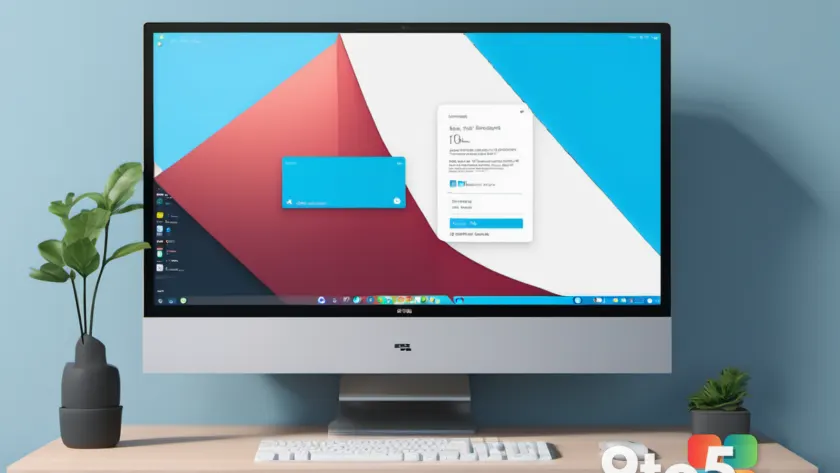
Microsoft has finally delivered the ability to move taskbar Windows 11 to any screen edge, ending one of the most persistent complaints about the operating system’s launch design. The latest Windows 11 Insider Preview builds now include a native toggle that lets you place the taskbar at the top, bottom, left, or right of your display. If the testing phase goes as planned, this change will land in the September Patch Tuesday update for the general public, though users in the Release Preview Channel can enable it today.
Beyond the positional shift, the update introduces a smaller taskbar option designed to reclaim screen real estate on compact devices. These adjustments are part of a broader push to modernize the Windows 11 interface, alongside a redesigned Start menu, refined search behavior, and faster File Explorer navigation. Below, we break down exactly what changed, how to access the new settings, and what the rest of the update brings.
#1 Move Taskbar Windows 11 to Any Screen Edge
For years, Windows users relied on third-party utilities like Rally or StartAllBack to shift the taskbar away from its default bottom position. Microsoft has now baked this functionality directly into the operating system. The new configuration lives under Settings > Personalization > Taskbar > Taskbar behaviors > Taskbar position. From this dropdown, you can select Bottom, Top, Left, or Right.
It is important to note that the taskbar does not behave identically across all four positions. When placed on the sides or top, tooltips, flyouts, and system animations still originate from the taskbar’s physical location rather than the screen edge. This means a notification popup on a left-aligned taskbar will still expand toward the center of the screen, which can feel slightly unintuitive at first but maintains consistency with how the taskbar renders its content.
Additionally, certain features remain locked to the traditional bottom or top placements. The search box and the newly introduced smaller taskbar mode currently only function when the taskbar is positioned at the top or bottom. Microsoft has not indicated whether these restrictions will be lifted in a future update, but the core functionality works reliably in all four positions during Insider testing.
In practice, this means power users with ultrawide monitors, vertical setups, or multi-monitor rigs can now align the taskbar with their workflow without relying on registry hacks or unstable third-party apps. The Taskbar behaviors section in Settings is also expanded by default in this build, making the option easier to find for those who have not looked at it in years.
#2 Shrink the Taskbar for Compact Displays
Alongside positional changes, Microsoft has introduced a small taskbar option aimed at maximizing screen space. This setting reduces both the height of the taskbar and the size of its icons while preserving access to Start, Search, and the system tray. It is particularly useful for laptops with 13-inch displays or external monitors running high resolutions where UI elements can feel disproportionately large.
To enable this, navigate to Settings > Personalization > Taskbar > Taskbar behaviors > Taskbar size. When set to Small, the taskbar compresses vertically, and the icons shrink accordingly. This mirrors a feature that has existed in macOS and Linux environments for years, and its inclusion here addresses a long-standing request from the Windows community.
While the smaller taskbar is currently paired with the top or bottom position, it does not yet integrate with the side positions. Microsoft’s changelog notes that the search box and smaller taskbar are “currently supported only for top and bottom positions,” suggesting that full cross-position compatibility may arrive in a subsequent cumulative update.
#3 Redesign the Start Menu Layout
The Start menu receives several structural changes in this build, moving it closer to the customizable experience Windows 10 offered. You can now choose between a small or large Start menu, in addition to the existing Automatic option. The path to this setting is Settings > Personalization > Start > Start menu size.
Microsoft has also renamed the Recommended section to Recent across both the Start menu interface and the corresponding Settings page. This change appears to be a clarification move, as the section primarily displays recently opened files and apps rather than curated recommendations. Furthermore, users can now hide their name and profile picture from the Start menu by toggling Settings > Personalization > Start > Hide your name and profile picture on Start.
The Start settings page itself has been restructured with section-level toggles, allowing you to independently show or hide Pinned, Recent, and All items. This granular control gives users more authority over what clutter appears on their home screen, aligning with Microsoft’s broader push toward personalization.
#4 Faster Search and File Explorer Improvements
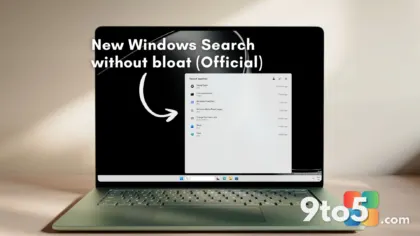
Windows Search gets a visual overhaul in this update, with a simplified home screen designed to reduce clutter and prioritize recent searches. The update also improves result attribution, making it clearer whether a hit comes from an app, setting, file, web source, or Microsoft Store suggestion. A new privacy toggle under Settings > Privacy & security > Search lets you disable web and Store suggestions alongside local results.
File Explorer Home now launches faster and supports touch scrolling in the Recommended section, which should feel more natural on convertible devices. These are incremental but meaningful quality-of-life adjustments that address long-standing performance complaints.
Other Notable Changes in This Build
Beyond the UI shifts, the changelog for builds 26100.9267 and 26200.9267 includes several enterprise and security-focused updates. Administrator protection is now rolling out, enabling just-in-time privileges for admin tasks and introducing profile separation to harden against elevation-of-privilege attacks. This feature is disabled by default and can be enabled via Intune OMA-URI or Group Policy.
From a cryptography standpoint, the post-quantum algorithm ML-KEM can now be used as a standalone option for TLS key exchange, in addition to previously supported hybrid groups. This positions Windows 11 ahead of many competitors as the industry prepares for quantum-resistant encryption standards.
On the deprecation front, Microsoft confirmed that the Windows Management Instrumentation Command-line (WMIC) utility will be fully removed from Windows 11 versions 24H2 and 25H2 starting in August 2026. It is already absent from new installations and no longer available as a Feature on Demand. Windows Management Instrumentation (WMI) itself remains fully supported, so enterprise automation scripts relying on WMI will not be affected.
What This Means for You
If you have been waiting to shift your taskbar away from the bottom of the screen, this update removes the need for third-party workarounds. The feature is stable enough for Insider Preview users to adopt immediately, and the September Patch Tuesday rollout should bring it to mainstream devices without issue. However, if you rely on the side positions, be aware that the smaller taskbar and search box features are currently restricted to the top and bottom.
For IT administrators, the WMIC deprecation timeline and the new Administrator protection feature require attention. Review your current automation scripts to ensure they do not depend on WMIC, and evaluate whether enabling just-in-time admin privileges aligns with your security posture.
How to Get It
To access these changes immediately, you will need to join the Windows Insider Program and switch to the Release Preview Channel. Navigate to Settings > Windows Update > Windows Insider Program and select the appropriate channel. Once switched, go to Settings > Windows Update > Check for updates to download builds 26100.9267 or 26200.9267.
Regular Windows 11 users should expect these changes to arrive via the next cumulative update, likely tied to the September Patch Tuesday release. Microsoft confirmed via the Windows Insider Blog that the taskbar movement feature is undergoing final stability testing before the broader rollout.
Source: Latest from Windows Central
Build details:
- Build 26100.9267
- KB5067036
Over to you: Are you moving your taskbar to the top or a side, or do you prefer keeping it at the bottom?
You may also like
 New Survey Shows Windows 11 Default Browser Choice Remains a Struggle
 Windows 11 Low Latency Profile now boosts app launch speeds, here’s how to check
 Microsoft Drops Picture Password Setup in Windows 11 July Update
 Why Windows 11 Still Can’t Shake Its Old Interface, Explained by a 2003 Microsoft Blog Post