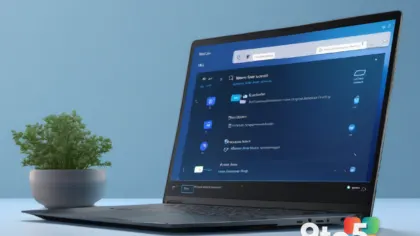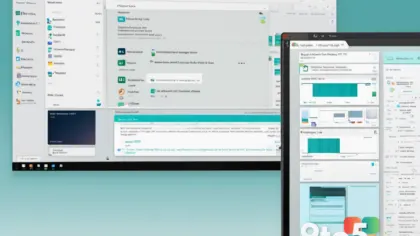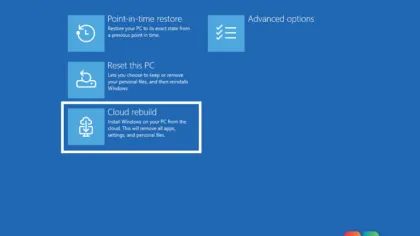

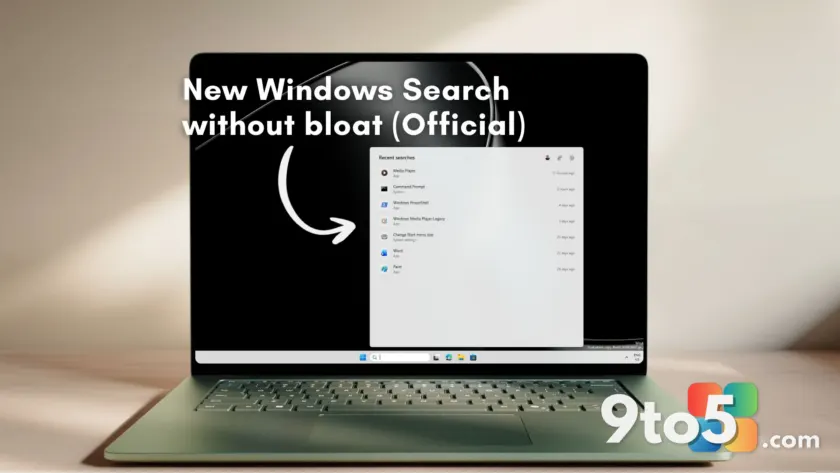
Microsoft has finally listened to years of user complaints about cluttered search results. In the latest Insider Experimental build, Build 26300.8697, a new hidden feature allows you to completely strip Bing web results and Microsoft Store suggestions from Windows Search. The result? A significantly faster, cleaner local search experience.
We dug into this update to see exactly how it changes the daily workflow for Windows users. Here is what we found.
1. A cleaner, faster interface
The most immediate change is speed. Without waiting for web round-trips or fetching MSN content, the Search panel opens almost instantly. This was noticeable even on an underpowered test machine with just dual cores and 4GB of RAM.
Visually, the panel is less crowded. By default, the new build already removes trending searches and recommended MSN content. When you disable the specific toggles for web results, the interface focuses strictly on your local files, apps, and settings. It feels more like the classic Windows Search of old, but with modern responsiveness.

2. Independent toggles for Web and Store
The feature introduces two distinct switches under Settings > Privacy & security > Search in a new section called “Show suggested search results.” You can toggle off “Web Searches” and “Microsoft Store” independently.
This granularity is key. If you turn off Web Searches but keep Microsoft Store enabled, searching for an app like “Call of Duty” will still show the Store listing with a preview panel. However, if you disable both, the search becomes strictly local. Searching for that same term yields no results if you don’t have it installed locally, which is exactly what many power users have requested.
3. Better local file indexing
With web noise removed, local content indexing shines. In our tests, searching for terms like “pdf” or “motorola” immediately highlighted relevant local files based on content and metadata, rather than pushing Bing definitions or news articles to the top.
The “Best match” section now prioritizes your actual documents, showing file types, last modified dates, and quick actions like “Open file location.” This makes finding specific work files much more efficient without sifting through irrelevant web links.
4. How to enable it now
This feature is currently hidden behind feature flags in Insider Experimental Build 26300.8697. It is not enabled by default for all Insiders yet. To unlock it, you need to use the third-party tool ViveTool.
- Download ViveTool from GitHub.
- Run Command Prompt as Administrator and navigate to the ViveTool folder.
- Execute this command:
vivetool /enable /id:61267302,61344081,61482515,61532758,61760679 - If the settings don’t appear after a restart, also enable ID 48433719 with:
vivetool /enable /id:48433719
After restarting, check your Search privacy settings for the new toggles. Note that ViveTool is unsupported by Microsoft and should only be used on Insider builds at your own risk.
What this means for you
This update signals a major shift in Microsoft’s approach to Windows 11. After years of forcing Bing integration into the OS, Microsoft is giving users control back. Combined with recent improvements like typo forgiveness for app names and faster file triggering (from just two characters), Search is becoming a utility tool again rather than a marketing channel.
While this feature is currently experimental in Build 26300.8697, the polish suggests it will likely roll out to stable Windows 11 versions soon, possibly alongside the upcoming Windows 11 version 26H2 release later this year.
Build details:
- KB5094126
- build 26300.8687
- build 26300.8697
- kb5094126
Over to you: Do you prefer having Bing web results in your search bar for convenience, or do you want it strictly local like this new build?