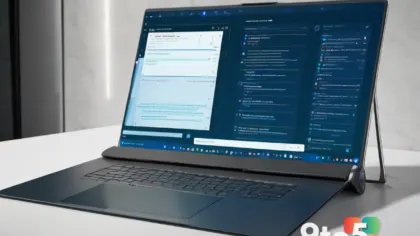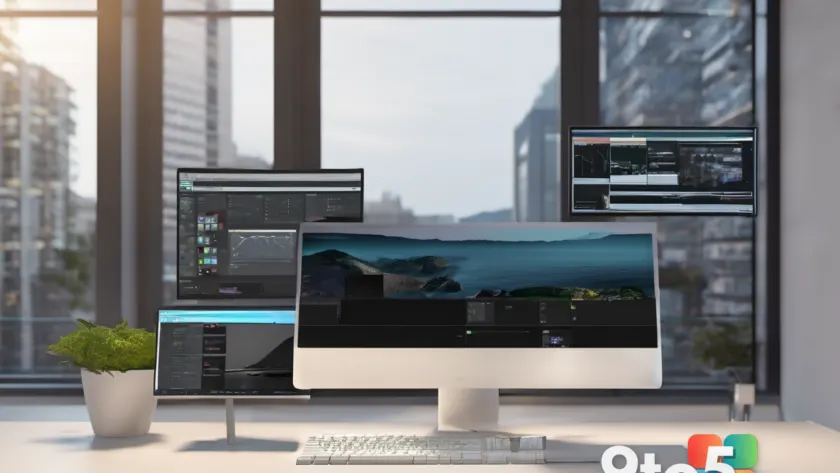
Windows 11 is built for handling multiple tasks simultaneously. Microsoft has refined several core interface elements to help you switch between apps, organize windows, and manage system resources without cluttering your screen.
Snap layouts and window management
The Snap feature remains one of the most practical tools in Windows 11. By hovering over the maximize button on any app window, you can instantly see suggested layout options. Click a section to place that window there, then choose other apps to fill the remaining spaces.
This system works seamlessly with multiple monitors as well. You can drag windows between displays and snap them into position just like on your primary screen. It eliminates the manual resizing and dragging that used to slow down complex workflows.
Task View and Virtual Desktops
For a broader overview of what is running, Task View provides a bird’s-eye perspective of all open windows. From here, you can also create separate Virtual Desktops. This allows you to dedicate one desktop to work applications and another to personal browsing or entertainment.
Switching between these desktops is quick via the taskbar or keyboard shortcuts. It helps keep related tasks grouped together while keeping unrelated apps out of sight when they are not needed.
Quick switching with Alt+Tab
The classic Alt+Tab shortcut has been updated to show larger, more distinct thumbnails for each open window. You can also pin specific apps so they always appear in the switcher, even if you close them temporarily. This ensures your most-used programs are just one key combination away.
Managing resources with Task Manager
When performance lags, Task Manager offers detailed insights into CPU, memory, and disk usage. It helps identify which processes are consuming the most resources. You can end unresponsive tasks or adjust startup items to improve boot times and overall system responsiveness.
What this means for you: Taking time to learn these specific features can significantly reduce screen clutter and mental load. Instead of juggling overlapping windows, you can structure your workspace logically using Snap and Desktops, leading to a smoother computing experience.
Source: Thurrott
Over to you: Which Windows 11 multitasking feature do you rely on most: Snap layouts or Virtual Desktops?