Windows Defender, now branded as Microsoft Defender Antivirus, runs automatic background scans by default. However, there are times when you need to take control and run a manual check. Maybe you noticed unusual pop-ups, your PC is running slower than usual, or you downloaded a file from an untrusted source. Running a manual malware scan gives you immediate visibility into your system’s health. This guide walks you through the exact steps to trigger a manual scan on Windows 11, explains the different scan options, and covers what to do when the tool finds something suspicious.
Before You Start: Make sure your Windows 11 PC is connected to the internet. Manual scans rely on the latest virus definitions, and Windows Defender downloads them automatically when online. If you are using a third-party antivirus, Windows Defender will disable itself and cannot run scans until you switch back to it.
Step 1: Open Windows Security
Click the Start button and type Windows Security, then press Enter. This action launches the dedicated security hub where all protection settings live. You will see a grid of icons representing different security features. If the Start menu search does not respond, you can also press Windows + I to open Settings, navigate to Privacy & security, and select Windows Security from the right panel.
Step 2: Navigate to Virus & threat protection
Click the Virus & threat protection tile in the Windows Security window. This section is the command center for your antivirus engine. The page loads with a summary of your current protection status at the top, showing whether real-time protection is active. You will notice a green checkmark if your definitions are up to date.
Step 3: Choose your scan type
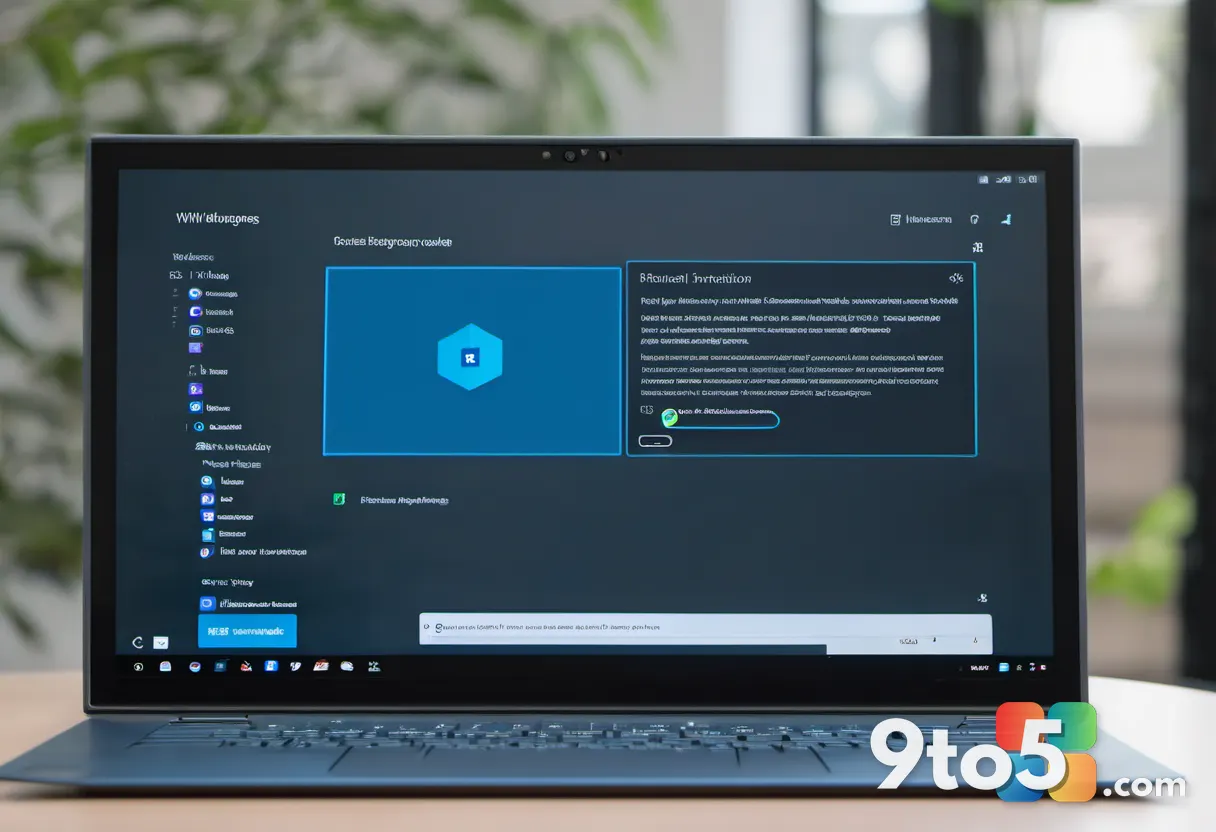
Scroll down to the Current threats section and click the Scan options link. Windows Defender offers three distinct scanning methods, and each serves a different purpose. Quick scan checks the areas where malware typically hides, such as startup folders and running processes. Full scan examines every file and program on your primary drive, which takes longer but provides deeper coverage. Custom scan lets you pick specific folders or drives to check, which is useful if you only suspect a certain directory is compromised.
Pro Tip: If your computer feels sluggish during a full scan, switch to a custom scan targeting only your Downloads folder and desktop. You can always run the full scan overnight when the PC is idle.
Step 4: Start the manual scan
Select your preferred scan type and click the Scan now button. Windows Defender will immediately begin analyzing your system. A progress bar appears at the top of the screen, and the status text updates as the scan moves through different directories. You can leave the Windows Security window open or minimize it, but do not shut down or restart your PC while the scan is running. Interrupting the process can leave your system in an inconsistent state and may require a repair boot later.
Step 5: Review results and handle threats
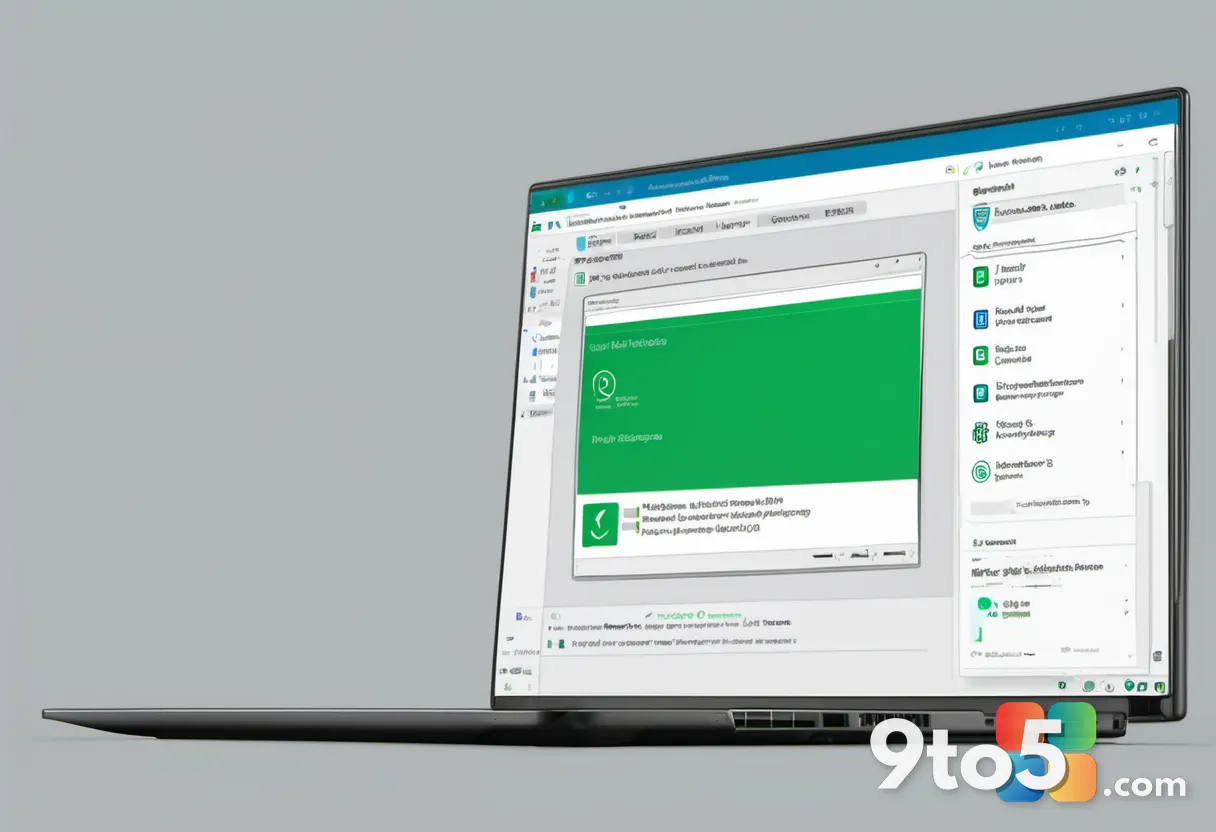
Wait for the scan to finish, then click the Scan results link at the bottom of the page. If Defender finds nothing, you will see a message confirming your PC is protected. If it detects threats, each item will list the file path, the threat name, and the recommended action. Click the drop-down menu next to each threat and choose Quarantine to isolate the file, Remove to delete it permanently, or Allow on device if you are certain the file is safe. After making your selections, click Apply.
Troubleshooting common issues
Even straightforward scans can hit snags. Here are the most frequent problems and how to resolve them.
- Defender refuses to start the scan: This usually happens when another antivirus is active. Open Settings > Apps > Installed apps, find your third-party security software, and uninstall it. Windows Defender will automatically re-enable itself within a few minutes.
- Scan completes instantly with no results: Your virus definitions might be outdated. Click the Virus & threat protection settings link, then select Check for updates under Microsoft Defender Antivirus updates. Restart the scan once the definitions finish downloading.
- Threats keep returning after removal: Some malware families reinstall themselves from hidden startup tasks. Run a Full scan, then open Settings > Privacy & security > Windows Security > Startup items to disable suspicious entries. Consider running a second scan in Safe Mode for thorough cleanup.
Additional tips for ongoing protection
- Enable Real-time protection if it shows as disabled. This feature monitors files the moment they open or run.
- Schedule regular manual scans if your environment requires it. Open Scan options, click Scheduled scan, and toggle it on to pick a weekly or monthly time.
- Keep Windows Update active. Security patches close the vulnerabilities that malware exploits.
- Enterprise users on Windows 11 Pro or Enterprise can manage scan policies through Microsoft Intune or Group Policy. Look for
Computer Configuration > Administrative Templates > Windows Components > Microsoft Defender Antivirus > Scanin the local policy editor.
Running a manual malware scan takes less than five minutes and gives you peace of mind. Follow these steps whenever you suspect unauthorized activity or after installing unfamiliar software.
Have you ever caught a sneaky threat running a manual Defender scan? Share what you found and how you handled it in the comments.
Over to you: Have you ever caught a sneaky threat running a manual Defender scan?