The popular third-party file manager Files has released version 4.2, introducing a highly requested feature that many Windows users have long wanted in the native File Explorer: a Tree View sidebar. This update also brings significant improvements to multi-pane navigation and several interface refinements designed to streamline daily workflow.
#1 Tree View Sidebar
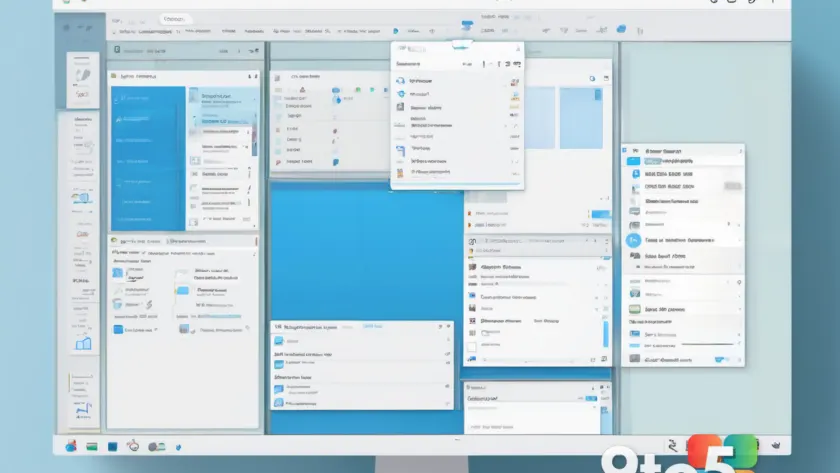
The headline addition in version 4.2 is the new Tree View option within the app’s sidebar. Instead of a flat list, this feature displays folders in an expandable hierarchy. If you rely heavily on nested subfolders to organize your data, this change allows you to browse and navigate deeper directory structures with fewer clicks.
This functionality mirrors the classic Windows 95/XP style folder tree that many power users miss in modern Windows 11 File Explorer. It provides a clearer visual map of your file system without cluttering the main viewing area.
#2 Multi-Pane Navigation Upgrades
Files has overhauled how it handles split views and multiple panes. You can now drag a tab to the side, top, or bottom of the file area to instantly create a new pane. This makes splitting your workspace for copy-paste operations or comparing folders much more intuitive.
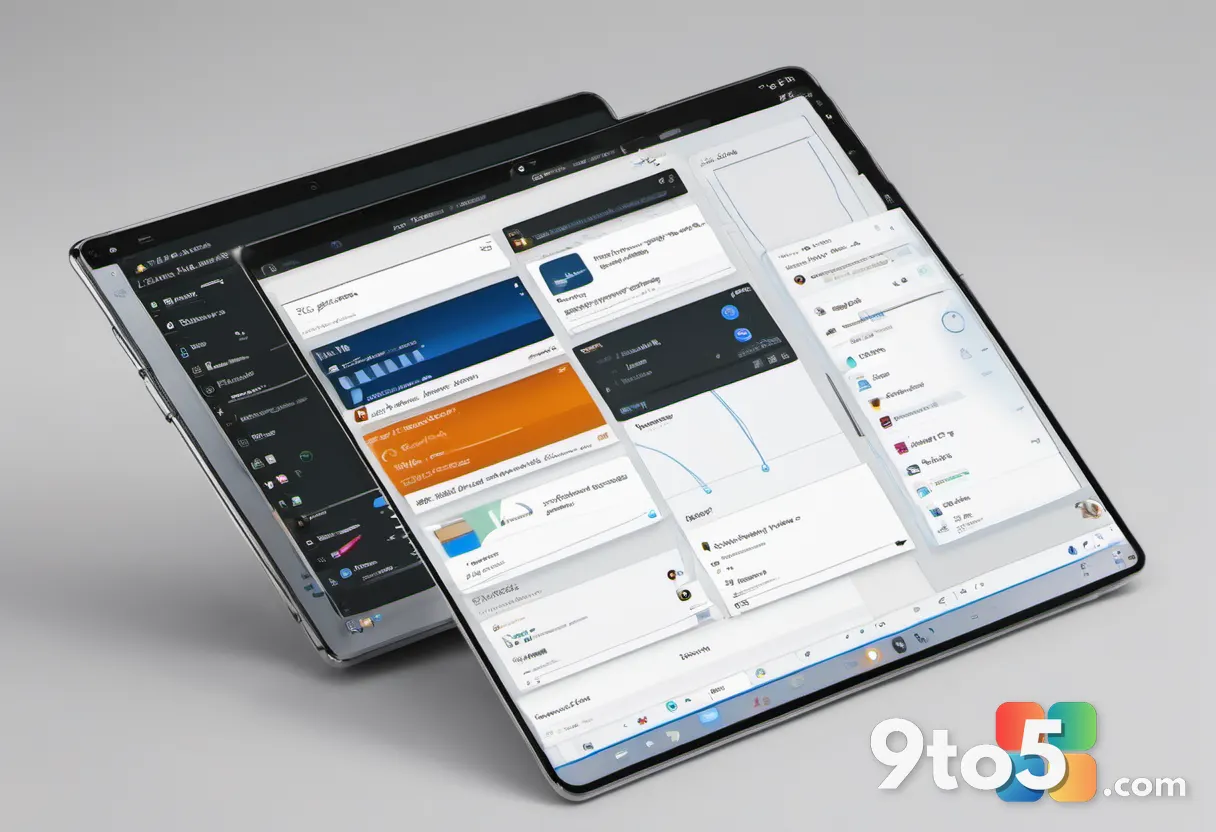
Additionally, right-clicking a folder now offers options to launch it directly into a secondary pane. The context menus and Command Palette options for opening items in new panes have been reorganized to give you finer control over how these split views are arranged on your screen.
#3 Breadcrumb Bar Improvements
The breadcrumb navigation bar at the top of the window has received a visual refresh with a cleaner chevron design. Beyond aesthetics, the functionality has expanded. You can now right-click specific folders within the breadcrumb trail to open them in new tabs, windows, or panes.
This small tweak reduces the need to navigate back up the directory tree manually when you want to keep your current location open while exploring a parent folder elsewhere.
#4 UI and Quality of Life Tweaks
Version 4.2 includes a batch of smaller but impactful interface changes. A new Open With flyout provides quick access to compatible apps directly from your customized toolbar, saving you the step of digging through context menus.
- Rename visibility: File extensions now remain visible when you are renaming a file, preventing accidental changes to file types.
- Toolbar search: A new search box in Toolbar Customization helps you find and add specific actions faster.
- Layout cycling: You can cycle through different layout modes using
Ctrl+ scroll wheel for quicker view switching. - Tab behavior: Dragging a tab out to create a new window now places the window exactly where you dropped it, rather than defaulting to the center of the screen. A new setting also lets you reverse the mouse-wheel direction when scrolling over the tab bar.
#5 Other Notable Highlights
Several other fixes and additions round out this release. The Windows Fonts folder now displays proper font thumbnails instead of generic icons, making it easier to preview typefaces. When creating a new archive, the file is automatically selected for immediate renaming or moving.
A “Skip” button has been added to the “File In Use” dialog, allowing you to bypass locked files during operations without stopping the entire process. Finally, if Windows Network Discovery is turned off, Files now displays a warning banner on the Network page to explain why locations might be missing.
What this means for you: If you use Files as your primary file manager, version 4.2 offers immediate productivity gains through better navigation and split-screen controls. For those sticking with native File Explorer, these features highlight the gap between third-party innovation and Microsoft’s current roadmap.
Over to you: Do you prefer the traditional Tree View sidebar over flat navigation, or do you find modern breadcrumb bars sufficient?
You may also like
 Bethesda union questions Microsoft’s Xbox layoffs: ‘When will this cycle end?’
 Microsoft reportedly shifting to in-house AI models to cut costs
 Xbox shifts strategy: More exclusives, deeper Minecraft ties, and a focus on console growth
 Valve warns against Windows 11 on Steam Machine despite new drivers