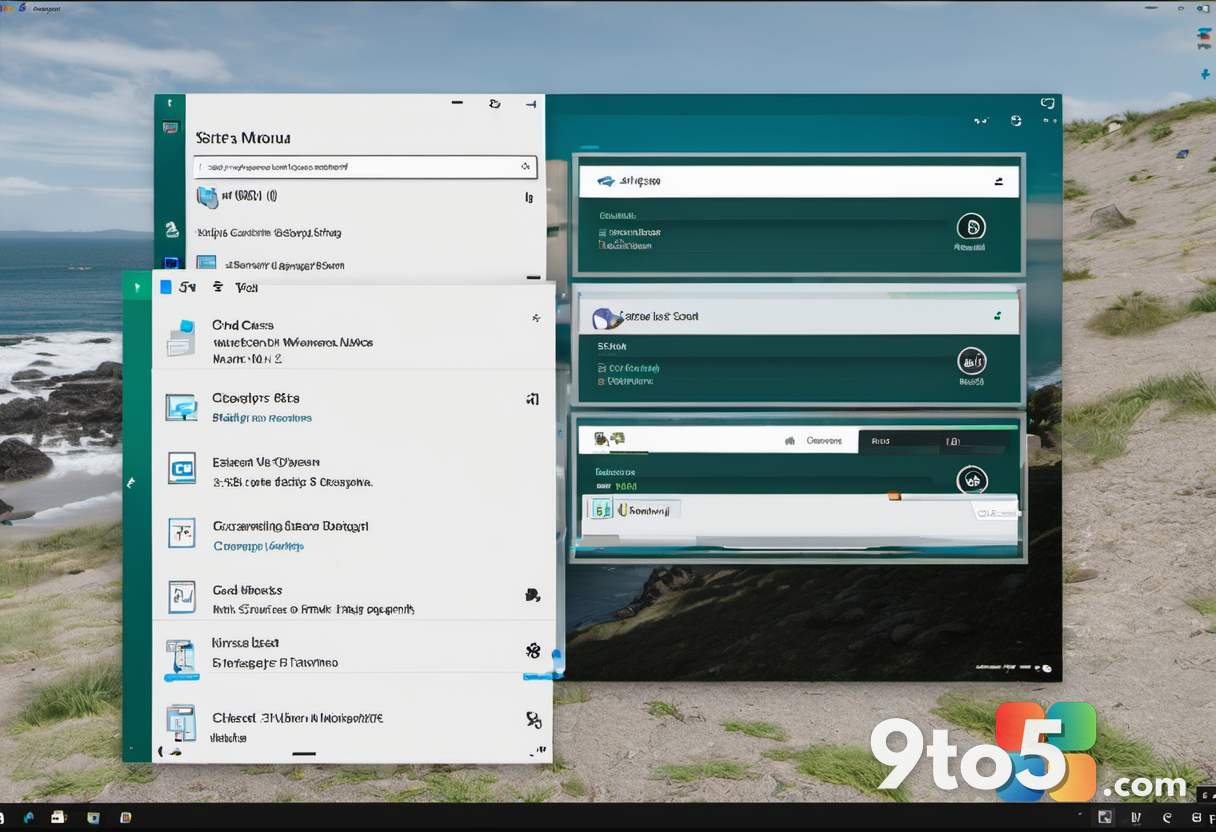

Microsoft has officially rolled out the updated Start menu for Windows 11, marking a significant shift in how users interact with their applications and pinned items. Alongside this visual update, the company has published a detailed list of Group Policy settings, giving IT administrators granular control over these new interface elements.
What’s new in the Start menu
The updated Start menu introduces a refreshed layout designed to improve navigation and accessibility. While specific visual tweaks vary by user profile and region, the core change focuses on how pinned apps and recommended files are presented. This update aims to streamline the launch experience for everyday tasks.
Group Policy customization options
For enterprise environments, Microsoft has released a corresponding set of Group Policy Object (GPO) settings. These policies allow administrators to enforce or disable specific Start menu features across their organization. This ensures that IT departments can maintain consistency and security standards while rolling out the new interface.
- Control visibility of pinned apps
- Manage recommended items display
- Enforce layout preferences via Active Directory or Intune
These settings are critical for organizations that rely on standardized desktop experiences. By leveraging these new policies, IT pros can prevent unintended changes to the user experience while still benefiting from the underlying system updates.
What this means for you
If you are a home user, you may see the new Start menu appear in your next Windows Update cycle. For business users, check with your IT department to see if they have enabled or disabled specific features through these new policies. The availability of these controls suggests Microsoft is prioritizing flexibility for diverse user bases.
Source: Neowin
Over to you: Will you keep the new Start menu layout, or revert to the classic view via settings?