
Microsoft has taken a definitive step forward in its Windows 11 roadmap. Preview builds in the Experimental channel have officially transitioned from version 25H2 to Windows 11 version 26H2. While this marks the start of a new development cycle, the changes arriving alongside it are focused on refinement rather than radical overhaul.
In the second half of June, Insiders received a steady stream of updates across multiple channels. These include build 26300.8758 and 26300.8697 in the Experimental channel, alongside builds like 28120.2374, 28020.2366, and 26220.8754 in Beta and Future Platforms channels. Below is a breakdown of the nine most notable changes shaping this next update.
#1 Official shift to version 26H2
The most significant change is administrative: Microsoft has updated the internal versioning for the Experimental channel. Starting with build 26300.8697, the OS now identifies itself as version 26H2 in Settings > System > About and via the winver command.
Note that the Windows Insider Program app may still label this channel as “Windows 11, version 25H2” for a short period. Importantly, versions 25H2 and 26H2 share the same core file system. This means many features developed for 26H2 will likely backport to 25H2, ensuring current users see these improvements without waiting for the full feature update.
#2 Dedicated Taskbar size control
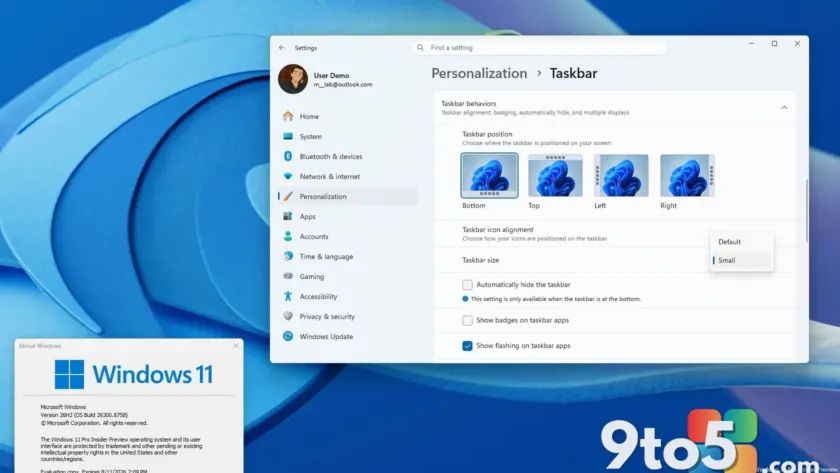
Users have long requested finer control over desktop real estate. Build 26300.8758 introduces a new “Taskbar size” setting in Taskbar settings, offering two distinct options: Default and Small.
Selecting “Small” reduces the taskbar height independently of button scaling. However, be aware that enabling this option disables the separate “Show smaller app icons” feature. This provides a cleaner, more compact interface for users who prefer to maximize screen space for applications.
#3 Redesigned Privacy & security page
The Settings app is getting a visual refresh in the “Privacy & security” section. Build 26300.8697 introduces a new header that provides quick access to the Windows Security app and at-a-glance status indicators for camera, microphone, and location permissions.
The page layout has also been reorganized into clearer categories: “Your info,” “Communication,” “File access,” and “System.” New entry points for “Custom Dictionary” and “Passkeys” have been added to improve navigation. Additionally, early indications suggest the Search settings may soon allow users to disable web searches and Microsoft Store apps from appearing in Windows Search results.
#4 Screen tint for accessibility
In build 29617 (Future Platforms channel), Microsoft introduced “Screen tint,” a new accessibility feature designed to reduce eye strain. Unlike Night Light, which targets blue light reduction for evening use, Screen tint applies a system-wide color overlay to adjust overall intensity and tone during the day.
Available under Settings > Accessibility > Vision, the feature offers six preset colors and a custom color option with an intensity slider. Note that enabling Screen tint disables Color Filters, and vice versa, as they serve similar functions but with different controls.
#5 Enhanced Magnifier zoom controls
The Magnifier tool is receiving usability upgrades in the Future Platforms channel. Users can now enter specific zoom percentages directly into the interface, eliminating the need to repeatedly click zoom-in or zoom-out buttons.
New preset zoom levels have been added, including 5%, 10%, 25%, 50%, 100%, 150%, 200%, and 400%. These additions provide greater precision for users who rely on screen magnification for readability.
#6 Mobile Devices management updates
Builds 28120.2374 (Experimental) and 28020.2366 (Beta) update the “Mobile devices” page in Settings. These changes aim to improve how Windows 11 users configure and manage connected mobile devices, streamlining the integration between phones and PCs.
#7 Emoji panel switches to GIPHY
The emoji picker is changing its GIF provider. Microsoft is replacing the Tenor API with GIPHY for browsing and sharing GIFs within the emoji panel. This change is part of the version 26H1 development cycle and aims to improve the overall experience when searching for animated content.
#8 Xbox mode rebranded to “XBOX”
In a subtle branding shift, the “Xbox mode” page in Gaming settings is being renamed to “XBOX mode” (all caps). This aligns with Microsoft’s broader refresh of its gaming brand identity. The functionality remains the same, focusing on optimizing system resources for gaming performance.
#9 Improved personalization and audio fixes
Several quality-of-life improvements are rolling out across channels. Personalization settings now feature more accurate automatic accent color selection, better matching your desktop wallpaper. Additionally, a bug causing background images to disappear after restarts or upgrades has been fixed.
In the Future Platforms channel (build 29617), Windows Update now requires fewer reboots for certain installations, and Audio settings have received refinements. System sounds in dark mode have also been improved in build 26300.8758, ensuring better visual consistency.
What this means for you: If you are on the Windows Insider Program, particularly in the Experimental or Beta channels, you can start testing these refinements now. The shift to 26H2 suggests Microsoft is prioritizing stability and usability tweaks over major new features for this cycle. For general users, many of these improvements—like the taskbar size option and privacy page redesign—will likely arrive in future stable updates.
Source: Windows Central
Build details:
- Build 26300.8697
- build 26300.8697
- build 26300.8758
- build 29617
Over to you: Which of these refinements—taskbar resizing or screen tint—are you most eager to see in the stable release?
You may also like
 Microsoft confirms WSL 3 isn’t real, but WSL Containers are arriving next week