When you open Task Manager and click the Startup tab, you get a tidy list of programs that launch when you sign in—along with a handy “Startup impact” rating. It’s convenient, but it’s also misleading. That view shows only a fraction of what actually starts up when your Windows 11 PC boots.
Everything from background services and scheduled tasks to shell extensions and script runners can quietly add themselves to your boot sequence without ever appearing in that familiar list. If you’re chasing a slow startup, a suspicious process, or just want full control over what runs on your machine, you need tools that dig deeper to uncover hidden startup apps you’d otherwise never see. Here’s how to find every hidden startup app and process in Windows 11.
Why Task Manager only shows part of the picture
The Startup tab pulls from a limited set of registry locations—primarily the Run keys under HKCU\Software\Microsoft\Windows\CurrentVersion\Run and the Startup folder. It also lists a few programs that self-register for logon.
But Windows boots using dozens of other mechanisms that Task Manager simply doesn’t surface. These include scheduled tasks, Windows services, Winlogon helpers, boot-start drivers, Internet Explorer and browser extensions, AppInit DLLs, and the “Always Execute” registry entries. None of those show up in the Startup tab, which is why the list there often feels incomplete.
In practice, this means a program could be launching on every boot and you’d never spot it in Task Manager. That’s exactly the gap the Sysinternals tool below is designed to close.
The complete answer: Sysinternals Autoruns
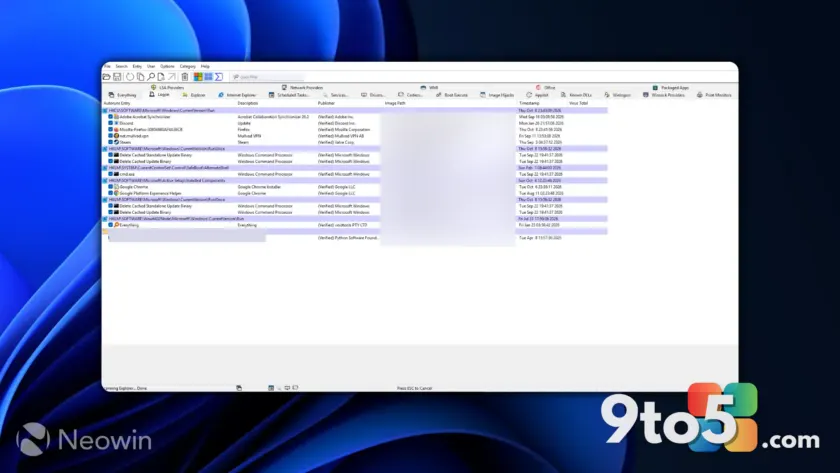
For a full inventory of everything that starts with Windows, the go-to utility is Autoruns, part of the free Sysinternals suite from Microsoft. It scans every known startup location in one consolidated view, giving you the most complete picture available on a consumer Windows machine.
Launch Autoruns and you’ll see a long, alphabetically organized list. Each entry shows its location, publisher, status, and command. The program is organized into tabs so you can filter by category:
- Logon—programs and services that run when you sign in.
- Explorer—shell extensions and context-menu handlers.
- Services—Windows services set to start automatically.
- Drivers—kernel-level drivers loaded at boot.
- Always Execute—entries that run before you even reach the desktop.
- Scheduled Tasks—jobs triggered by time, login, or system events.
Autoruns also color-codes each entry so you can quickly judge trustworthiness. White entries have a valid digital signature from a verified publisher. Yellow entries are signed but the publisher isn’t in Microsoft’s verified list. Pink or red entries have no signature at all—these are the ones worth investigating. Blue entries are empty placeholders, and green entries are signed with Authenticode.
If you spot an entry you don’t recognize, right-click it and choose Online Search. Autoruns queries multiple threat-intel and vendor databases to tell you what the file does and whether it’s safe. You can also disable any entry directly from the tool by unchecking its box—no restart required to see the effect.
Built-in ways to find hidden startup apps without downloading anything
If you’d rather not install third-party software, Windows offers a couple of built-in routes to poke at startup entries, though neither is as thorough as Autoruns.
First, open Settings > Apps > Startup. This mirrors the Task Manager Startup tab, listing the same self-registering programs with an on/off toggle. It’s fine for turning off the obvious offenders, but it shares the same visibility limits.
Second, check the Startup folder directly. Press Win + R, type shell:startup, and press Enter. This opens the per-user Startup folder; for all-users entries, use shell:common startup. Any shortcut sitting in these folders launches at sign-in, and you can inspect or delete them here.
These built-in routes are useful for quick checks, but they still won’t reveal scheduled tasks, services, or shell extensions. For that level of detail, Autoruns remains the definitive option.
What this means for you
For most users, the Task Manager Startup tab is plenty for disabling the occasional program you don’t need. But if your PC feels sluggish on boot, if you’re troubleshooting malware, or if you simply want to know exactly what’s running, relying on that single tab will leave you guessing.
The practical takeaway is simple: use the built-in toggles for everyday cleanup, but reach for Autoruns when you need the full story. Because it flags unsigned and unverifiable entries, it doubles as a lightweight sanity check on software you didn’t knowingly install—something that matters especially if a program arrived bundled with a download.
How to get it
Autoruns is free and requires no installation. Download it from Microsoft’s Sysinternals site, extract the ZIP, and run Autoruns.exe. Running it as an administrator gives you access to system-wide entries you’d otherwise see grayed out. On first launch, accept the license agreement and the tool builds its complete startup inventory automatically.
Keep in mind that Autoruns is a power-user tool. Disabling an entry you don’t understand can break software or system functions, so it’s wise to research anything unfamiliar before turning it off. A good rule of thumb: trust white and green entries, and be cautious with yellow, pink, and red ones.
Source: Neowin
Over to you: Do you still trust Task Manager’s Startup tab, or have you already switched to Autoruns for the full picture?