Microsoft is quietly adding two small but genuinely useful touches to Windows 11, and both feel like they belong in the main branch rather than the experimental back channel. According to reporting from Windows Latest, the Insider Experimental channel is testing a Windows 11 taskbar option that swaps hover thumbnails for a simple list of window titles, along with a new Mobile devices tile in Quick Settings that lets you ring, silence, or locate a linked Android phone without opening Phone Link.
I dug into both, and here is what actually changed, who it affects, and how you can try them today.
#1 Taskbar list view instead of thumbnails
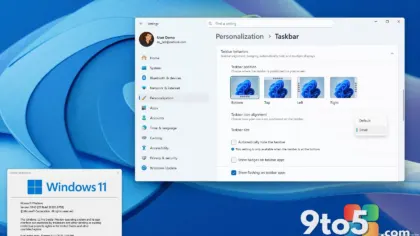
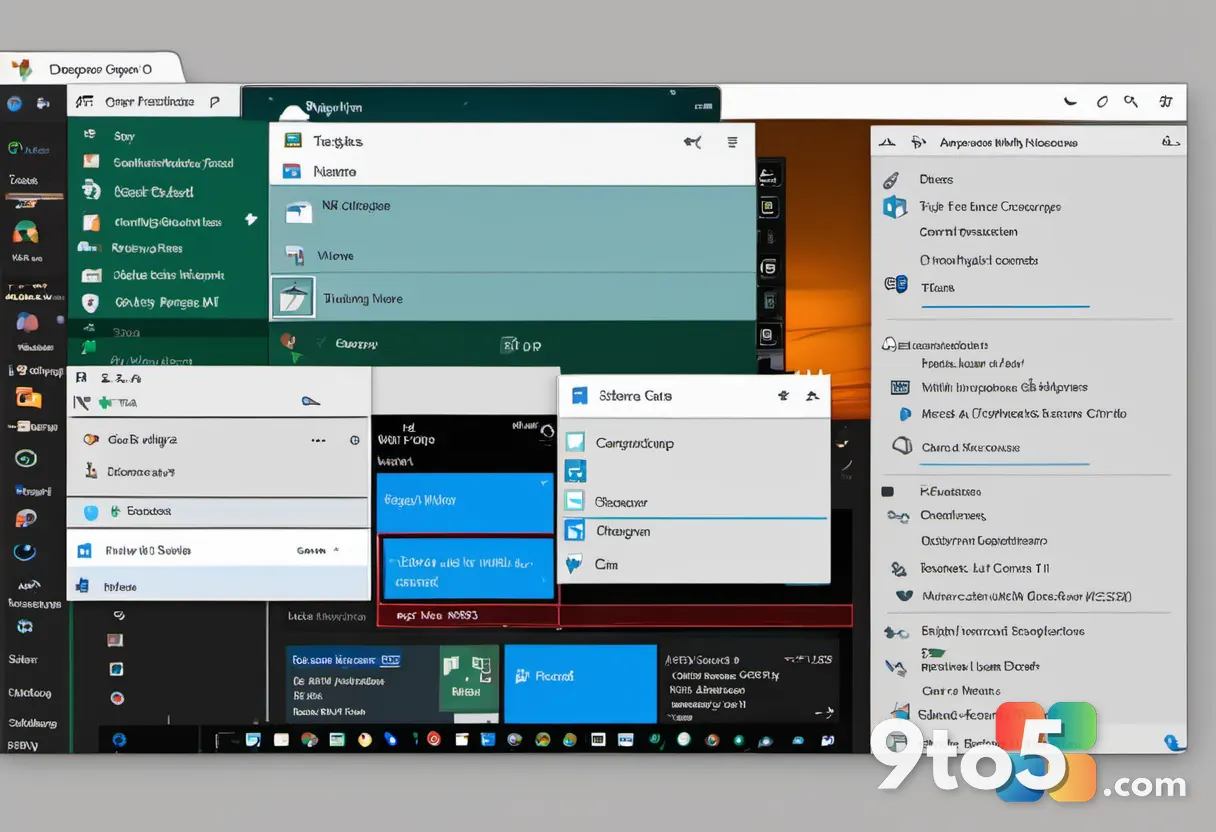
By default, hovering your cursor over a taskbar app icon in Windows 11 shows a live thumbnail preview of that app’s open windows. The new option, called “Show taskbar previews as”, lets you replace those previews with a compact, text-based list of window titles. It sounds minor on paper, but for anyone who keeps a dozen or more windows open, it can make the taskbar noticeably easier to scan.
The setting lives under Settings > Personalization > Taskbar, wedged between “Combine taskbar buttons and hide labels” and “Show smaller app icons”. Just a few rows above it sits the toggle Microsoft added earlier this year that lets AI assistants see your open apps when you share a window. The dropdown offers two choices: Thumbnail, which is the default, and List.
As with the vertical taskbar and the return of the movable taskbar, this is another case where Windows 11 is giving users control over a layout choice that older versions simply assumed. Being able to pick the view that suits how you work is the kind of small freedom that quietly improves a daily-driver experience.
How the list view works in practice
With List selected, hovering over an open window on the taskbar produces a slim row showing just the app icon and the window title. To see it in action, the tester opened the About Windows dialog by running winver, and the hover card displayed only “About Windows”. Switching back to Thumbnail brought up the usual live preview of that dialog, complete with its title bar.
The practical upside shows up when you have several windows open inside a single app. Thumbnail previews show a visual snapshot of each window, which works well when the windows look noticeably different from one another. A text-based list makes better use of horizontal space and is often faster to read when many windows are stacked together, letting you jump straight to the title you need instead of scanning several large previews.
There is also a privacy angle worth noting. If you hover over the taskbar while presenting your screen in a meeting or on a shared monitor, a plain title gives away far less than a live preview of your inbox or a half-typed document. For anyone who shares a screen regularly, that is a meaningful difference.
Why this looks a lot like Windows XP
If the list view feels nostalgic, that reaction is justified. Windows XP introduced taskbar grouping, which combined the buttons from a single app into one button once the taskbar got crowded. Clicking that grouped button opened a menu listing every open window by its title. There were no previews back then, since live taskbar thumbnails did not arrive until Windows Vista and its Aero visual style.
Windows 7 kept the list around as a fallback. Its taskbar showed thumbnails by default but automatically switched to a list when an app had too many windows to fit on screen, or when you were running a Basic or High Contrast theme. Power users could even force list mode with a NumThumbnails registry value, but that trick stopped working in Windows 11 version 24H2.
Microsoft seems to be having a Windows XP moment of its own lately. Windows and Devices chief Pavan Davuluri recently said that 3D Pinball is on the list of things the company will consider for Windows 11, and the team has also explained how Windows XP tricked broken apps into working. With the return of the movable taskbar and now a list view, Windows 11 keeps reviving options that older versions already offered.
#2 Mobile devices tile in Quick Settings
The second feature brings phone controls closer to home by adding a Mobile devices control to Windows 11 Quick Settings, the panel you open with Windows key + A. Once a phone is linked, the tile takes the phone’s name, which appeared as “Gareth’s A26” in the tester’s setup. Clicking the arrow next to it opens a Mobile devices page that lists your linked phones, complete with a “More mobile device settings” link and a plus button at the bottom for adding another device.
This matters because Phone Link already offers these controls, but only after you open the app. Folding them into Quick Settings means the phone’s shortcuts sit right alongside the PC’s own volume slider and Do Not Disturb toggle, which is exactly where you would expect cross-device controls to live.
Ring, silence, or locate your phone from the PC
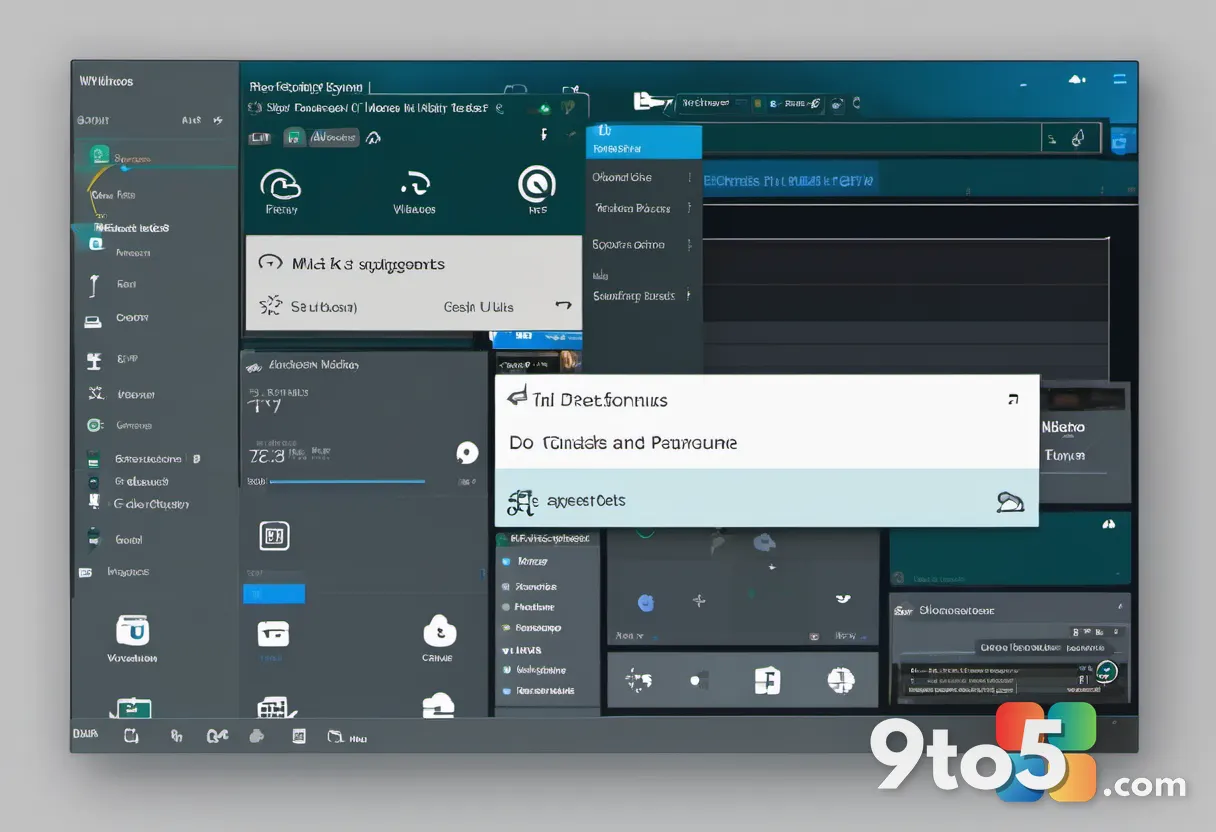
Selecting a phone expands three buttons: Do Not Disturb, Volume, and Play sound, along with an On toggle and a shortcut icon next to the phone’s name. In the current preview you can turn Do Not Disturb on or off, adjust the phone’s ringer, and play a sound to help find a misplaced phone. All of it is reachable in a couple of clicks from the taskbar.
The Play sound control is the one that will see the most use. Phones have a habit of slipping between sofa cushions or vanishing under a pile of paperwork, and being able to make the phone ring from your desk without hunting for it is a genuinely handy shortcut.
Microsoft is also pushing the relationship the other way around, with Link to Windows set to shut down or restart your PC from your phone, so the two devices are working together in both directions.
What you see when no phone is linked
The tile is designed to be clear about its own state. Without a linked phone, it simply shows “Mobile devices”, and the page displays “No mobile devices” with a note telling you to connect one in Settings. If you have not connected a phone yet, the Quick Settings experience lets you add one straight from the panel by opening the Add device dialog, which includes a link back to the Mobile devices page in Settings.
The Add device window asks you to choose between Android and iPhone. Mobile devices work with both, though the tester only confirmed the controls with an Android phone, so it is not yet clear whether iPhone owners get the same set of buttons.
If you turn Mobile devices off on the PC, the tile turns grey and the page reports that “Mobile devices is turned off”, with a prompt to switch it back on in Settings. Rather than leaving you to guess why cross-device features stopped working, Windows now tells you directly.
How to enable both experimental features
Both features are currently hidden in Windows 11 build 26340.9577 in the Experimental channel, though the tester enabled them on build 26340.9596. Microsoft did not list either feature in the release notes for 26340.9577 (September 25) or 26340.9596 (October 2), which is typical for features still being shaped behind the scenes. As with other experimental Windows features, Microsoft may change their design or capabilities before they ship.
If you are on one of those builds, you can turn them on with ViveTool:
- Download ViveTool from its GitHub page and extract it to a folder.
- Open Command Prompt as administrator and navigate to that folder.
- Run vivetool /enable /id:62932453 for the taskbar list view.
- Run vivetool /enable /id:62103454 for the Mobile devices tile.
- Restart your PC, then choose List under Settings > Personalization > Taskbar > Show taskbar previews as.
Hidden features can be buggy, so it is worth trying these on a test PC rather than your primary machine. If something misbehaves, you can reverse the change with vivetool /disable using the same IDs.
What this means for you
Neither feature is revolutionary, but both target the small frustrations that interrupt a busy workflow. The taskbar list view is for anyone who lives with many windows open and would rather scan titles than thumb through previews, and it doubles as a lightweight privacy tool when you are sharing a screen. The Mobile devices tile is for anyone with a linked Android phone who is tired of opening Phone Link just to silence a ringing phone or track down a lost one.
Both are experimental, so expect rough edges and no guarantee they will reach the general public. The taskbar list view, in particular, is a feature Windows users have wanted for years, so its appearance here is a strong signal that Microsoft is listening. If you want to try them, the ViveTool steps above are the only current path, and they should be treated as a hands-on experiment rather than a daily-driver setup.
Do you prefer the classic thumbnail previews, or would you switch your Windows 11 taskbar to a list of window titles?
Source: Windows Latest
Build details:
- Build 26340.9596
Over to you: Do you prefer the classic thumbnail previews, or would you switch your Windows 11 taskbar to a list of window titles?