When you try to delete, rename, or move a file in Windows 11 or Windows 10 and the operation fails, you’ll typically see a message like “Action can’t be completed because the file is open in another program.” That line tells you a process has the file open, but it won’t name the culprit. This guide shows you how to find the process locking a file and release it.
Files get locked whenever an application opens them for reading or writing and hasn’t released them yet. Word documents, spreadsheets, databases, log files, and even images can be held open by a running program. Sometimes the cause is obvious — you have Notepad open with the file on screen — but often the lock comes from something running quietly in the background: a preview handler, an antivirus scan, a cloud-sync client, or a service you’d never think to check.
Method 1: Find the process locking a file with Resource Monitor
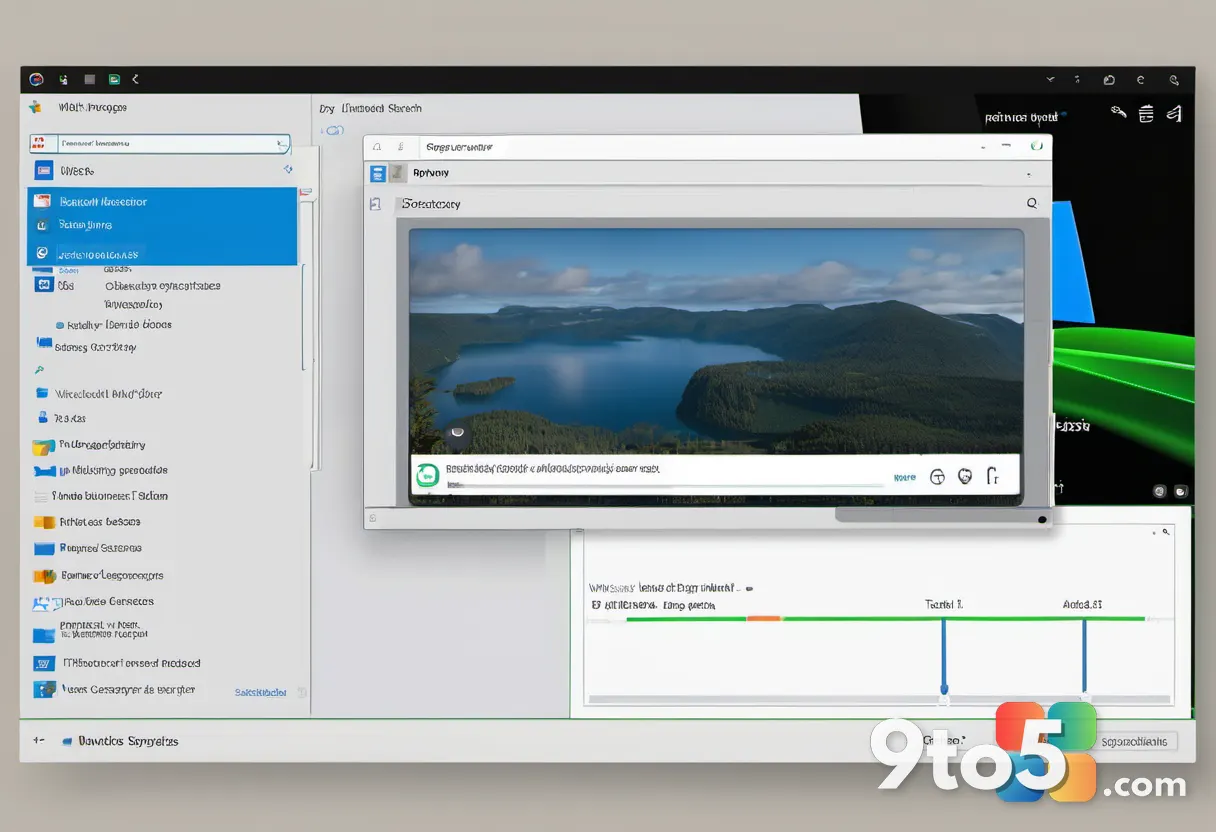
The fastest built-in option is Resource Monitor, a tool already shipped with Windows. It scans every open handle on the system and lets you search for a specific file by name.
- Press Win + R, type
resmon, and press Enter. (Alternatively, open Task Manager, go to the Performance tab, and click Resource Monitor at the bottom.) - In Resource Monitor, switch to the CPU tab.
- Scroll down to the Associated Handles section and expand it.
- Type the file name — or part of its path — into the Search Handles box.
- The results list every process that currently holds a handle to that file, along with the full handle path.
The process name in the results is your answer. If it’s a program you recognize, closing that app usually releases the lock. If it’s a system process, you’ll want to dig a little deeper.
Method 2: Take a quick look in Task Manager
For the common case where a visible window is the problem, Task Manager can reveal the offender at a glance. Open it with Ctrl + Shift + Esc, and scan the list for any app that could plausibly be using your file. This won’t pinpoint an obscure background lock, but it’s instant and requires no extra tooling.
Method 3: Use Sysinternals Process Explorer for the detailed view
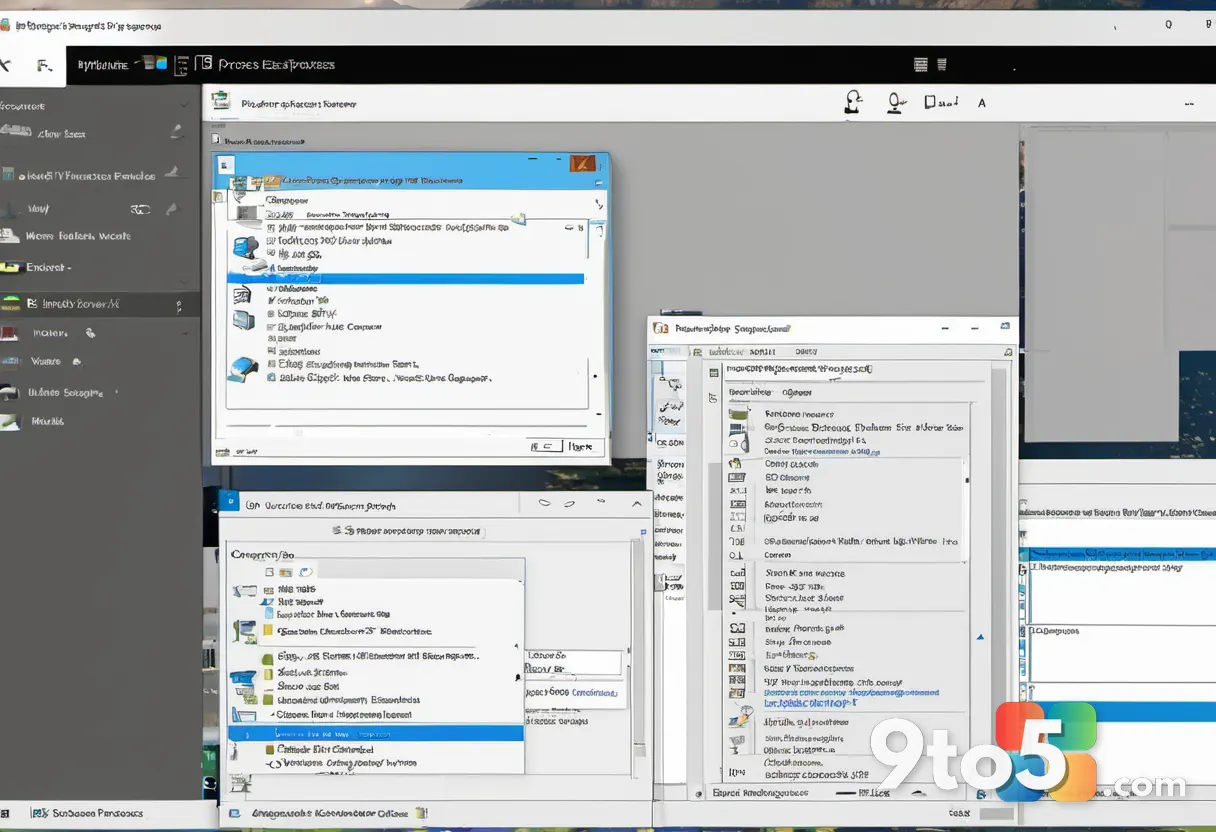
If Resource Monitor doesn’t cut it, Microsoft’s free Sysinternals Process Explorer is the standard tool IT pros reach for. It gives you a live, searchable view of every open handle across the system.
- Download Process Explorer from the Microsoft Sysinternals site and run it (it works without installation).
- From the Tools menu, choose Open File Handle… — or press Ctrl + H.
- Type the file name in the dialog and click Search.
- Process Explorer lists the exact process ID and the handle it holds.
It also offers a Search Handles option under the Tools menu, which hunts for files by name across the whole system. Because it shares its engine with many routine “what’s using my resources” investigations, it’s a worthwhile addition to any troubleshooting toolkit.
Method 4: Use the Handle command-line tool
For those who prefer the command line, the Sysinternals Handle utility performs the same job from a prompt.
- Download and extract Handle.
- Open a Command Prompt and run
handle.exe <filename>— for example,handle.exe report.pdf. - The output shows each process ID and handle associated with that file.
Handle can even close a handle remotely with handle -c <handleid> -p <processid>, though closing a handle from outside the owning process is risky if you aren’t certain what’s using the file.
What this means for you
For most users, Resource Monitor is all you need. It’s built in, requires no download, and returns the process name in seconds. Reserve Process Explorer and Handle for the stubborn cases where a lock won’t release and you need to know precisely what’s holding on.
In practice, the fix is usually simple: identify the process in Resource Monitor, then close that program (or end its task in Task Manager) and retry your delete, rename, or move. If the lock is held by a system service or something you can’t easily close, a quick reboot clears it — every process releases its handles on shutdown.
Avoid the headache going forward
The locks themselves aren’t the problem; they’re a safety feature that stops you from altering a file mid-write. But if you hit them often, keep a process-inspection tool handy and get into the habit of closing documents before moving them. And remember: when in doubt, a restart clears every lock at once.
Source: Neowin
Over to you: Have you tracked down a stubborn file lock with Resource Monitor, or do you just reboot and move on?