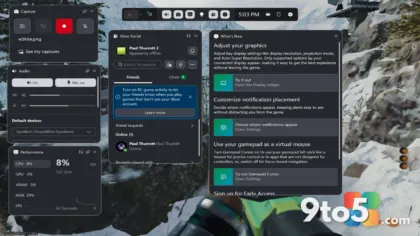
Windows 11 camera access just got a practical upgrade. Microsoft has changed how the operating system handles camera permissions so that multiple apps can now use your webcam at the same time — a capability that wasn’t available until recently.
If you’ve ever jumped from a video call into another app that needs the camera, or tried to run a camera-based tool while on a call, you’ll recognize the old limitation. For a long time, Windows 11 let only a single app hold the camera at any given moment. Open a second one and the first got cut off.
What changed with Windows 11 camera access
The core change is straightforward: the operating system no longer forces a one-app-at-a-time rule on the camera. Several apps can now request and use the webcam simultaneously without one silently taking over from another.
Previously, the behavior was abrupt. If you had a camera app open and launched another one — say, switching from the Camera app to a video conferencing tool — Windows would cut the first app’s feed. In some cases you’d get a notification that another program was using the camera. Either way, only one app won.
That restriction existed for a reason. Microsoft built the single-app rule as a privacy and clarity measure, so users could always tell exactly which program was looking through the webcam. The idea was to prevent a sneaky app from grabbing the camera without your knowledge. The new change keeps that transparency — you still control whether apps can use the camera at all — while removing the artificial bottleneck.
How to enable multiple apps to use the camera
The good news is that this doesn’t require a toggle you have to hunt for. The multi-app camera access is the default behavior once you’ve granted permission, so in most cases there’s nothing to switch on. Here’s how the permission side works.
- Open the Settings app on Windows 11.
- Go to Privacy & security in the left-hand menu.
- Scroll down and click Camera.
- Make sure the main Camera access switch is turned on.
- Below that, review the list of individual apps and ensure each one you want to use the camera has its switch enabled.
Once those switches are on, the apps you’ve approved can use the webcam together. There’s no separate “let multiple apps use the camera” option baked into the menu — the change is built into how Windows handles the permission once you’ve opted in.
What this means for you
For everyday users, the practical upside is real. Screen recorders that overlay your webcam in the corner can now run alongside a video call. You can join a meeting while another app — like a camera-driven annotation or background tool — also uses the feed, without one cutting the other out.
It also removes a small but annoying friction point. Before, switching between camera apps meant accepting that the previous app would go dark. Now the transition is smoother, and you’re not forced to fully close one program before opening another.

On the privacy side, nothing has gotten more restrictive. You still decide which apps can touch the camera, and Windows still shows a visual indicator when the webcam is in use. The change simply lets more of your approved apps act at once rather than forcing a single occupant.
How to get it
This isn’t a feature you install separately or opt into through a setting. It ships as part of the ongoing Windows 11 updates, so keeping your system current is the way to have it. If you’re on a recent build, the multi-app camera behavior should already be in place.
To make sure you’re up to date, go to Settings > Windows Update and check for the latest updates. Microsoft has been rolling out privacy and camera-related refinements across regular updates, so a quick check should put you on the version that supports the change.
If you don’t see the behavior yet, it may simply be a matter of your build. Older Windows 11 builds predate the change, so a feature update rather than a small cumulative patch could be what unlocks it. Check Settings > System > About to see which build you’re running, and compare it against what Microsoft has released most recently.
Source: Neowin
Over to you: Do you actually run more than one camera app at the same time, or was the single-app rule never a problem for you?