Microsoft has given New Outlook a way to wear its predecessor’s clothes. A new optional setting lets you turn Outlook Classic’s look into a “theme” for New Outlook on Windows 11 and Windows 10, and after testing it, the resemblance is closer than you’d expect.
The New Outlook classic theme recreates the familiar interface most users have grown accustomed to over the years, even though the app underneath remains a web program running in an Edge-powered container. Here’s what changed, what it affects, and how to turn it on.
How to turn on the classic theme
The setting lives in the usual place. Open New Outlook, go to Settings > General > Appearance, and you’ll find a toggle called “Enable classic Outlook style.” Flip it on, and the interface shifts toward the classic look.
Microsoft began rolling the option out in August 2026, and it has since reached PCs like mine. If you don’t see it yet, it’s still trickling to some users—waiting on the same staged deployment that has delayed other New Outlook features.
What the New Outlook classic theme changes
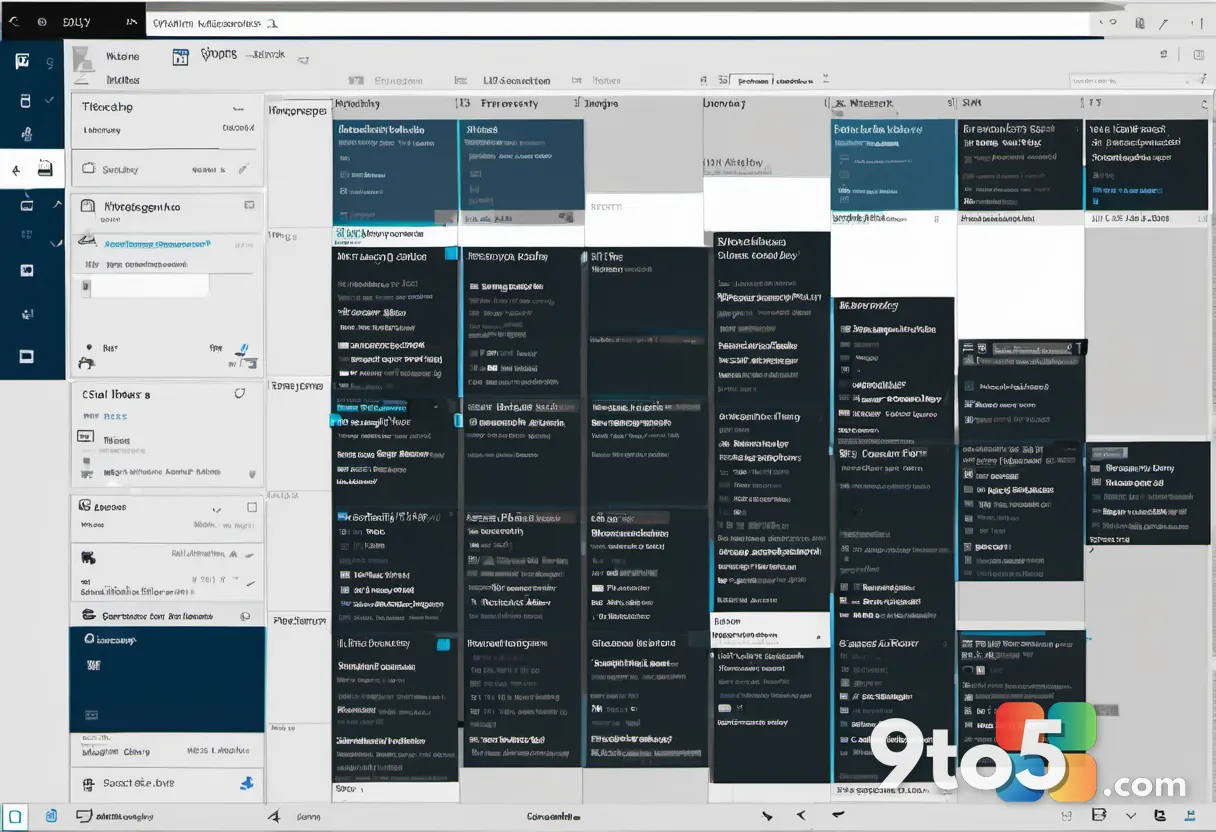
Once enabled, the changes span most of the interface. The title bar, icons, folder list, and ribbon all shift to resemble the classic version. In practice, you’d be surprised how identical the two can look side by side.
The most obvious tell of New Outlook—the blue patterned title bar that became a flagship design element—gets replaced with a plain dark background, matching the classic app. Everything else follows suit.
The navigation bar and icons
The navigation bar gets an update, though the changes here are more modest. In dark mode, the background gets darker, and the Mail, Calendar, People, and other app icons switch to monochrome outlines.
You also get a fresh Calendar view when the classic theme is active, swapping New Outlook’s colorful calendar styling for something closer to the classic treatment. Right now, New Outlook ships with colorful icons, so swapping to flat outlines and darkening the background does most of the heavy lifting.
The ribbon and compose window
The ribbon—the toolbar full of commands—gets the most familiar treatment. In mail view, you’ll now see a Send / Receive tab sitting alongside File, Home, View, and Help.
The blue “New mail” button becomes a neutral “New Email” button, copying classic Outlook’s iconography. When you open the compose window, you’ll find the same classic-style layout: Message, Insert, Format Text, Draw, and Options tabs across the top, with formatting controls in the ribbon below.
What Microsoft says
In a support document reviewed by Windows Latest, Microsoft confirmed it’s paying attention to iconography and typography to bridge the gap between the two apps.
“When enabled, the setting applies coordinated changes across the Outlook experience, including visual styling, layout, typography, icons, and selected interactions,” Microsoft explained. “This update is designed to help users who are transitioning from classic Outlook by providing a more familiar experience while maintaining the capabilities of the new Outlook.”
Microsoft has also redesigned the mail folder list to look more compact. You’ll no longer see icons beside individual folders such as Inbox, Drafts, and Sent Items, matching the classic layout.
What this means for you
The theme does an honest job of recreating the classic look, but it doesn’t change what New Outlook actually is. It’s still a web app running inside an Edge-powered container, which is why these visual tweaks are so easy to pull off—Microsoft is styling a website, so a bit of CSS and JavaScript can take you from the new design back to the one you loved.
That also means the app still can’t work offline. New Outlook refuses to go native, so if you’ve ever been blocked from reading mail without an internet connection, this theme changes nothing about that. And it remains a heavier RAM consumer than the original Outlook Classic, which runs as a proper native Windows app.
For users who simply want the familiar look without the learning curve, this is a genuine relief. But for those who want the classic performance and offline behavior, the real ask hasn’t been answered.
How to get it
If you already use New Outlook, keep an eye on Settings > General > Appearance for the “Enable classic Outlook style” toggle. Microsoft started deploying it in August 2026, so it should reach most users in the coming weeks. If you haven’t switched to New Outlook yet, you can opt in from the classic app’s conversion prompt.
Source: Windows Latest
Over to you: Have you turned on the classic theme in New Outlook, or are you still waiting for Microsoft to build a proper native app?