Windows 11 keeps receiving new features every month, but most users notice almost nothing visibly different after installing the upgrades. That disconnect has prompted Marcus Ash, Microsoft’s design and research boss for Windows & Devices, to publicly respond to a long-running complaint.
Why Windows 11 features don’t show up
Marcus Ash opened up about the issue, acknowledging that people want to share the latest Windows features with friends and family once they’re broadly available — but they sometimes don’t show up right away when checking for updates.
He insists gradual rollouts are intentional and beneficial, allowing Microsoft to ensure stability before a feature reaches everyone. In practice, that means you install a quality update and the shiny new option simply isn’t visible yet, even though it’s technically part of the build.
The gradual rollout and the “waves”
According to Ash, updates arrive in waves. So even if you’ve installed the September 2026 Update — which ships the movable taskbar, a smaller start menu, and cleaner Windows Search — nothing may appear immediately.
You might get it automatically a few weeks later when the next wave kicks in. Microsoft doesn’t plan to change this approach, but it did offer a workaround to speed things along.
The toggle that “half works”
Ash told users to turn on “Get the latest updates as soon as they’re available” in Settings > Windows Update. Doing so, he said, makes you “among the first people to receive” new features when they’re ready for your device.
He posted this guidance on X, writing: “As more Windows Quality improvements make their way into retail builds, this is an easy way to be among the first people to receive them when they’re ready for your device.”
But our testing found the toggle doesn’t instantly unlock new features. It does, however, prioritize devices that enable it during the gradual rollout. So the fix works — just not as cleanly as advertised.
What Windows 11 features are coming?
Installing the monthly update doesn’t guarantee you’ll see all changes right away, and this trend will continue for everything shipping in the next few weeks. Here’s what Microsoft is working on, with several already available to Windows Insiders.
#1 A customizable context menu
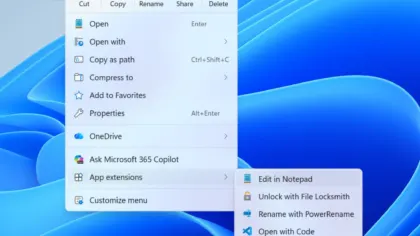
Microsoft is testing a new tool that lets you decide what appears in the right-click menu. There’s also a promise of a faster, cleaner context menu that organizes app extensions and displays Copy, Delete, and other actions in a vertical list.
This follows Microsoft’s own admission that Windows 11’s right-click menus had become slower and more cluttered than Windows 10’s, plus its promise to fix the sluggish and messy user experience.
#2 Faster File Explorer and responsiveness
Windows 11 is testing faster File Explorer and better overall responsiveness, with more performance improvements planned for this fall. This is part of a broader push to address complaints about the OS feeling sluggish under everyday use.
#3 A smaller memory footprint
Microsoft plans to reduce Windows 11’s memory usage on PCs with 8GB RAM and above — addressing long-standing criticism that the operating system is a memory hog. The company has promised these optimizations land by the end of 2026.
#4 A WinUI replacement for the Run dialog
An optional WinUI-based replacement for the classic Run dialog brings a refreshed interface and lets you open your user folder by typing a tilde (~). It’s another example of Microsoft gradually modernizing Windows 11’s legacy UI elements.
#5 A rebuilt Properties dialog
Microsoft is rebuilding the old Properties dialog with WinUI, adding dark mode and a cleaner layout. This is part of a wider pattern of redesigning Windows 95-era dialog boxes that still look out of place in the modern OS.
#6 Redesigned drive pop-ups
The pop-up that appears when you connect a drive is getting redesigned with WinUI 3, dark mode, and styling that matches Windows 11. These small UI fixes add up over time as Microsoft replaces legacy interfaces one by one.
#7 Remappable Copilot key
You’ll be able to remap the Copilot key to familiar functions, including Right Ctrl or the Context Menu key. This addresses a common complaint that the dedicated Copilot button sits unused for most users who don’t rely on the AI assistant.
#8 Bluetooth improvements and headset calls
Microsoft is testing improvements to Bluetooth connections and headset calls, including more accurate connection status, clearer volume feedback, and fixes for microphone compatibility and LE Audio. Bluetooth on Windows 11 has been widely criticized as a “hot mess,” and these nine major fixes aim to straighten it out.
What this means for you
For everyday Windows 11 users, the takeaway is simple: installing the monthly update is only half the story. The features are in the build, but your device won’t unlock them until the rollout wave reaches you — unless you flip the toggle.
Turning on “Get the latest updates as soon as they’re available” won’t instantly surface every new feature, but it does bump your device higher in the queue. If you’re the type who wants the newest functionality sooner, it’s worth enabling.
How to get it
To try features earlier, open Settings > Windows Update and turn on “Get the latest updates as soon as they’re available”. From there, keep an eye on Windows Update for the waves of new capabilities. Insiders can get ahead of the curve even faster by enrolling into the Windows Insider program.
Source: Windows Latest
Over to you: Have you turned on the “Get the latest updates” toggle to speed up feature rollouts, or are you waiting for the waves to arrive naturally?