Microsoft is finally addressing one of the most frequently discussed user interface surfaces in Windows 11. According to recent findings in the latest Windows 11 preview builds, the company is shipping a complete redesign of the right-click interface, introducing full Windows 11 context menu customization that lets users restore the classic vertical layout, toggle individual commands, and prioritize performance out of the box. The overhaul comes after months of user feedback regarding menu speed, clutter, and the persistent demand to bring back the traditional Windows 10 arrangement for primary actions like cut, copy, and paste.
What Exactly Changed in the New Windows 11 Context Menu Customization
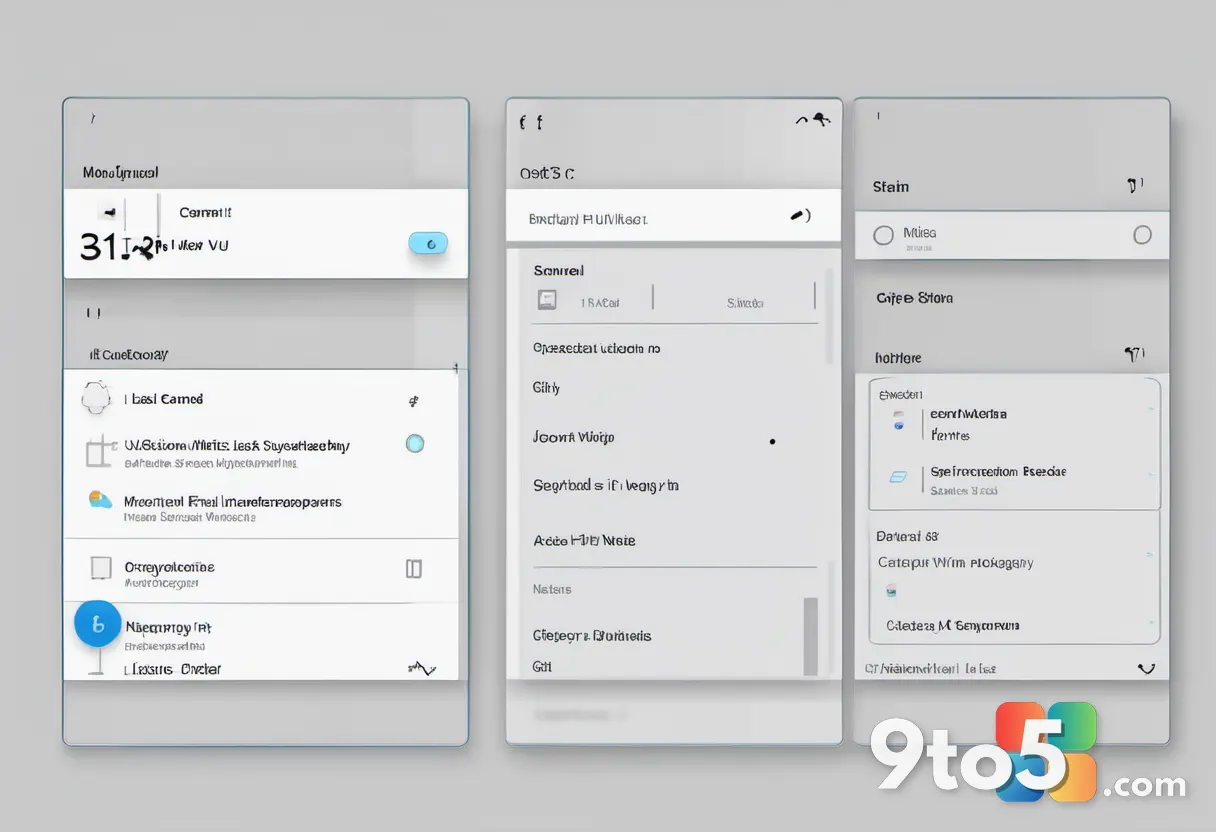
The most immediate change you will notice is a new Customize menu option anchored at the bottom of the right-click interface. Selecting that entry launches the Windows Settings app, where you will find a dedicated panel listing every action currently available in the menu. Each item comes with its own toggle switch, giving you granular control over what appears when you right-click a file, folder, or desktop background. The current list of toggleable actions includes Send to, Print, Create shortcut, Copy as path, Rotate image, App extensions, Arrange primary actions inline, and Keep cloud storage actions in their own section.
Microsoft has also restructured how primary commands behave. By default, cut, copy, paste, and similar shortcuts now sit at the very top of the menu in a horizontal row. This spatial shift was designed to reduce scrolling and make the most common operations instantly reachable. The new Settings panel lets you disable that horizontal grouping entirely, which directly ties into the second major change: the return of the vertical layout for primary actions.
How the Vertical Layout Option Works
The Arrange primary actions inline toggle is likely the feature that will draw the most attention from long-time Windows users. When disabled, the horizontal strip at the top collapses, and cut, copy, paste, and other primary commands drop down into the main list, matching the exact behavior of Windows 10 and earlier operating systems. This is not a hidden registry tweak or a third-party tool anymore; it is a first-party setting built directly into the operating system.
From a technical standpoint, the toggle also affects how the menu renders its underlying command tree. Microsoft confirmed via the Windows Insider Blog that the redesign separates the rendering pipeline for primary actions from the secondary command list, which should reduce input lag when the menu loads. In practice, this means right-clicking a file should feel noticeably snappier, especially on systems with slower storage drives or heavy background processes. The company is also keeping cloud storage commands, like OneDrive sync actions, isolated in their own section to prevent them from cluttering the local file operations.
Performance Defaults and the Legacy Menu
One detail that often gets overlooked in feature announcements is how Microsoft handles the initial rollout. By default, most of the toggleable actions in the new menu will ship in a disabled state. This is an intentional performance choice: a fresh Windows 11 installation will open with a streamlined, lightweight context menu that requires minimal rendering overhead. Users who want the full command set will need to manually enable the toggles they rely on.
The legacy Windows context menu is also still present in the codebase, though it no longer appears as a direct option in the modern menu by default. You can still locate and enable it through the same Settings panel, but Microsoft has removed the ability to set the legacy menu as the permanent default experience. This tells us that the company is moving forward with the new rendering architecture and expects users to adapt to the updated layout rather than maintaining backward compatibility as a first-class feature.
What This Means for You
If you have been frustrated by the horizontal command strip or slow menu load times, this update directly addresses both issues without requiring third-party utilities or registry edits. The toggle-based approach also means you can tailor the right-click experience to your specific workflow, whether you are a photographer who needs quick Rotate image and Print options, or a power user who relies heavily on Copy as path and App extensions. The default-disabled state might feel restrictive at first, but it is designed to give you a fast baseline that you can expand over time.
How to Get It
The customization panel is already visible in the latest Windows 11 preview builds, though it may require a feature flag or specific build number to activate. Microsoft has indicated that a formal announcement regarding the rollout timeline will arrive within the next two weeks. Users who want to test the changes immediately should navigate to Settings > Personalization > Context Menu (or the equivalent preview channel path) and look for the Customize menu entry at the bottom of the right-click interface. Those who prefer a stable experience should wait for the official feature drop in a production build.
Source: Latest from Windows Central
Over to you: Which toggle would you enable first, or are you keeping the default layout exactly as Microsoft ships it?