What Changed
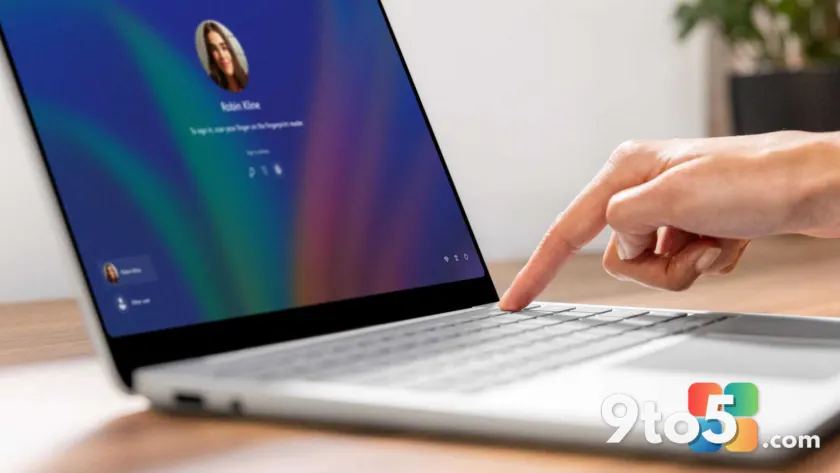
Microsoft has officially extended Windows Hello biometric authentication beyond laptops. With the release of update KB5101684, Windows 11 24H2 and 25H2 now officially support Windows Hello external fingerprint authentication on desktop PCs and Copilot+ PCs that lack an integrated reader. The company first announced the capability back in January, but the feature has only just begun rolling out to the general Windows 11 population.
According to the Windows Insider Blog, this update introduces Windows Hello Enhanced Sign-in Security (ESS) support for external fingerprint sensors. Previously, fingerprint sign-in was strictly limited to devices with built-in biometric hardware, leaving desktop enthusiasts and enterprise IT administrators without a convenient, secure alternative to passwords or PINs.
The change is straightforward but meaningful. If you have been waiting to use a dedicated fingerprint scanner on your desktop workstation, the necessary driver and policy groundwork is now baked directly into the operating system. You no longer need to rely on third-party authentication software or skip biometric login entirely.
How Windows Hello External Fingerprint Authentication Works
Setting up the new feature follows the same workflow you already know from Windows Hello on a laptop. Once you connect a compatible ESS fingerprint reader to a USB port, Windows 11 will recognize the device and prompt you to register your print. The configuration path remains Settings > Accounts > Sign-in options, where you will find the new fingerprint enrollment toggle.
Microsoft specifically requires readers that support Enhanced Sign-in Security. This is not a blanket USB HID driver update; the hardware must meet Microsoft’s biometric security standards to ensure the fingerprint data is processed and stored securely. The ESS requirement means that the scanner handles the initial capture and passes a verified authentication token to the operating system, keeping sensitive biometric templates off the network.
For IT administrators managing a fleet of desktops, the rollout is equally practical. Group Policy and Intune configuration profiles can now push ESS-compatible scanner support alongside standard Windows Hello policies. This removes a long-standing friction point for organizations that standardize on desktop workstations for security-sensitive roles.
What This Means for You
If you regularly type your password or PIN to unlock a desktop PC, this update removes a genuine security and convenience gap. Passwords remain vulnerable to shoulder surfing and credential stuffing, while PINs are often stored locally in a way that can be extracted if the device is compromised. A dedicated fingerprint reader adds a physical layer of authentication that is significantly harder to spoof.
For Copilot+ PC owners, the update aligns desktop biometric expectations with the premium laptop experience. Microsoft has been pushing hardware-secured identity as a core pillar of the Copilot+ ecosystem, and this rollout ensures that desktop users are not left behind when it comes to modern authentication standards.
There is also a practical security angle worth noting. Enhanced Sign-in Security enforces stricter cryptographic requirements for biometric data. In practice, this means that even if a scanner is physically compromised, the raw fingerprint template cannot be easily extracted or replayed. The feature is designed to meet the same baseline as Windows Hello on enterprise-grade laptops.
How to Get It
The update is currently rolling out through Windows Update for Windows 11 24H2 and 25H2. If you do not see it appear immediately, you can manually trigger a check by navigating to Settings > Windows Update > Check for updates. Microsoft typically stages feature additions like this in waves, so availability may vary slightly depending on your region and update channel.
Once the update installs, you will need to acquire a compatible ESS fingerprint reader. Microsoft has not published a specific hardware compatibility list in the initial announcement, but enterprise-grade scanners from established peripheral manufacturers are expected to meet the ESS requirement. Check your current scanner’s specifications for Windows Hello ESS certification before purchasing.
After installation, open Settings > Accounts > Sign-in options, select Fingerprint recognition, and follow the on-screen prompts to register your print. The setup process should take only a few minutes, and you will be able to use the scanner immediately after enrollment completes.
What to Do Next
If you are running Windows 11 24H2 or 25H2 on a desktop, prioritize installing KB5101684 when it becomes available in your update feed. The patch is a standard security and feature update, so it will not disrupt your workflow. Once installed, verify that your external scanner is recognized by checking the Sign-in options menu.
Enterprise admins should test the ESS reader compatibility in a non-production environment before rolling out the update via WSUS or Intune. While the OS-side support is now in place, hardware validation remains the responsibility of the deployment team. Document your compatible scanner models in your internal knowledge base to streamline future support tickets.
For users who prefer passwordless authentication, this update closes a major gap in Windows 11’s identity ecosystem. The combination of hardware-secured biometrics and modern Windows Hello policy enforcement makes desktop sign-in noticeably more secure and frictionless.
Source: PCWorld
Build details:
- kb5101684
Over to you: Which external fingerprint reader are you planning to pair with your desktop, or will you stick with your current password setup?