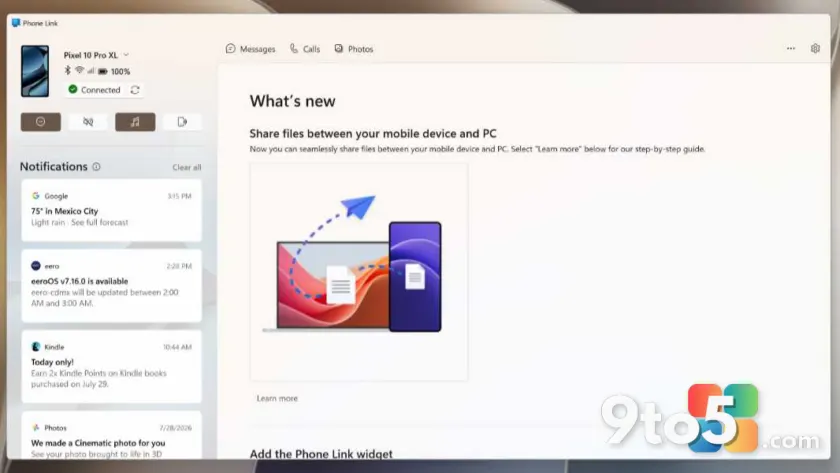
Phone Link Windows 11 is a built-in feature designed to bridge the gap between your mobile device and your desktop. Whether you carry an iPhone or an Android smartphone, this app allows you to manage calls, text messages, notifications, and recent photos directly from your PC screen. Instead of constantly switching between devices, you can keep your workflow uninterrupted while staying connected to your contacts.
According to Thurrott.com, the integration relies on a companion app installed on your phone that communicates with the Windows 11 client. The setup process is straightforward, requiring you to sign in with your Microsoft account on both devices and grant the necessary permissions for calls, messages, and media access. Once paired, the connection remains active in the background, syncing data in near real-time.
How Phone Link Works
The underlying technology behind Phone Link Windows 11 relies on a secure, encrypted connection between your phone and your PC. When you open the app on your desktop, it scans for paired devices using your Microsoft account credentials. You then launch the corresponding Phone Link app on your mobile device, which displays a QR code or a pairing code to establish the link.
Once connected, the desktop app mirrors key functions from your phone. You can answer incoming calls using your PC microphone and speakers, send and receive SMS messages, and view a feed of recent photos taken with your phone’s camera. The app also displays notifications from your phone, allowing you to triage alerts without picking up your device. Background syncing ensures that your messages and call history remain up to date even if you step away from your computer.
iPhone vs. Android Support
One of the most significant updates to Phone Link Windows 11 is the expanded support for iPhone users. Historically, this feature was limited to Android devices, but Microsoft has now integrated full compatibility for iOS. This change means that Windows 11 users no longer need to rely on third-party workarounds or separate Bluetooth headsets to manage their iPhone calls and messages from their desktop.
For Android users, the experience remains robust, with deep integration into the Samsung DeX ecosystem and support for a wide range of manufacturers. The companion app on Android can access more system-level data, including call history, contacts, and media playback controls, depending on the device manufacturer and Android version. iPhone users benefit from a streamlined set of features that prioritize calls, texts, and photos, ensuring a consistent experience across both platforms.
Key Features and Capabilities
Phone Link Windows 11 offers several practical tools that enhance daily productivity. The call management interface provides a dial pad, recent contacts, and active call controls, all accessible with a single click. Text messaging is handled through a familiar chat interface that supports emojis, attachments, and quick replies. The photo feed automatically updates to show your most recent captures, making it easy to pull images from your phone into documents or emails on your PC.
Additionally, the app includes a notification center that aggregates alerts from your phone, allowing you to dismiss or interact with them directly from your desktop. For users who frequently switch between devices, the synchronization ensures that you never miss a message or call, regardless of which device you are currently using. The integration also supports Bluetooth audio routing, meaning you can seamlessly switch between your phone’s microphone and your PC’s audio output during calls.
What This Means for You
For everyday Windows 11 users, Phone Link Windows 11 eliminates the friction of managing multiple devices. If you spend most of your day at your desk, you can stay connected to your phone without constantly reaching for it. The cross-platform support ensures that whether you prefer iOS or Android, you get a consistent experience. This is particularly useful for professionals who need to answer calls during meetings or send quick texts while working on a document. The feature also reduces screen time on your phone by handling routine tasks on your larger monitor.
How to Get It
Phone Link Windows 11 comes preinstalled on most modern Windows 11 devices. If it is missing from your system, you can download it directly from the Microsoft Store by searching for Phone Link. On your phone, you will need to install the Phone Link app from the App Store for iOS or the Google Play Store for Android. After installing both apps, sign in with your Microsoft account and follow the on-screen prompts to pair your devices. Ensure that both your PC and phone are connected to the same Wi-Fi network for the most stable connection.
Optimizing Your Setup
To get the best performance from Phone Link Windows 11, consider a few practical tips. Keep both devices updated to the latest operating system versions to ensure compatibility and security patches are applied. If you experience connection drops, check your firewall settings or temporarily disable third-party antivirus software that might block the local network communication. For Android users, enabling Bluetooth and Wi-Fi Direct can improve call quality and reduce latency. iPhone users should ensure that the Phone Link app has the necessary permissions for calls and messages in the iOS settings.
Looking Ahead
Microsoft continues to refine Phone Link Windows 11 based on user feedback and technological advancements. Future updates may introduce deeper integration with third-party messaging apps, improved photo management tools, and enhanced call quality features. As the app matures, it is likely to become an even more central part of the Windows 11 ecosystem, further blurring the lines between your mobile and desktop experiences. For now, it stands as a reliable, built-in solution for staying connected across devices.
Source: Thurrott.com
Over to you: Which device do you rely on most with Phone Link, your iPhone or Android phone?
You may also like
 A Lifelong Linux User Switched to Windows 11, and It Wasn’t About Idealism
 Windows 11 Insider Preview Build 29634.1000 Adds Voice Isolation, GIPHY, and HID Braille Support
 Clipchamp in Windows 11: A Complete Guide to Microsoft’s Built-In Video Editor
 Microsoft Admits WinUI Native Apps Hog RAM, Promises Performance Boost Before Start Menu Rewrite