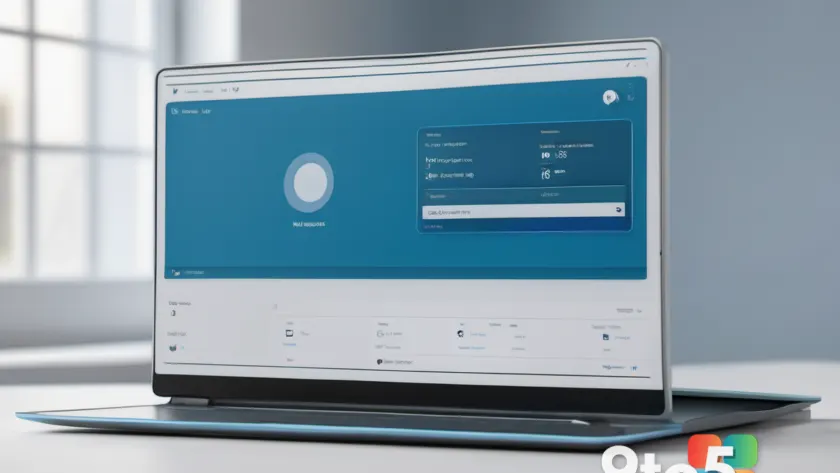
Windows 11’s Search has a new look and feel, and the update that delivers it is already available to install. Microsoft shipped the redesigned experience as part of the August 2026 optional update (KB5120998), stripping away the Bing web results, Copilot suggestions, and the cluttered home screen that had piled up over recent years. The one wrinkle is that the change does not switch on automatically for most people, so you may need to force it yourself.
According to Windows Latest, which has been testing the new Search on Insider builds for about two months, this is among the most-requested changes Microsoft has shipped to Windows 11 in a long time. The problem is distribution: because the update is optional and the new Search rides on a Controlled Feature Rollout, plenty of PCs will show the old interface even after installing the patch. Here is exactly what changed and how to get it running.
What changed with Windows 11 Search
The headline change is that Search no longer loads Bing web results, Copilot suggestions, or the daily image-of-the-day and trivia tiles that used to fill the panel. Open it without typing anything and you get a nearly blank home screen showing only your recent searches. That content was never native to Windows in the first place, so removing it also cuts the background web fetching that consumed RAM.
Beyond the cleaner home screen, Microsoft has tightened the actual search behavior. File results now fire off after just two characters instead of three, substring matching means a compound filename like StartMenuComparisonMay shows up whether you type menu or may, and typos are handled better, so typing utlook still surfaces the Outlook app rather than a Bing search for the misspelling.
Settings search got the same treatment, so searching for installed goes straight to the Installed apps page instead of a generic support article. Cloud and connected files also rank alongside local ones when they are the stronger match, which matters if you split work between OneDrive and your local drive.
How to force-enable the new Search
The new Search ships inside the code of the August optional update, but Microsoft only flips the remote switch for devices in stages. If your PC already has the update, you can turn the feature on ahead of the automatic rollout using ViVeTool, a small command-line utility that toggles hidden Windows features by their internal ID.
First, go to Settings > Windows Update and install KB5120998, the August 2026 optional update. It bumps you to build 26200.9278 on version 25H2, or 26100.9278 on version 24H2. Restart once it finishes, then open Search to check whether the new layout already appeared. Most PCs will not show it yet.
If it has not switched over, download ViVeTool from its official GitHub releases page. Grab the ViVeTool-v0.3.4-IntelAmd.zip file for Intel or AMD PCs, or the Snapdragon build if you are on a Copilot+ PC running on Arm. Extract the zip to a simple folder like C:\ViVeTool.
Next, open the Start menu, type cmd, right-click Command Prompt, and choose Run as administrator. Type cd C:\ViVeTool and press Enter to move into that folder. With Command Prompt still open as administrator, run the following command and press Enter:
vivetool /enable /id:62353331,62762248
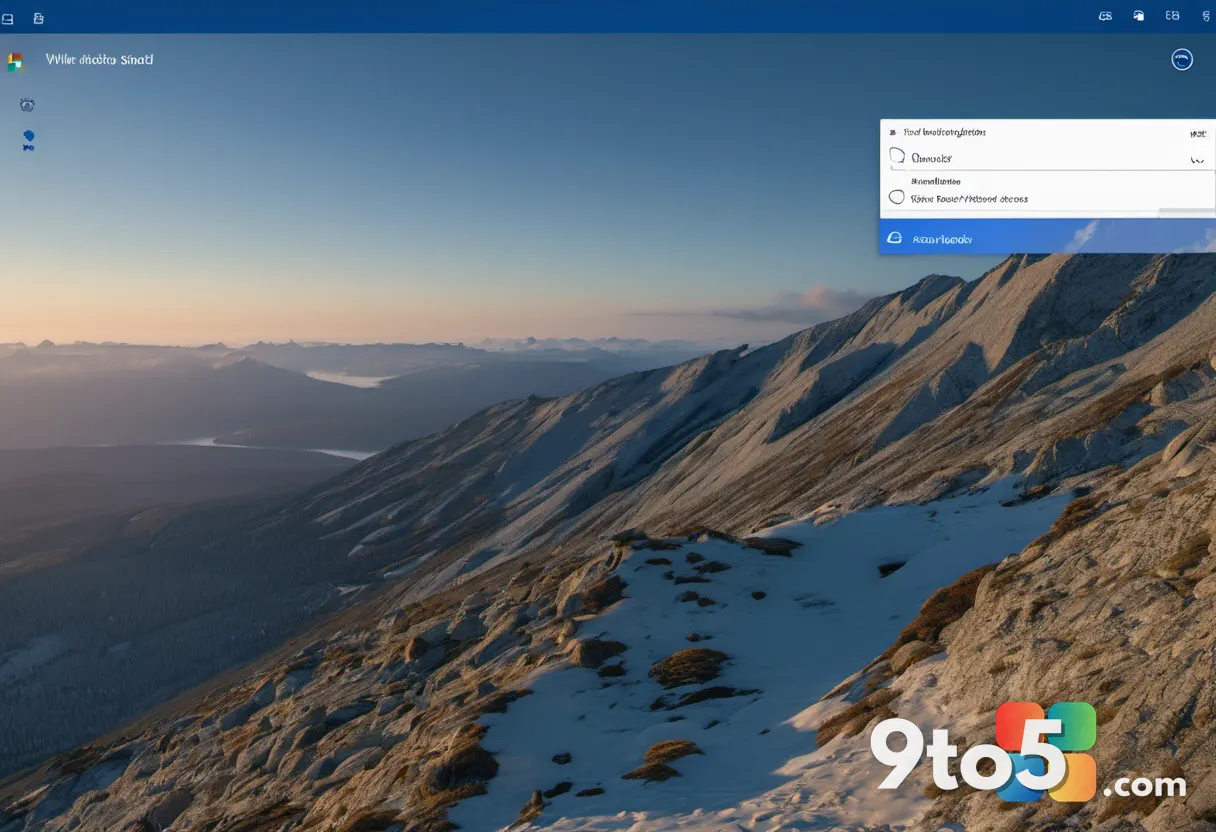
Restart your PC, open Search, and you should see the new layout. Click the Gear icon at the top-right of Search to reach its settings, where you will find a new Show suggested search results section with two separate toggles, one for Web Searches and one for Microsoft Store.
If nothing changed, or if you got the new layout but the web and Store toggles are missing, run the full feature bundle instead to make sure you have everything from this update, including the movable taskbar and customizable Start menu:
vivetool /enable /id:61161244,61754985,62353331,62762248
Restart again. To turn the new Search back off, run the same commands with enable replaced by disable. Keep in mind that feature IDs correspond to specific builds and can stop working once Microsoft folds a feature permanently into Windows.
What the new Search looks and feels like
With the toggles set the way you like them, the practical difference shows up in speed. Turning off Web Searches is where the responsiveness comes from, since Search no longer waits on a web round-trip before showing you results. With both toggles off, a search with no local match returns nothing at all, which is the point for people who want a purely local search.
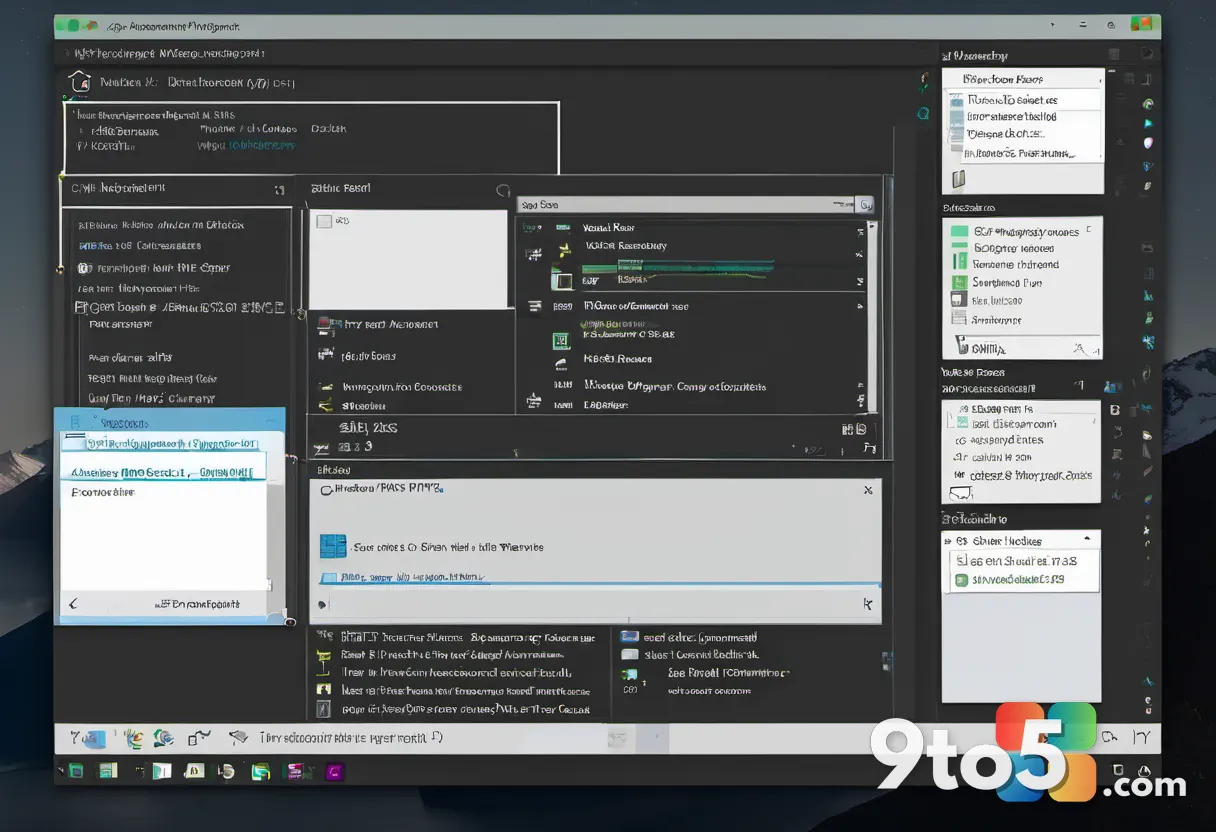
Results now carry labels showing where each one comes from: an app, a setting, a local file, a web result, or a Store suggestion. Search for a document and the preview pane on the right shows a proper thumbnail, the file path, the last modified date, and quick actions like Open and Copy path.
Microsoft also says Search reliability has improved, with fewer crashes and loading issues. In practice, the animation speed alone feels noticeably faster on a daily-driver machine, though that is a subjective impression rather than a benchmarked figure.
Known bugs in the August update
Before you install KB5120998, it is worth knowing that the update shipped with problems. Windows Latest first reported cursor styling breaking and wallpapers resetting to solid black right after the update went out, based on a fast-growing pile of user reports. Microsoft has since confirmed the cursor issue in its release health dashboard, stating that mouse cursor personalization settings are being changed or reverted to certain standard settings following installation of KB5120998.
The cursor problem means custom schemes can revert to a default look, a white cursor can turn into a larger black one (and vice versa), and cursor animations can stop working correctly. The wallpaper bug is still unacknowledged by Microsoft, resetting your desktop background to solid black on every restart.
The only confirmed fix for either bug right now is uninstalling KB5120998 through Settings > Windows Update > Update history > Uninstall updates. If you already installed the update and have not run into either issue, you are almost certainly fine to proceed with the ViVeTool steps above.
What this means for you
If you have been annoyed by the cluttered, web-heavy Search panel, this is a genuine improvement, and you can have it today by installing the optional update and running the ViVeTool command. If you have not installed the update yet and you care about a clean cursor and your wallpaper, it is arguably worth waiting. The mandatory Patch Tuesday update arrives September 8, 2026, and it folds in everything from this optional release, hopefully with a fix for the cursor and wallpaper bugs by then.
How to get it
To try the new Windows 11 Search now, install the August 2026 optional update KB5120998 (build 26200.9278 on 25H2, or 26100.9278 on 24H2), restart, then either wait for Microsoft to flip the rollout switch or force it on with ViVeTool using the feature IDs above. If you would rather avoid the cursor and wallpaper bugs, hold off until the September 8, 2026 Patch Tuesday update lands.
Source: Windows Latest
Build details:
- kb5120998
Over to you: Are you forcing on the Bing-free Search with ViVeTool today, or waiting for the September Patch Tuesday update to fix the cursor and wallpaper bugs first?