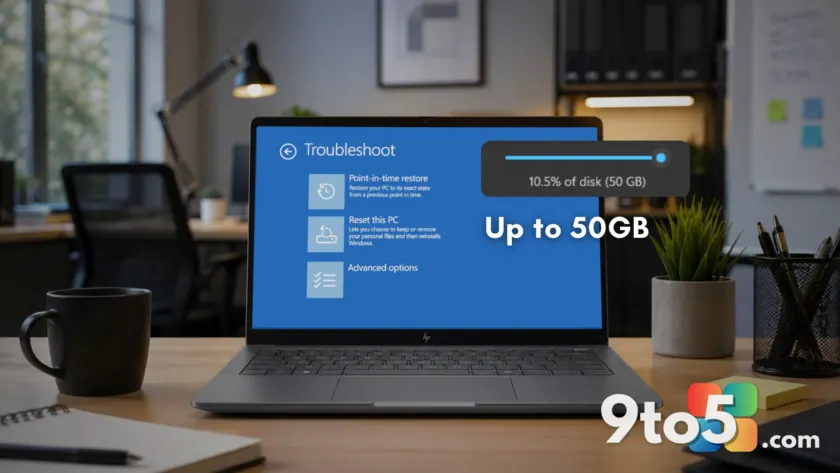
Microsoft is expanding Windows 11’s built-in safety net with a significant update to its Point-in-time restore feature. Arriving via the June 2026 optional update KB5095093 and scheduled for wider release in the July 2026 Patch Tuesday, this tool can consume up to 50GB of your local storage. While that number sounds large, it is designed as a hard ceiling for larger drives, ensuring you have a reliable way to roll back your system if an update or driver change causes a boot loop.
How much space does Point-in-time restore actually use?
The 50GB figure is the maximum limit, not a fixed requirement. According to Microsoft’s documentation, the feature defaults to using 2% of your disk size, with a minimum floor of 2GB and that aforementioned 50GB ceiling. This means the impact on your storage depends entirely on your drive capacity:
- 2.5TB Drive: 2% equals roughly 50GB.
- 512GB Drive: 2% equals approximately 10GB.
- 256GB Drive: 2% equals about 5GB.
Crucially, this space is not pre-reserved or carved out into a separate partition. The Volume Shadow Copy Service (VSS) only consumes free disk space as restore points are created. If your snapshots total 8GB, the remaining headroom remains available for your apps and files. Microsoft has also integrated this storage usage with Windows’ existing reserved storage system to minimize the net impact on your available drive space.
When does it turn on automatically?
You do not need to manually enable this feature if you have a sufficiently large drive. Microsoft has set a threshold where Point-in-time restore is switched on by default for devices with an OS volume of 200GB or larger. If you are running Windows 11 on a smaller drive, such as a 128GB SSD, the feature remains off until you choose to enable it in Settings.
For enterprise environments, the behavior differs slightly. On domain-joined PCs or devices managed via Intune, the feature is off by default until Windows 11 version 26H2. IT administrators can deploy it earlier using the Recovery CSP (Configuration Service Provider) policies.
Scheduling and retention settings
By default, Windows creates a new restore point every 24 hours in the background. These snapshots are retained for 72 hours before being automatically deleted to free up space. On Windows Home and unmanaged Pro editions, you can adjust the maximum storage usage slider in Settings, but you cannot change the frequency or retention period—those controls are reserved for Enterprise IT admins via Intune.
Enterprise administrators have more granular control, allowing them to set restore point creation as frequently as every 4 hours and adjust retention periods to 4, 6, 12, 16, or 24 hours. If free disk space on the OS volume drops to 20GB or below, Windows will automatically delete the oldest restore points to prevent competing with critical system operations.
How to use Point-in-time restore
To enable or configure the feature, navigate to Settings > System > Recovery and click View or edit next to Point-in-time restore. You will see a toggle switch along with sliders for frequency, retention, and maximum disk usage. Note that when you first enable it, Windows schedules a restore point promptly if none exists, though there is no visual progress indicator.
If your system becomes unbootable, Windows will typically drop you into the Windows Recovery Environment (WinRE) after three failed boot attempts. From there, select Troubleshoot and then Point-in-time restore. You will be presented with a list of available snapshots. If your drive is encrypted with BitLocker, you must enter your recovery key before proceeding. Once you select a snapshot and confirm, Windows rolls back the OS volume to that state, preserving your apps, settings, and files as they existed at that time.
What this means for you
This feature addresses one of the most frustrating aspects of PC ownership: dealing with a broken system after an update. While 50GB may seem like a lot, it is a reasonable trade-off for a full-system rollback capability that does not require external media or a complete reinstall. For users with smaller drives, the feature remains optional, giving you control over your limited storage. If you have a large drive and haven’t enabled system protection before, consider turning this on now to ensure you have a safety net before the next major update.
Source: Windows Latest
Build details:
- kb5094126
- kb5095093
Over to you: Would you enable automatic system snapshots if it meant sacrificing 5-10GB of free space on your drive?